The bursar is sent two kinds of warning about requisitions. Both arrive as messages in the inbox at the top right.
Steps
- Press the inbox button at the top right, then Open the inbox. Press the message to open it under its row.
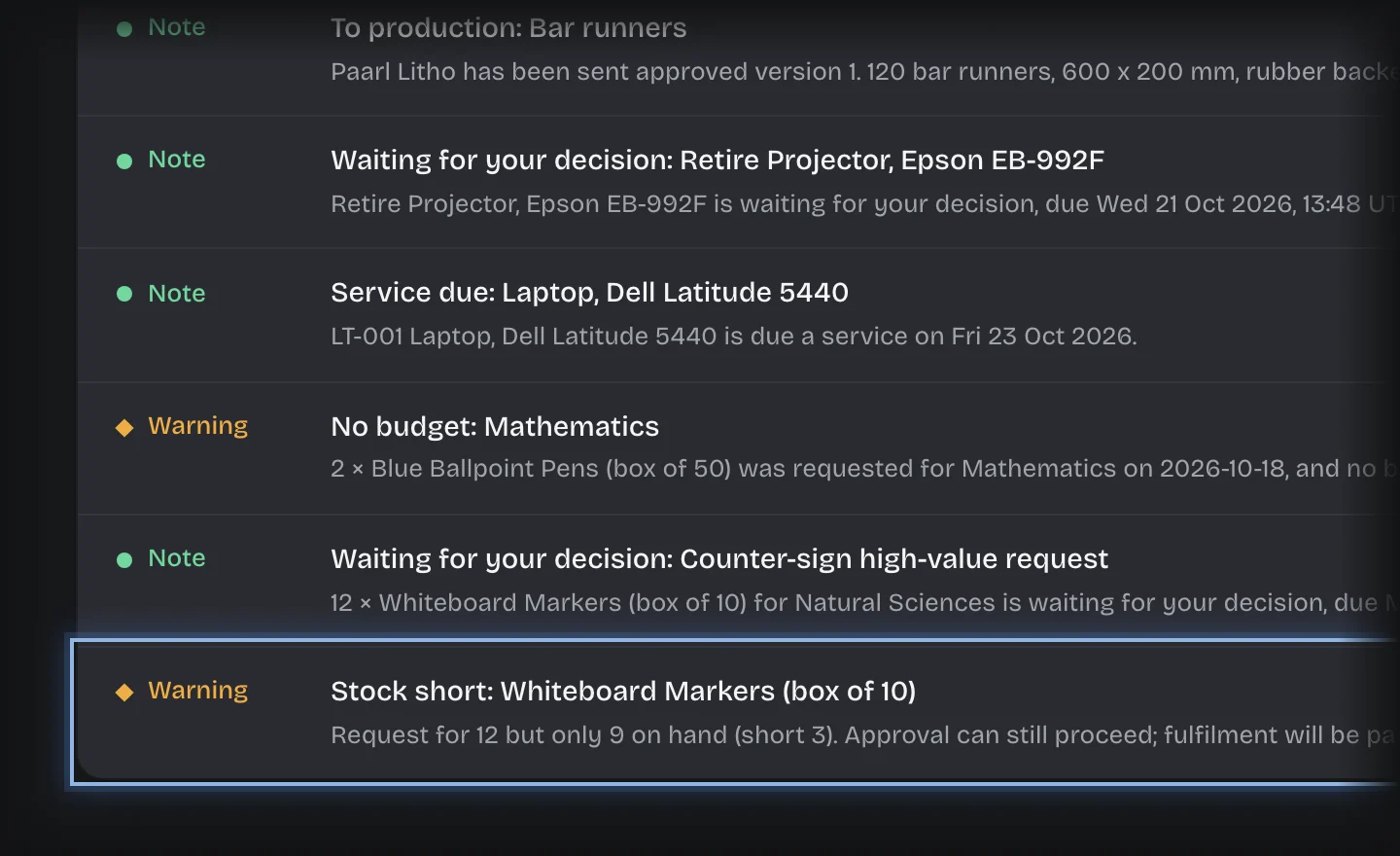
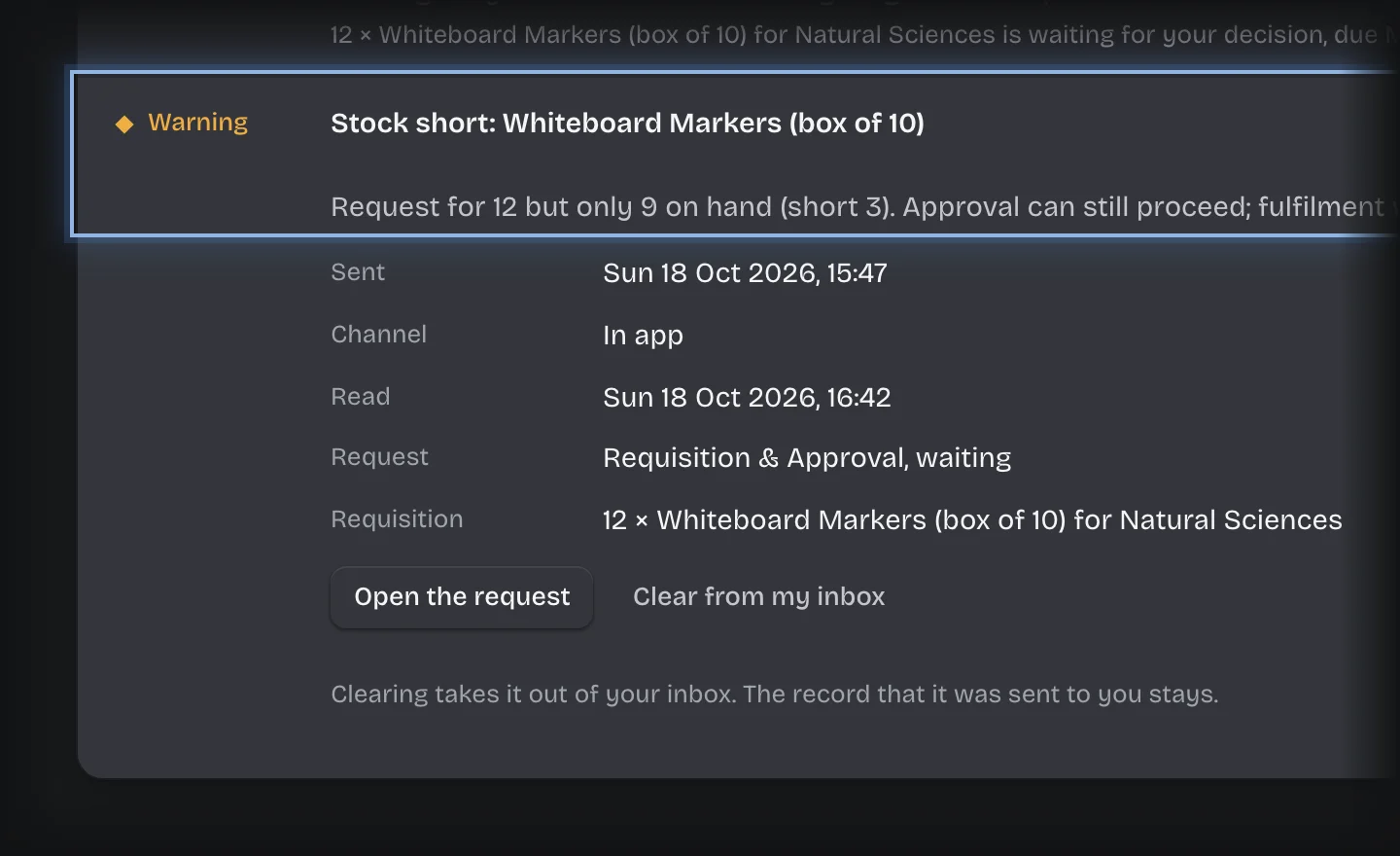
- For Stock short: followed by the item: the request is for more than is on hand. It still goes for approval, and it will be filled in part. Reorder the item.
- For No budget: followed by the department: the department has no budget, so the request was not approved. Have a budget added for the department (see Set up stock items and department budgets), then ask the requester to raise it again.
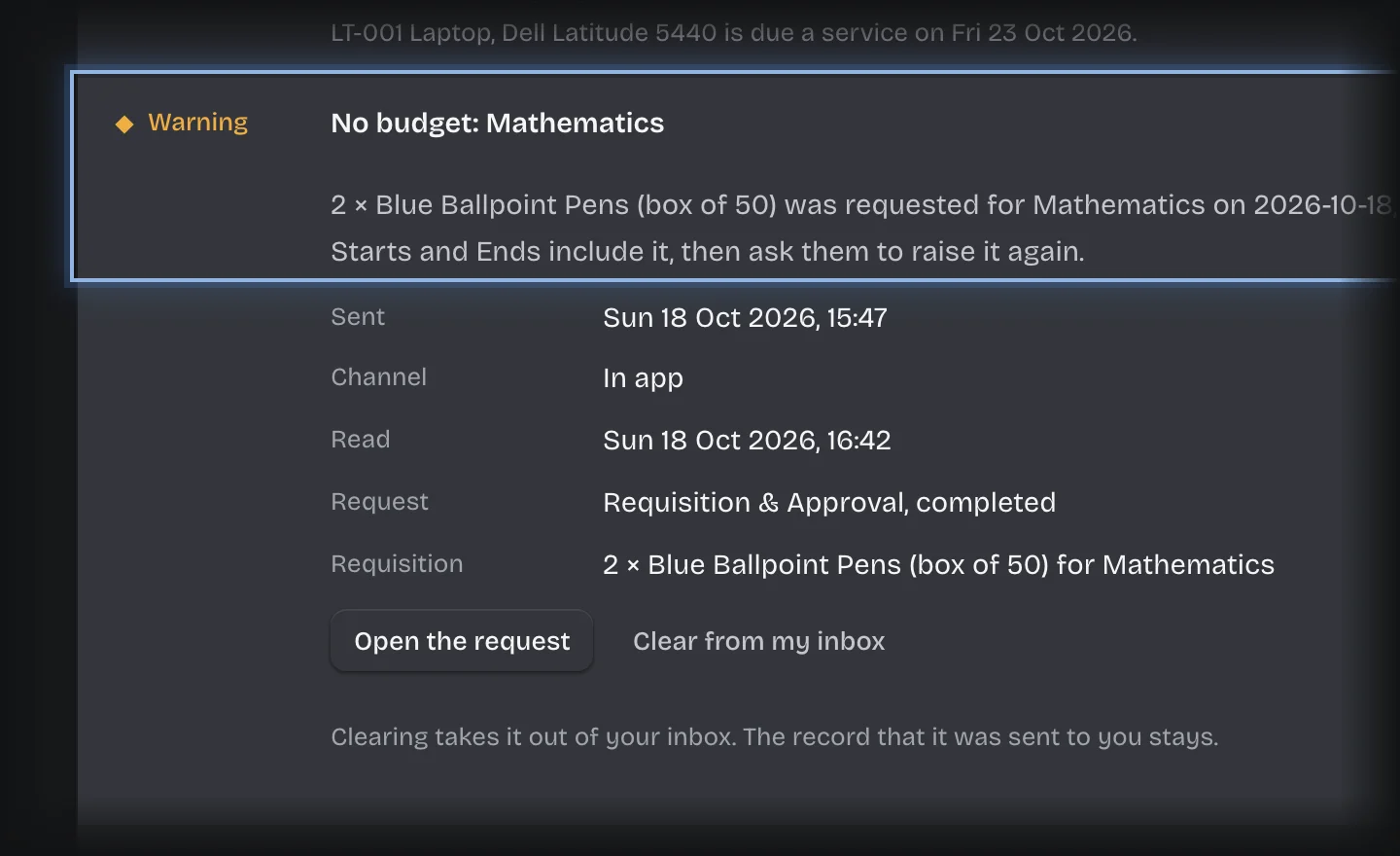
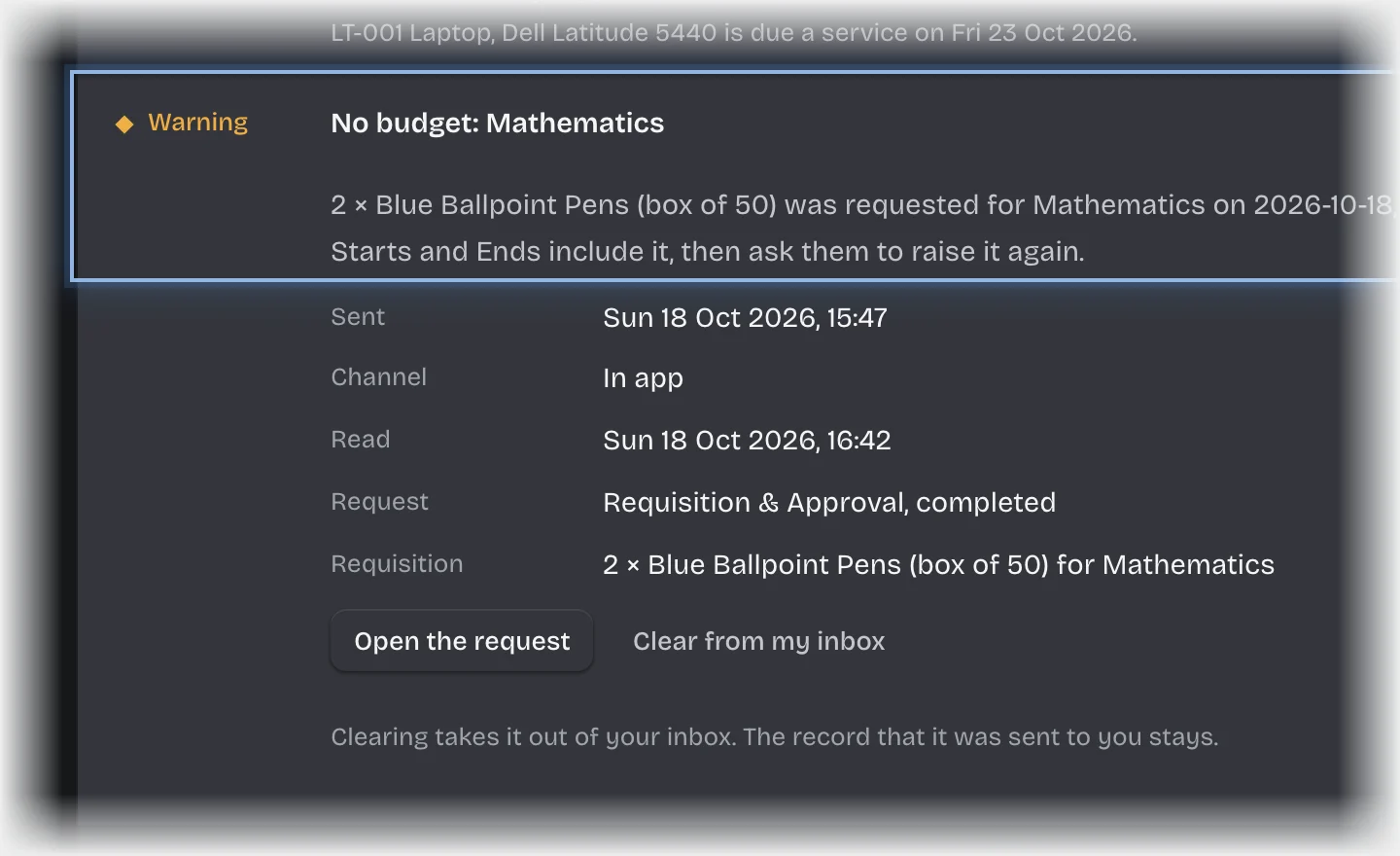
What you will see
The warning names the item and quantities, or the department and request.
Common problems
- Someone else should get these warnings. Your tenant admin can change the recipients of Warn Storeroom and No Department Budget under Manage > Pipeline values.