A requisition above R500 comes to the bursar after a head of department approves it.
Steps
- Choose the service in the rail. The request is a card on On your desk, titled Counter-sign high-value request. It is also under Decisions on your desk on the Requisitions tab, when you choose Approval on the stage switch.
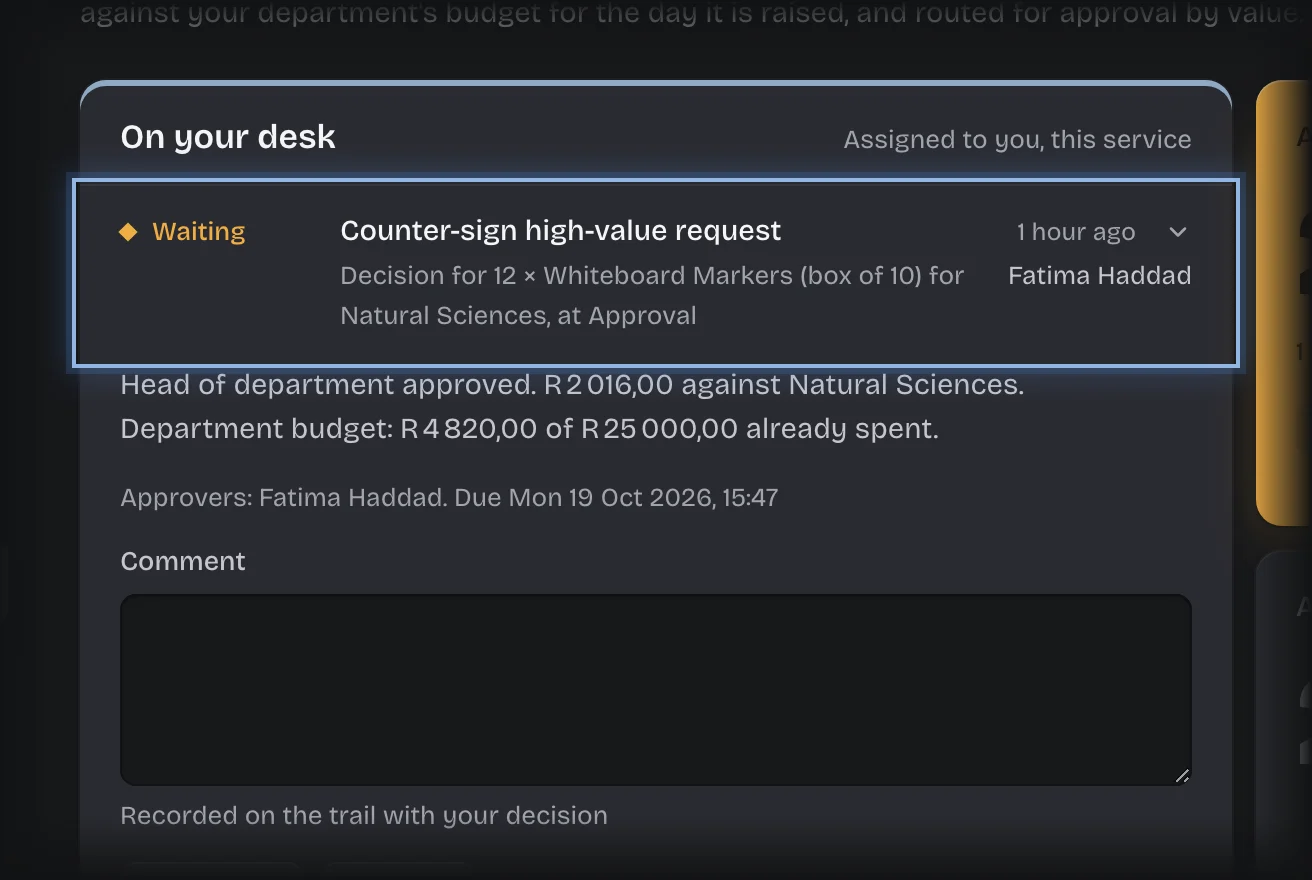
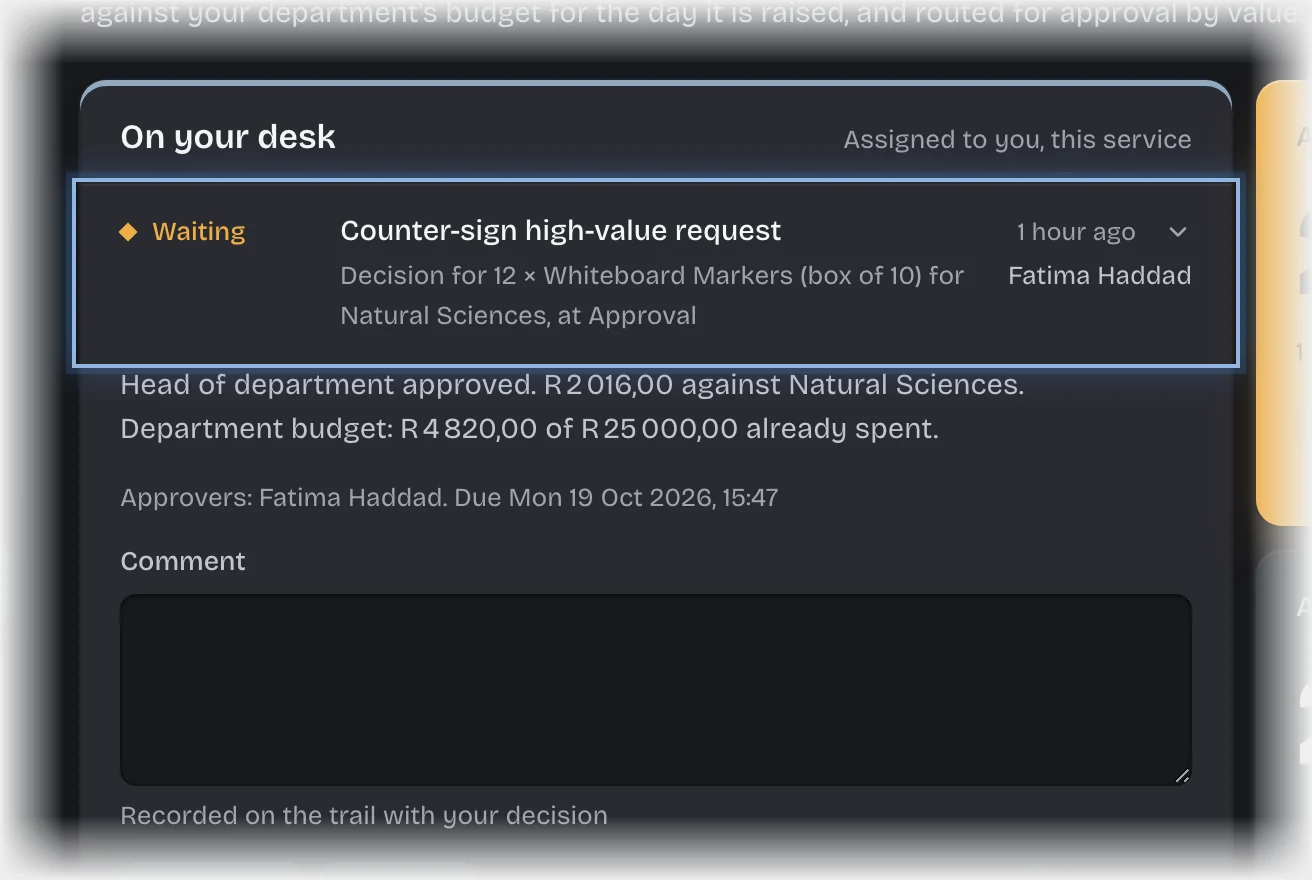
- If the card is folded, press its header to open it. It shows the cost, the department, and how much of the department’s budget is already spent.
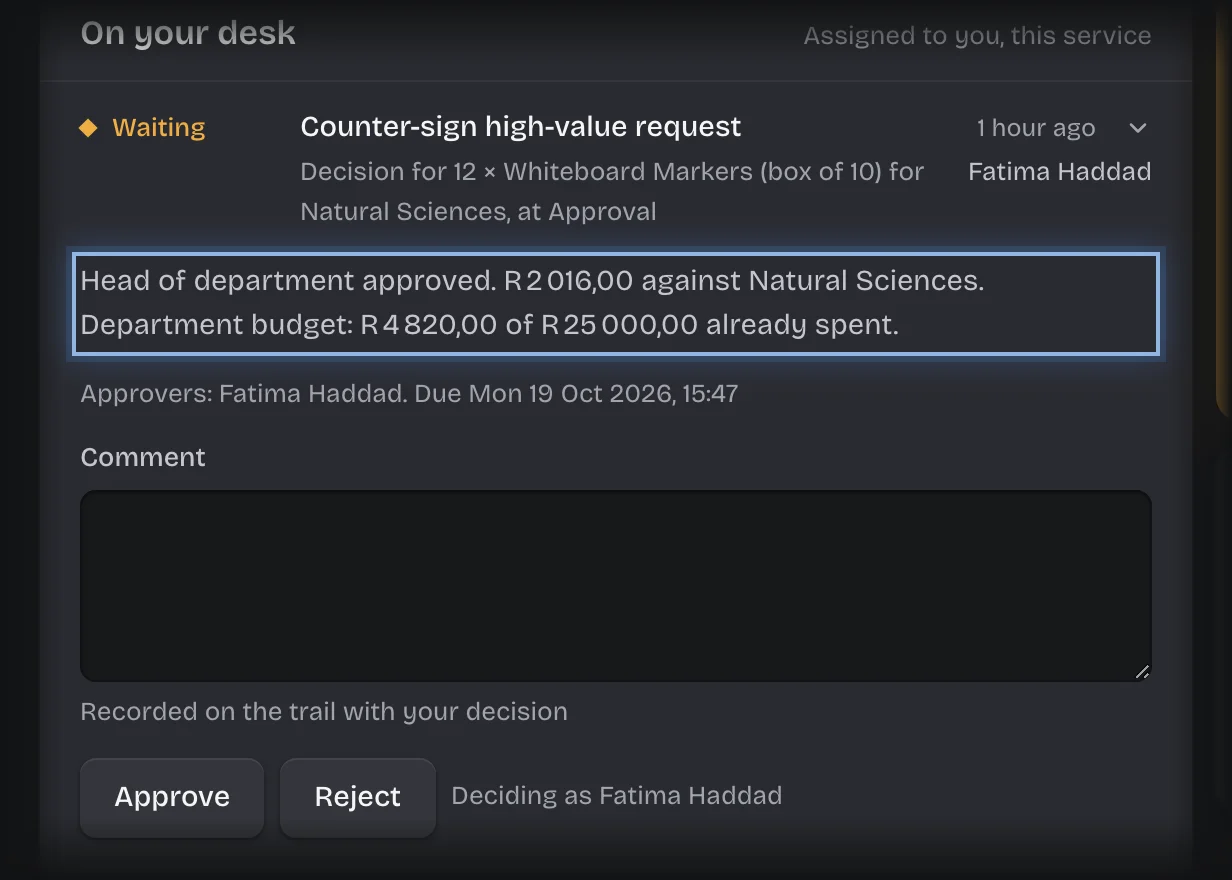
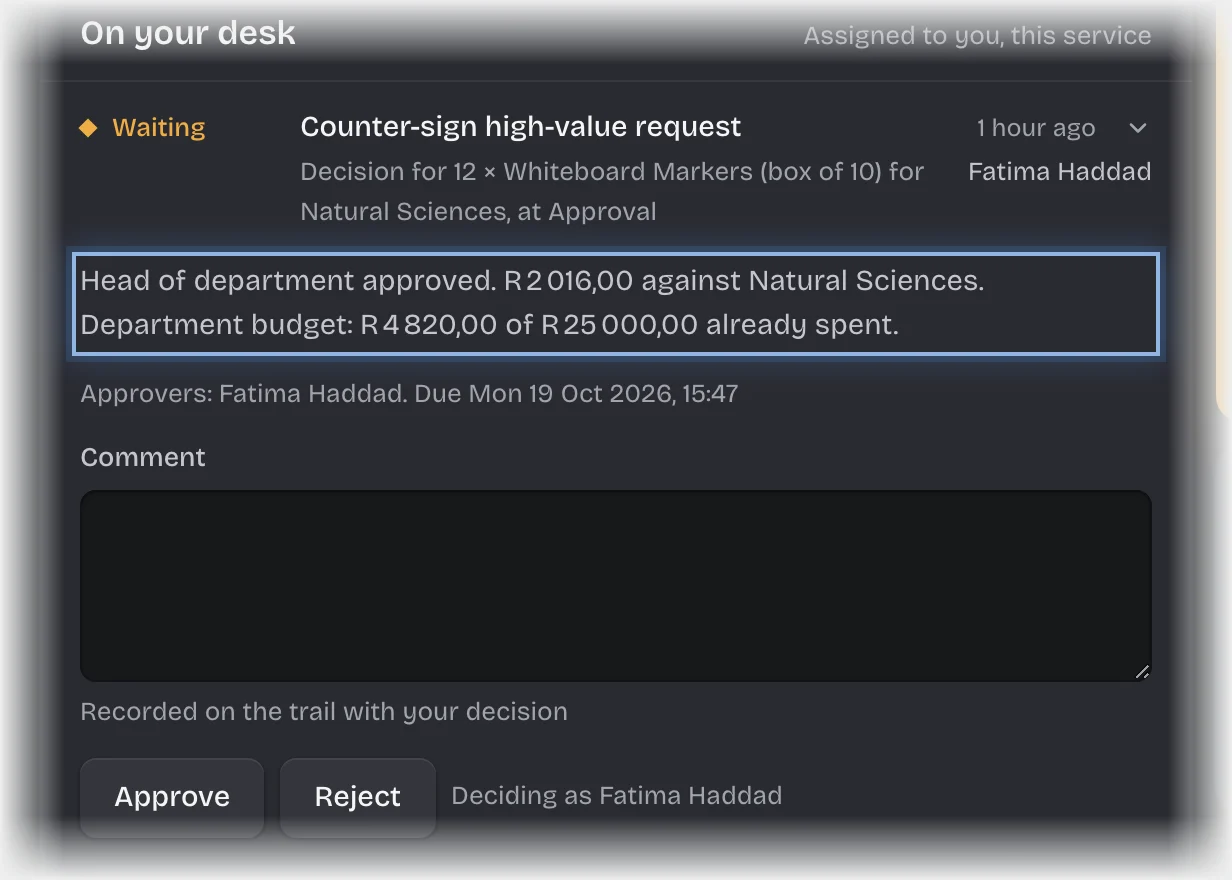
- Type a Comment. If you reject, the comment is the reason the requester sees.
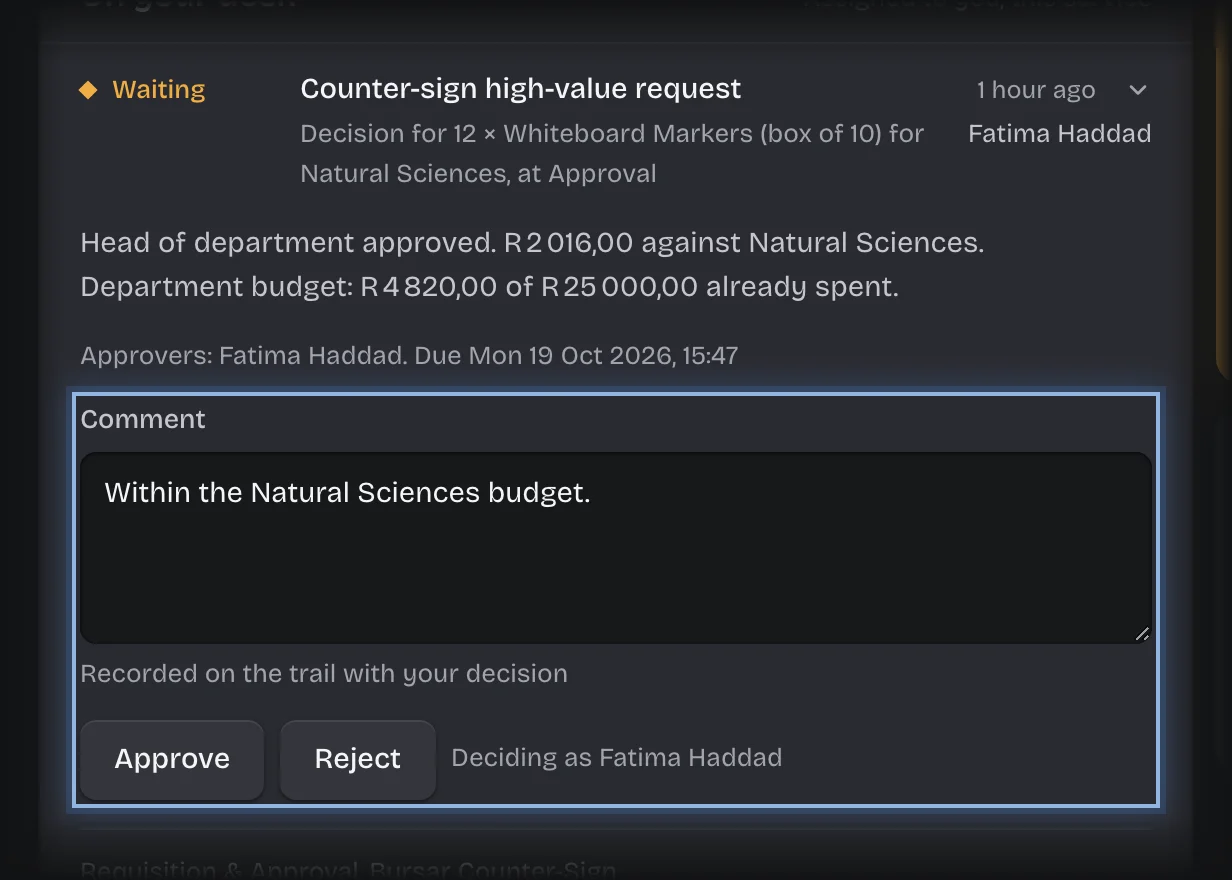
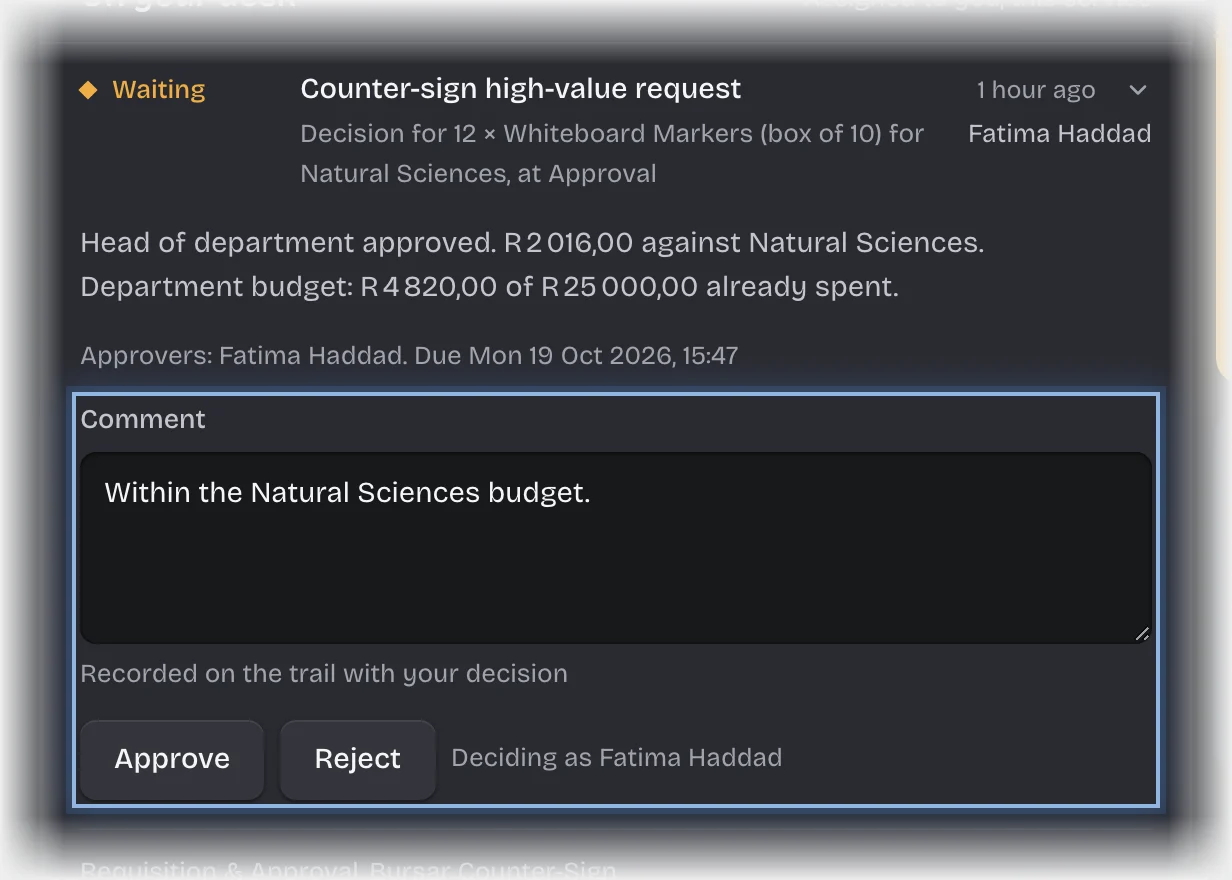
- Press Approve or Reject.
What you will see
- Approved: stock is deducted, the department’s budget is charged, and the requester is told.
- Rejected: the request is marked Rejected with your comment as the reason, and the requester is told.
Common problems
- You approved a requisition as head of department and are not asked to counter-sign it. Nobody decides two levels of the same request. It goes to the other bursars, or to your tenant admins if you are the only bursar, and their card says why.
- An overdue message. A counter-signature is overdue after 24 hours, unless your organisation changed this.