Steps
- Open Manage > Records and choose Quote Settings.
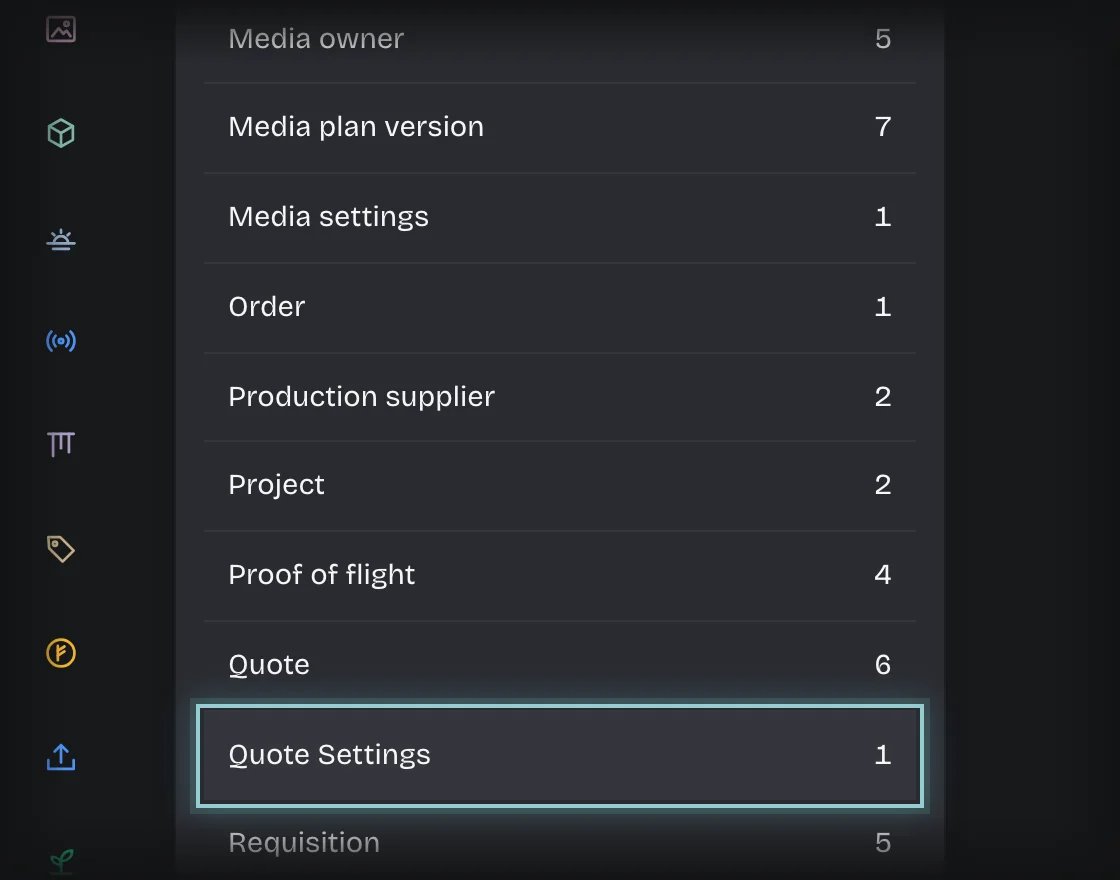
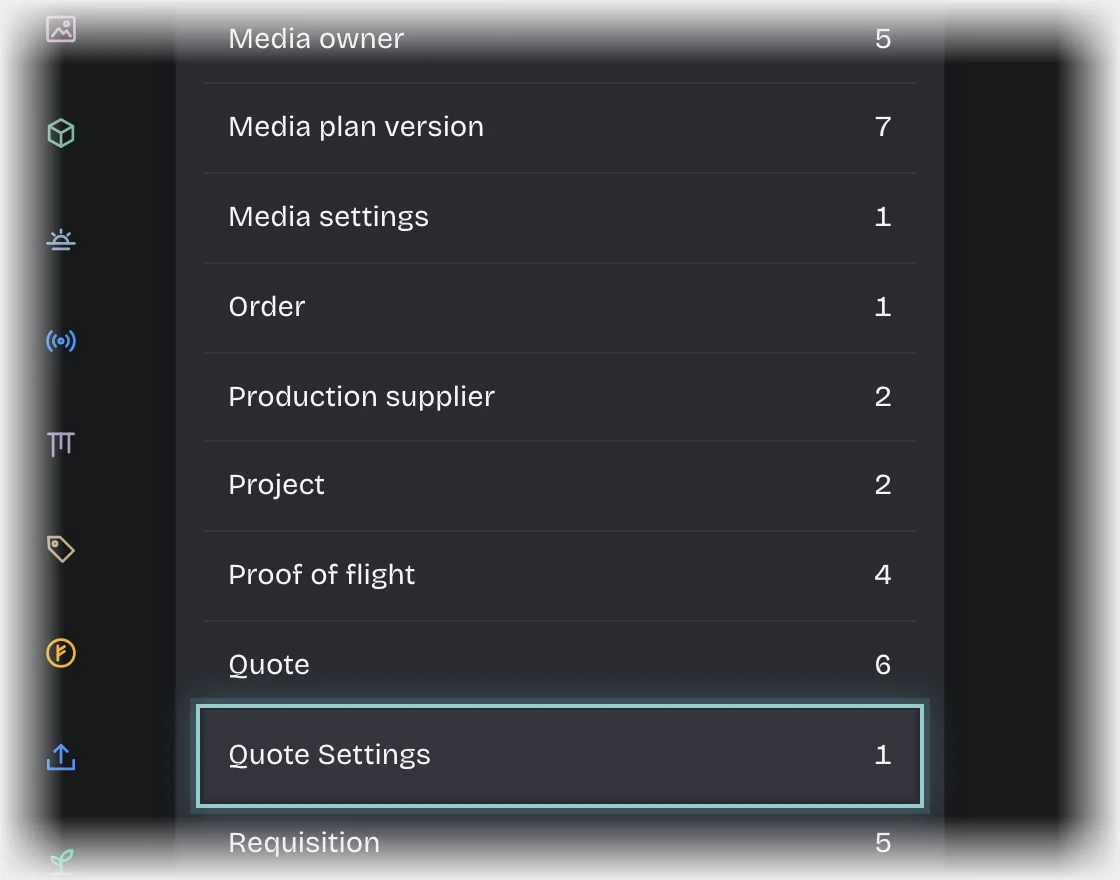
- Press Add quote settings, or press the existing row to change it.
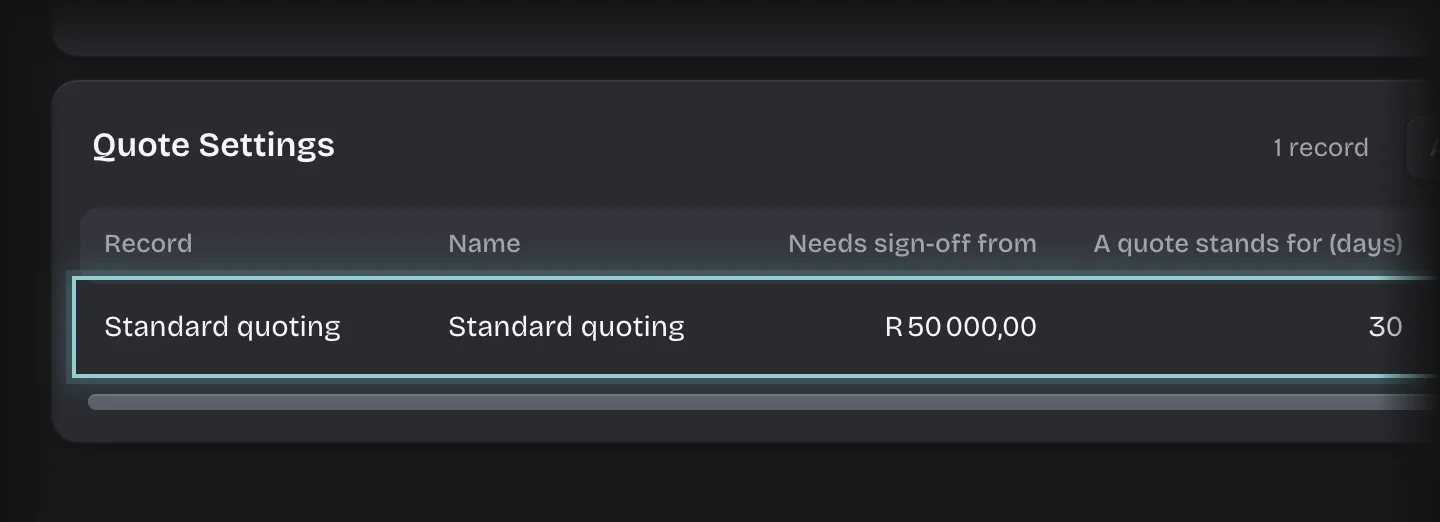
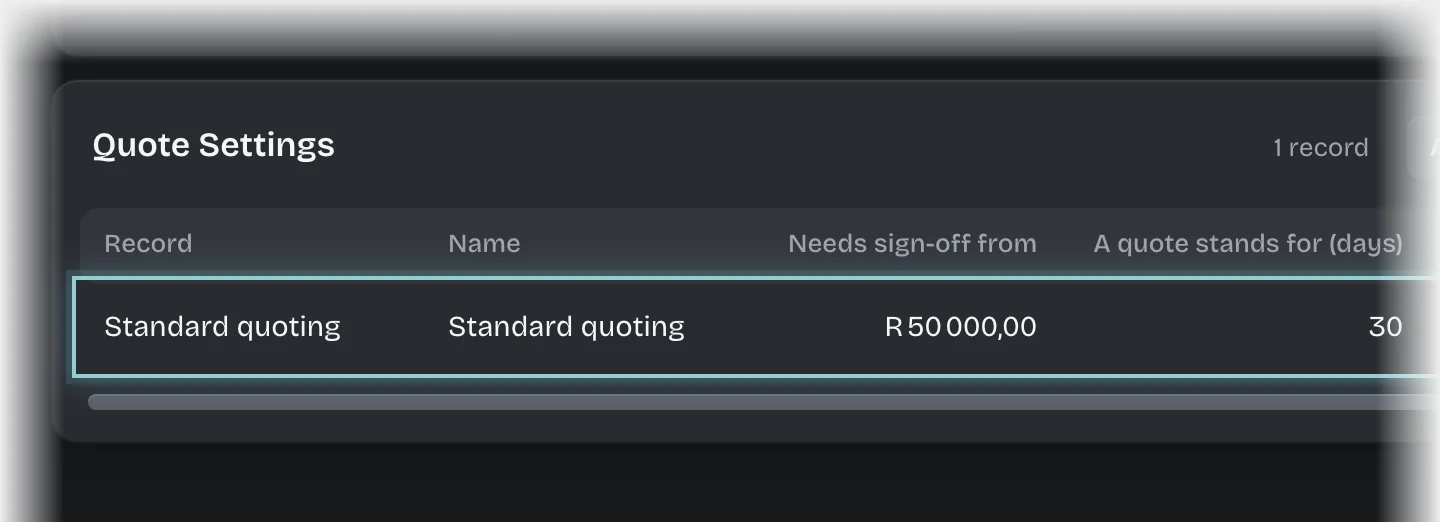
- Fill in:
- Name: for example Standard quoting.
- Needs sign-off from: a quote at or above this total, including VAT, is signed off before it goes out. Zero means every quote is.
- A quote stands for (days): fills in Valid until when a quote is raised.
- Active: Yes.
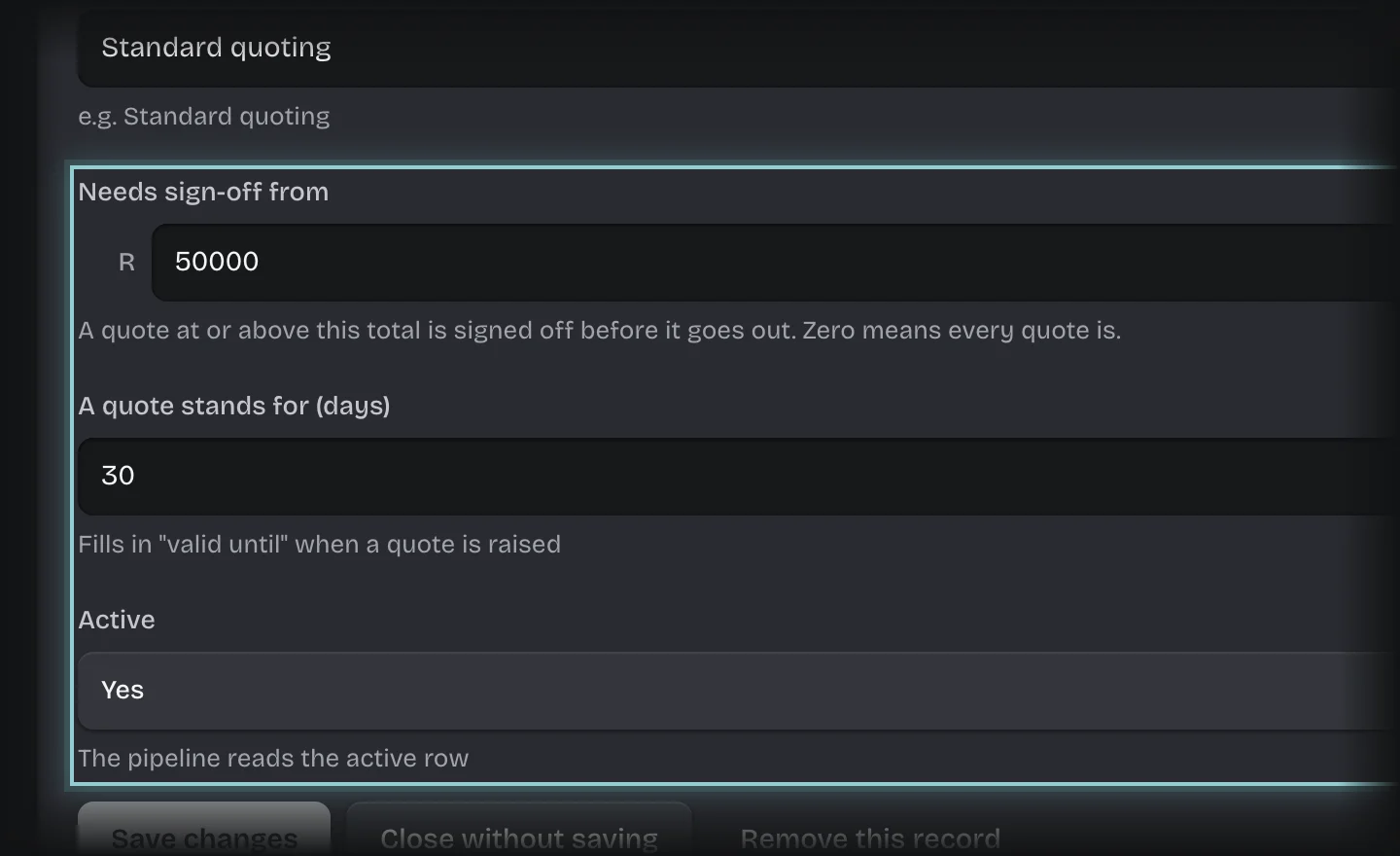
- Press Add quote settings or Save changes.
To choose who signs off, give people the Sales manager role under Manage > People, or change the approvers on Sign it off under Manage > Pipeline values.
What you will see
Quotes raised from now on use the new value and validity.
Common problems
- Every quote goes for sign-off. With no active Quote Settings row, the sign-off value is zero and a quote stands for 30 days. Add a row.
- Keep one row active. Quotes reads the first active row it finds.