Steps
- Choose Quotes in the rail, then the Quotes tab. The Quote stage opens.
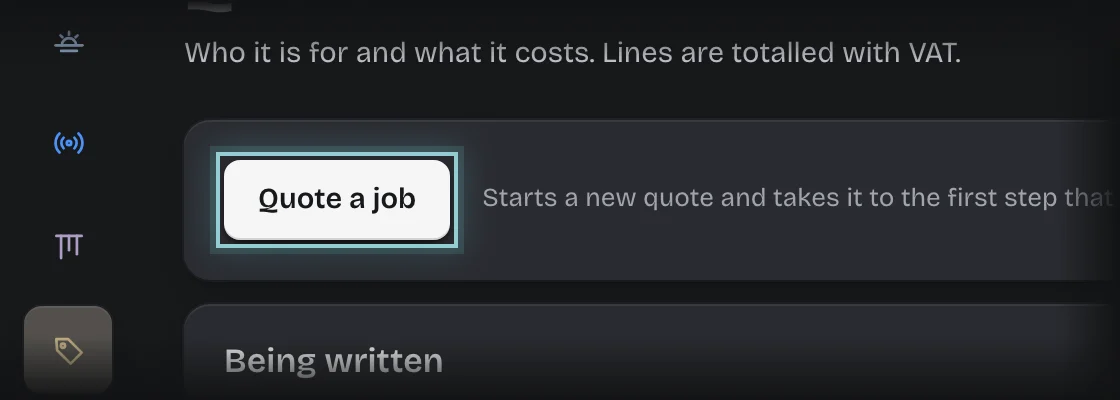
- Press Quote a job. You can also press Quote a job under Out for decision on the Overview.
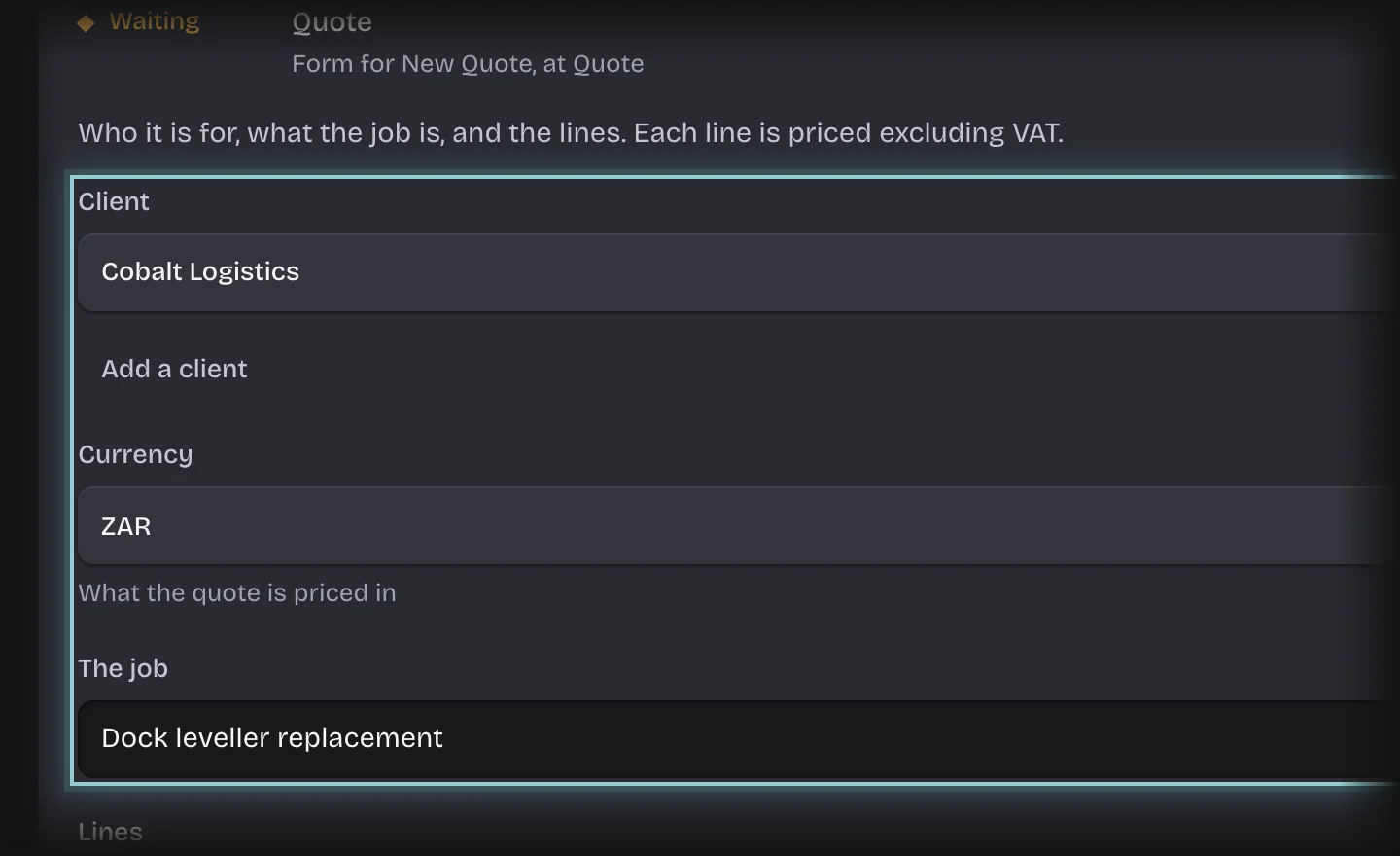
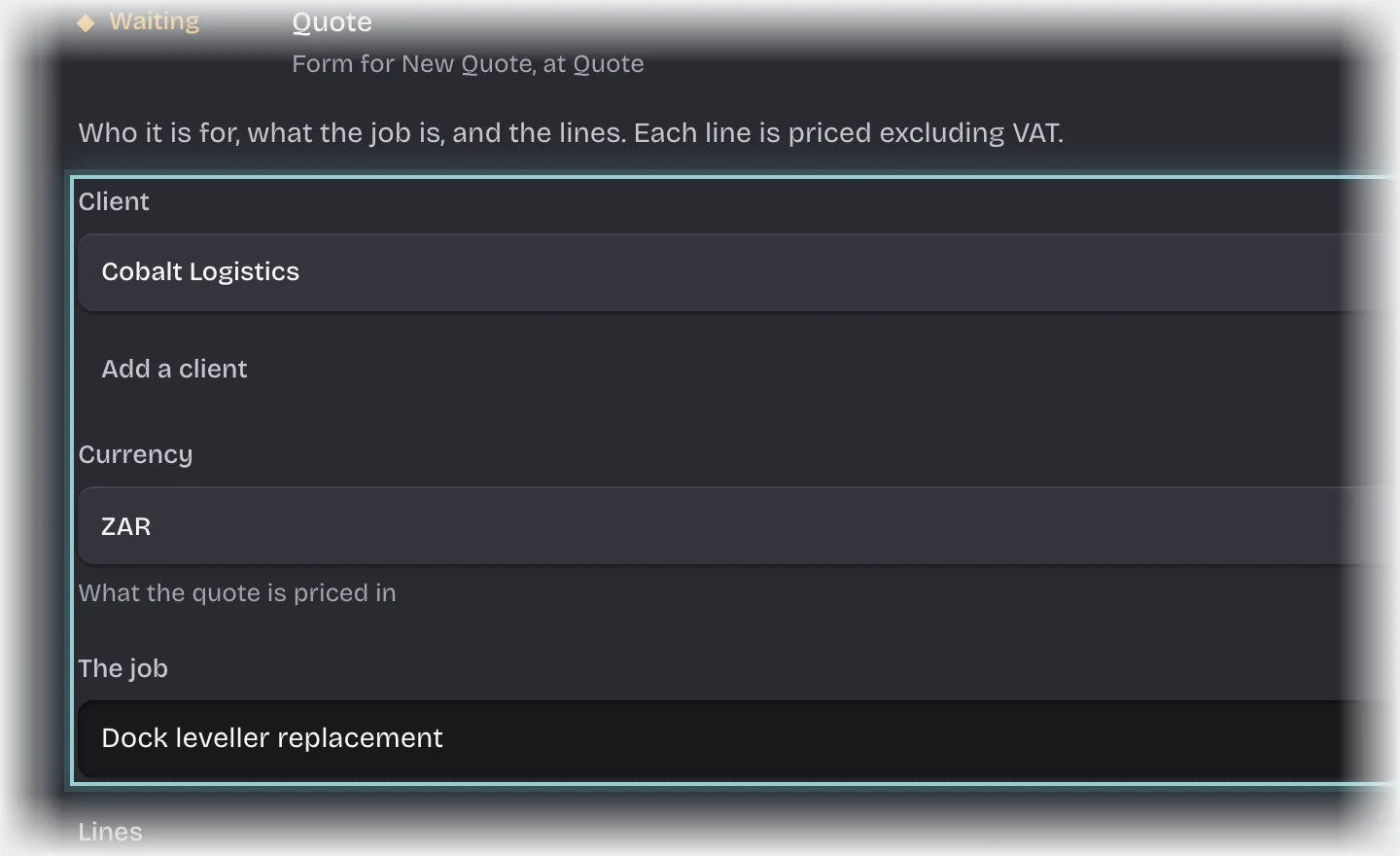
- The form Quote opens under Being written. Fill in:
- Client
- Currency: what the quote is priced in.
- The job
- Lines: press Add a line for each, and fill in Item, Per if it is counted in hours, days or another unit, Qty, Unit price (excl. VAT) and VAT.
- Valid until: filled in from your organisation’s settings. Choose another date from the calendar if you need to.
- Terms: optional.
- Drawings, specs and photos: optional. Press Choose files and pick drawings, specifications or site photos. PDF, images (PNG, JPEG, WebP, TIFF), Word and Excel files are accepted, up to 25 MB each and 20 files in all. Press Remove to take one off before you send the form.
- Press Send the form.
What you will see
- The total including VAT, worked out from the lines.
- Below the sign-off value: a message, “Ready to send”, straight away.
- At or above it: the quote goes to a sales manager first. You get “Ready to send” once they sign it off.
- The sales manager sees the files when they sign off. Once you send the form, the files are part of the quote: nobody can add, remove or replace them. If a drawing changes, quote again.
- A form for the client’s answer under On your desk on the Overview. See Record the client’s answer.
Common problems
- The client is not in the list. Press Add a client under Client, fill in the client’s details and press Add the client. See Add a client.
- The sign-off was refused. You get the message “Not signed off:” with who refused it and their comment. The quote’s Outcome shows Declined in the Quotes list, with no reason, and it is not counted under Lost, and why: it never reached the client.
- “this field takes …”. The file is of a kind the quote does not take, such as a PowerPoint file. Save it as a PDF.
- Koldheim does not send the quote to the client. Send it yourself once you get “Ready to send”. If your organisation has clients answer quotes themselves, you get a form to send it to them instead.