The board moves a ticket between columns. To change anything else after triage, such as the assignee or the due date, change it from the ticket itself, or from Manage.
Steps
- Open Manage > Records and choose Ticket.
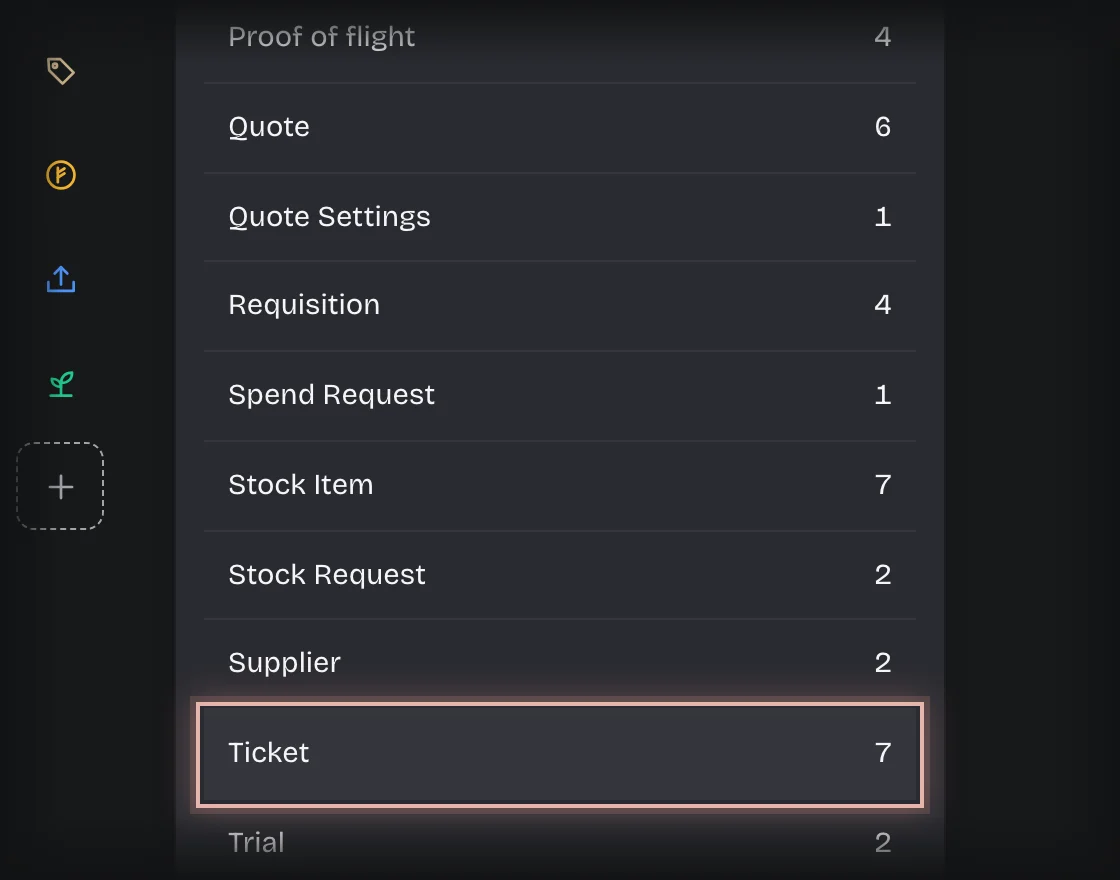
- Press the ticket’s row.
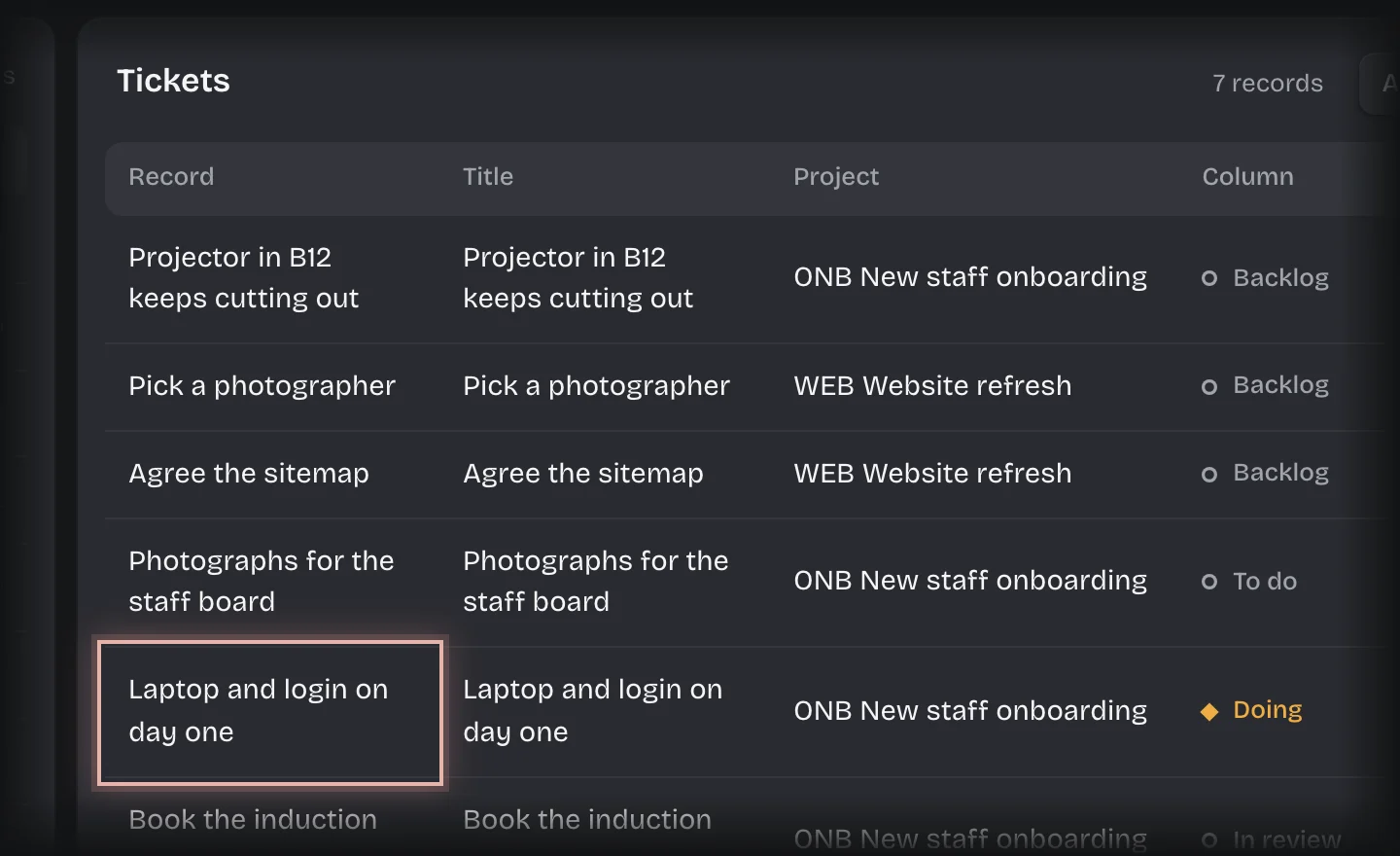
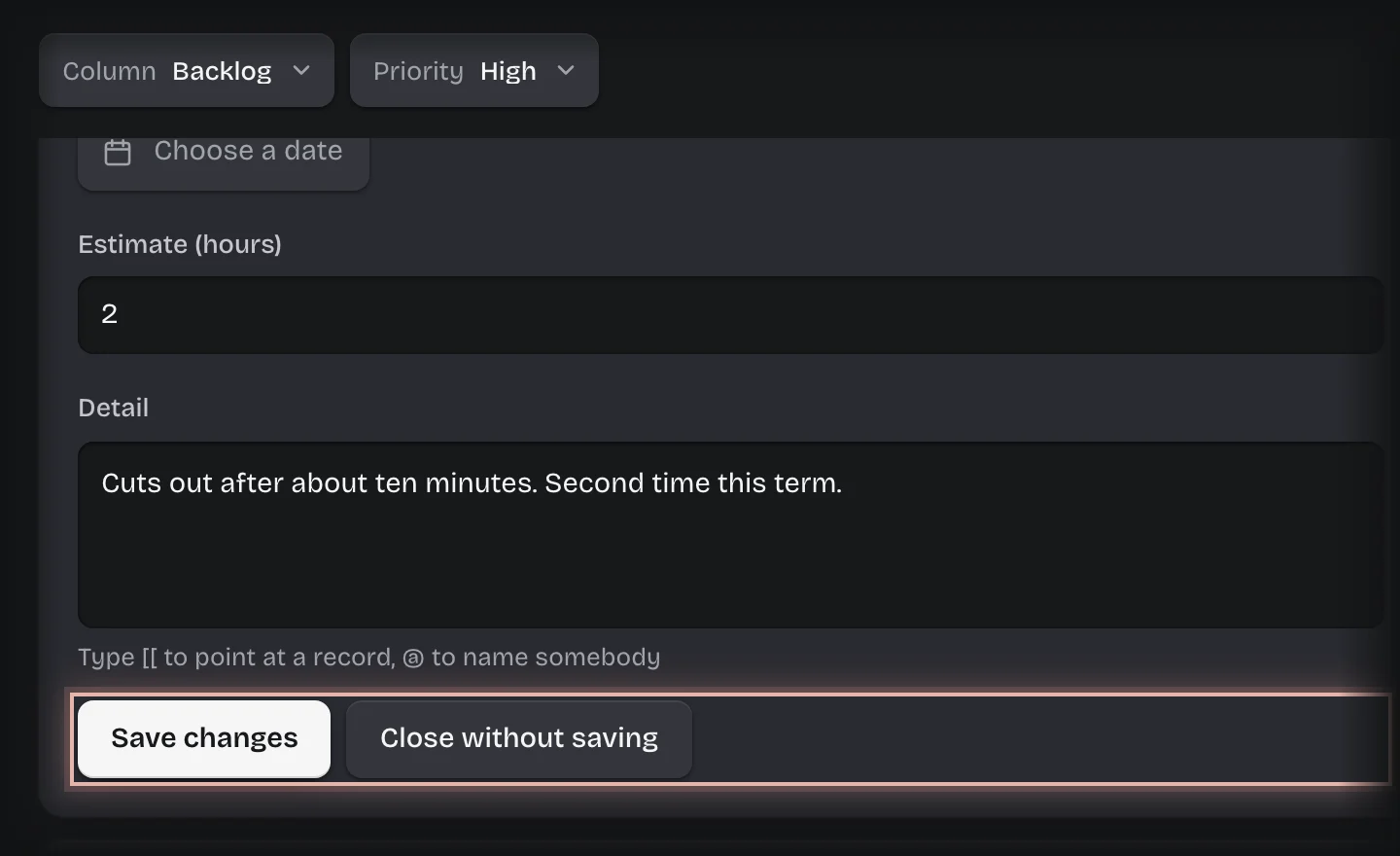
- Change Assignee, Priority, Due, Estimate (hours), Detail or Column.
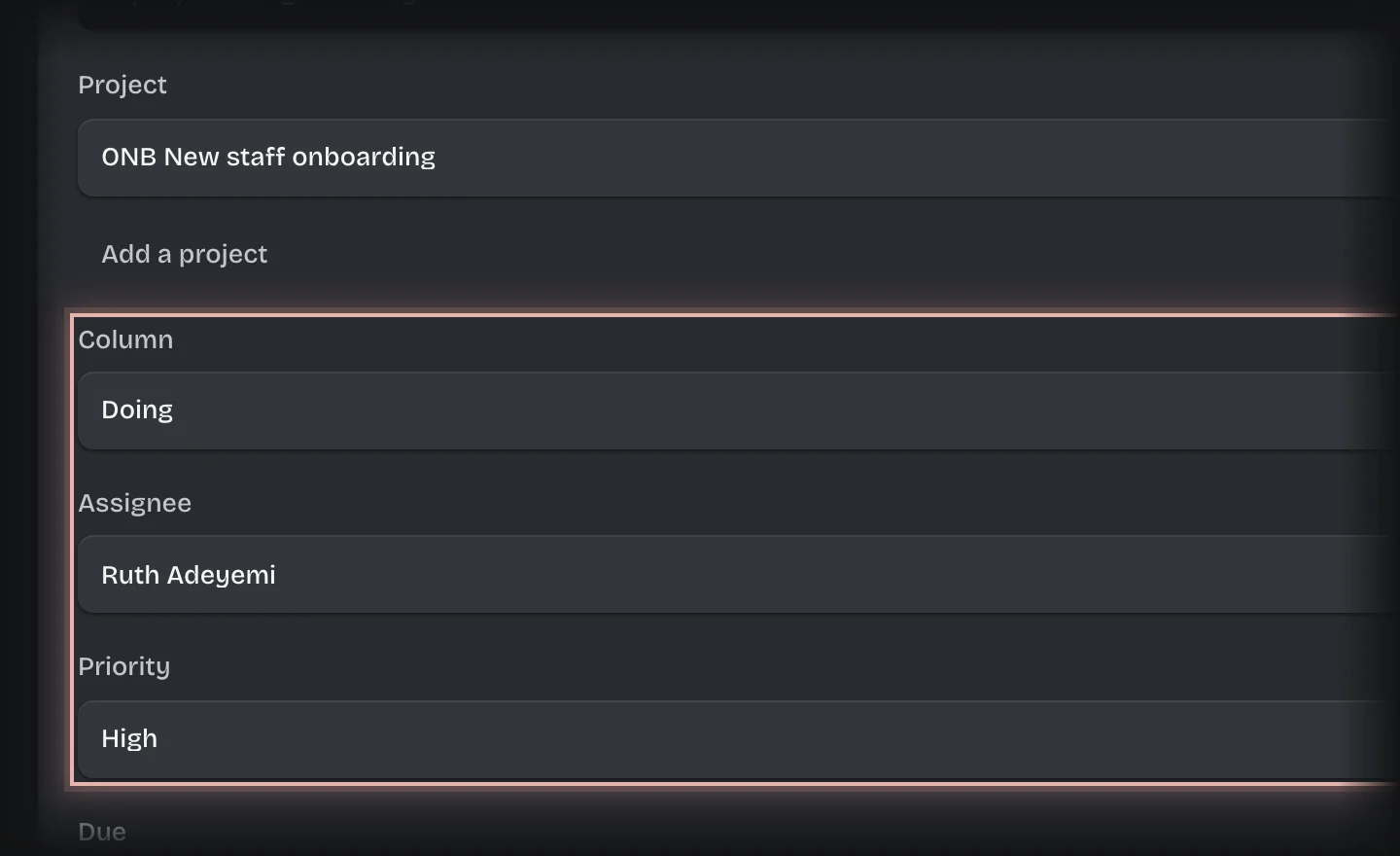
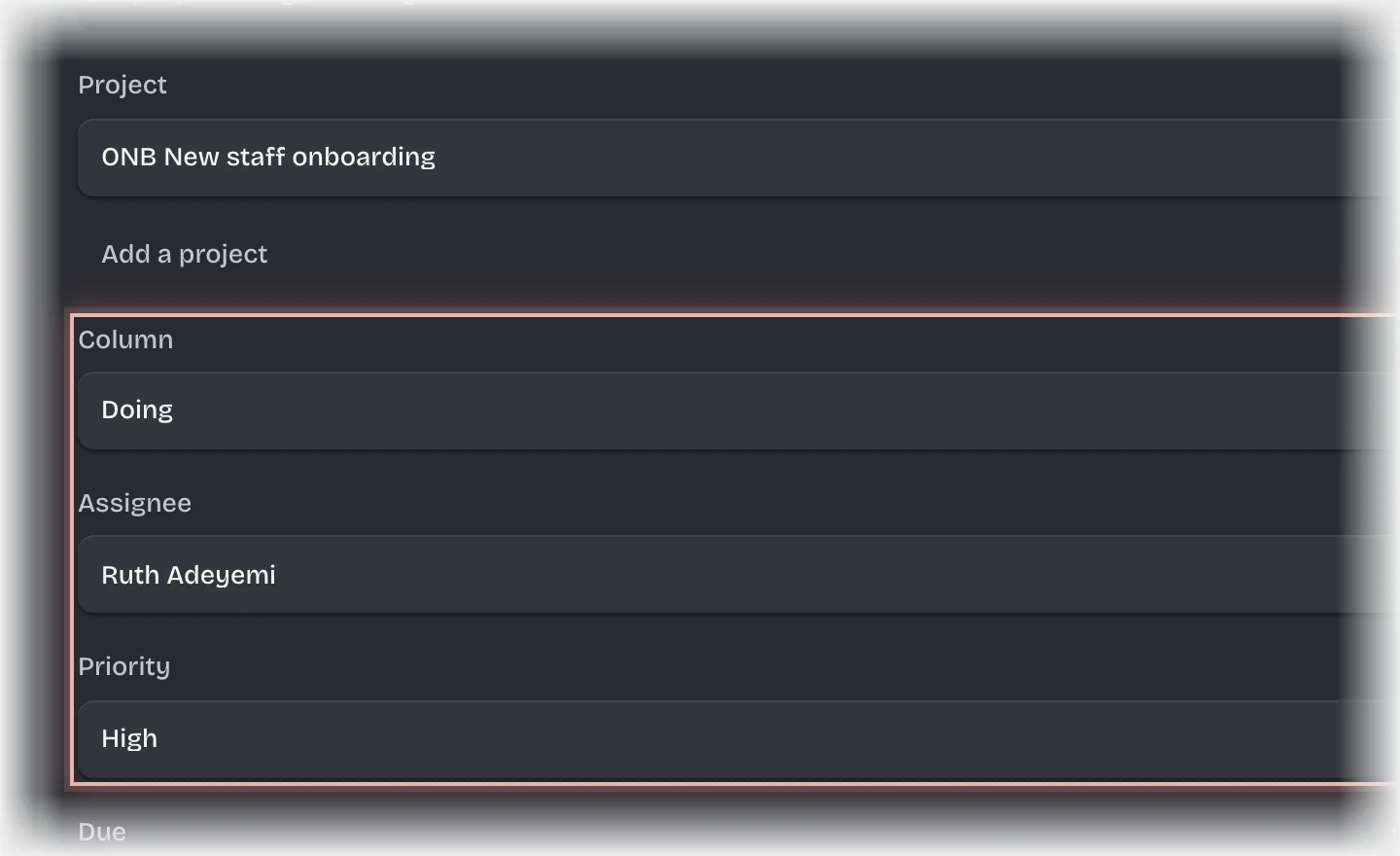
- Press Save changes.
Move it from the ticket itself
A ticket can move to another column without the board. This is the same change the board makes, and it is on the trail the same way.
- On the Projects Overview, press the ticket on The board. It opens on the right.
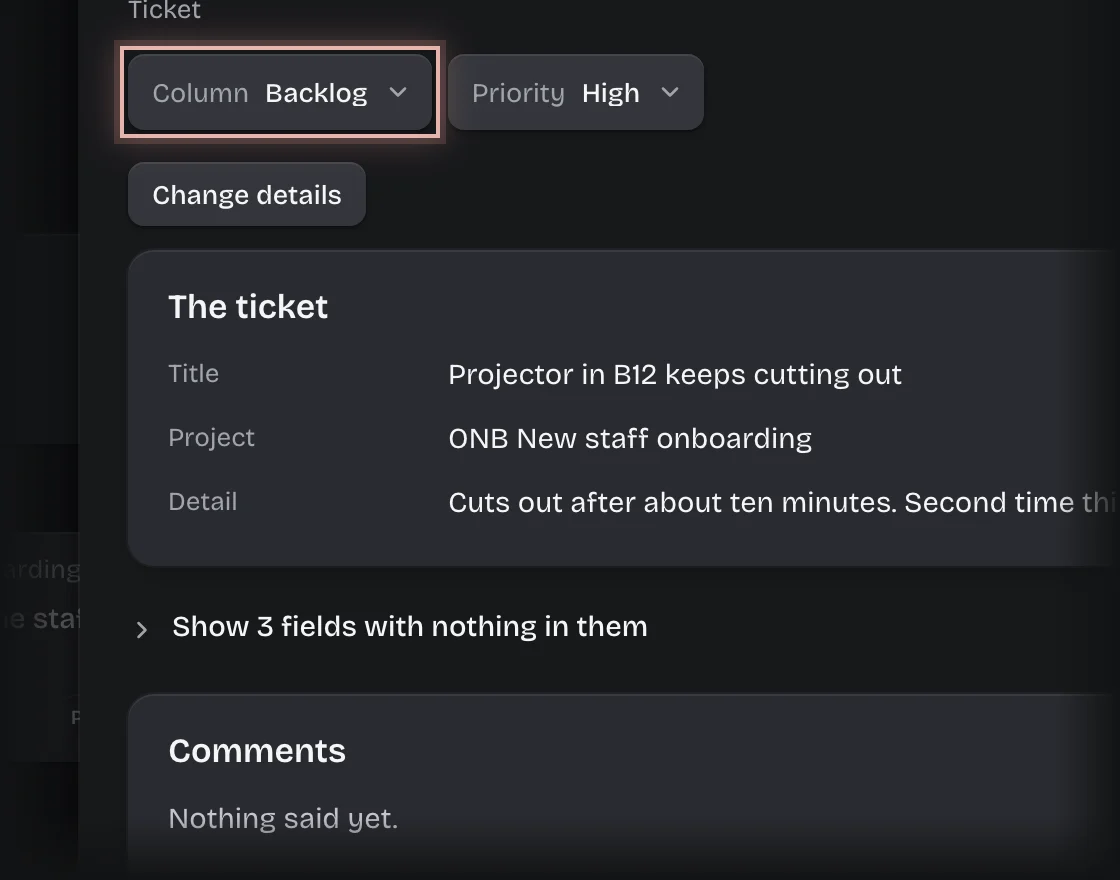
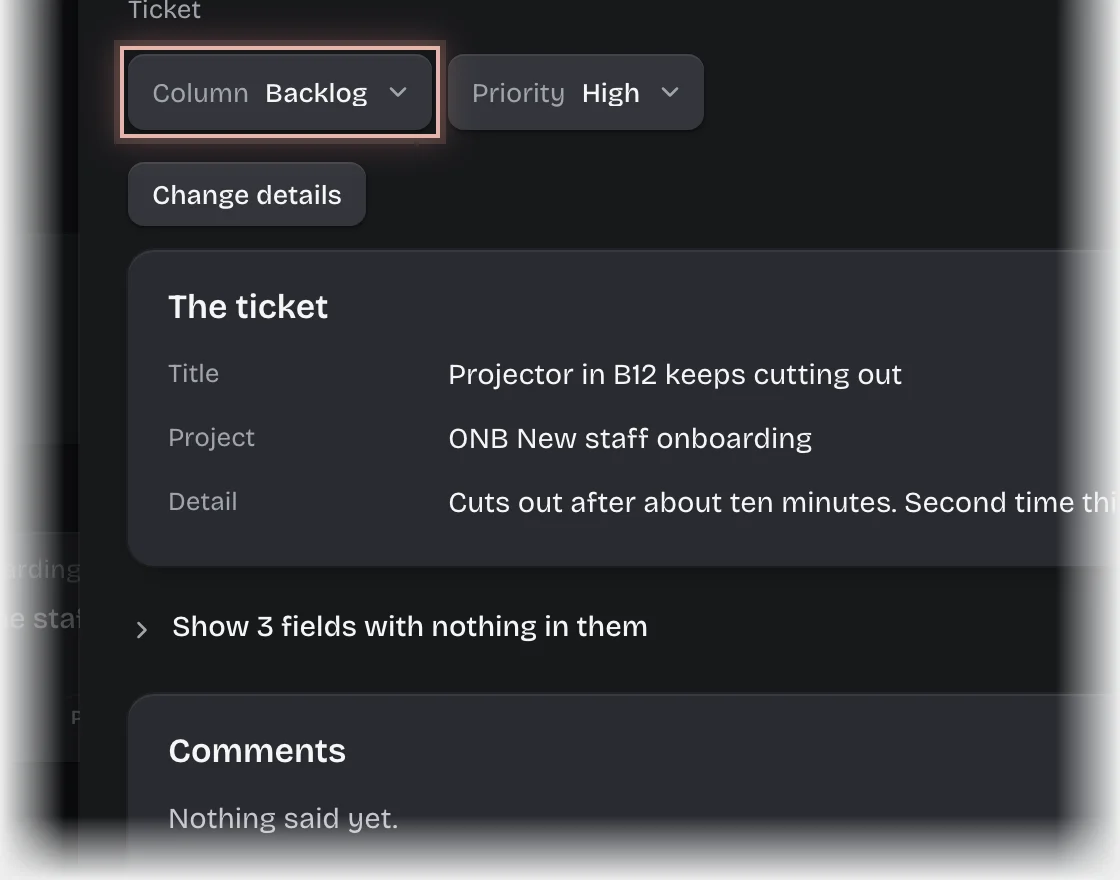
- Choose the column it should be in from Column at the top of the ticket. Priority beside it works the same way.
Change it from the ticket itself
For whoever made the ticket, a manager, or anybody whose role may edit tickets.
- Open the ticket from The board, and press Change details at the top.
- Change what you need, and press Save changes. Close without saving leaves it as it was.
The change on the board. It is on your audit trail with who made it.
Common problems
- A new assignee is not told. Only triage sends the “Yours:” message. Tell them yourself.