New tickets are sent to everyone holding the Project lead role, to decide whose they are.
Steps
- Choose Projects in the rail, then the Tickets tab, then Triage in the stage switch at the top of the page. Each new ticket is a form under Waiting to be triaged, titled Triage: followed by the ticket’s title.
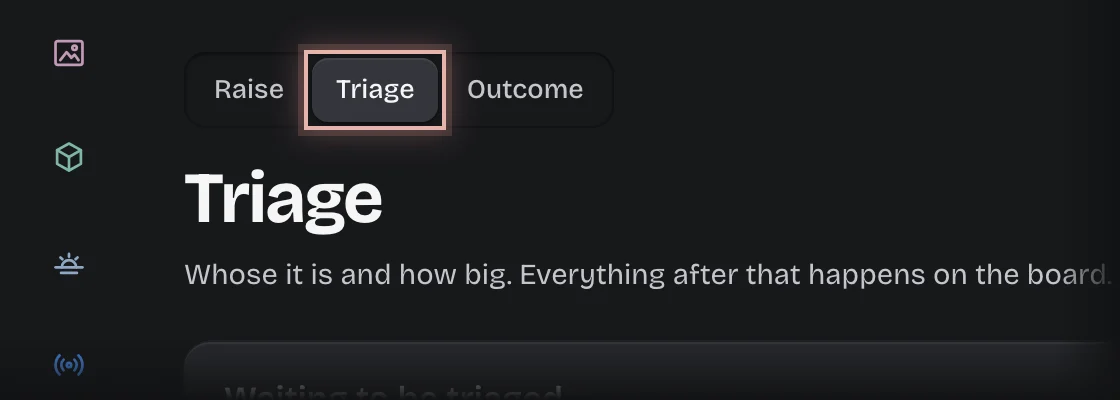
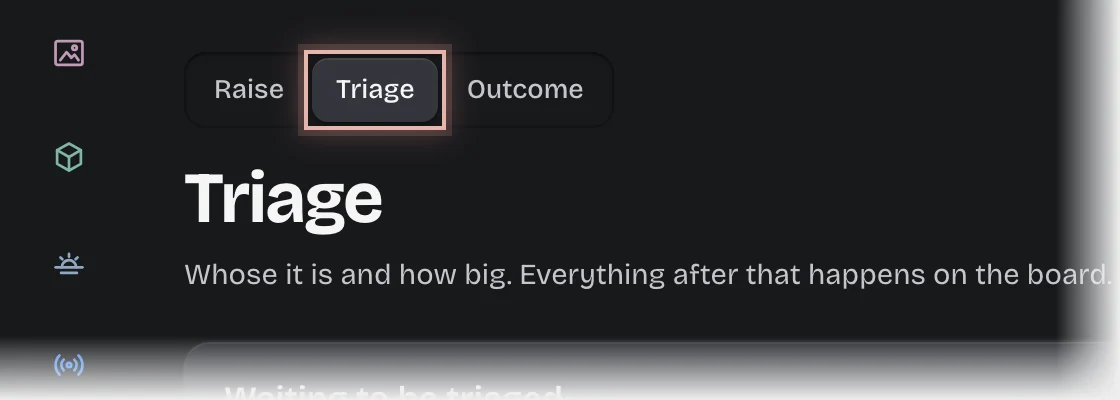
- Press the form’s header to open it. The header shows the ticket’s title. To read the rest of the request, press the ticket’s card in the Backlog column of The board below.
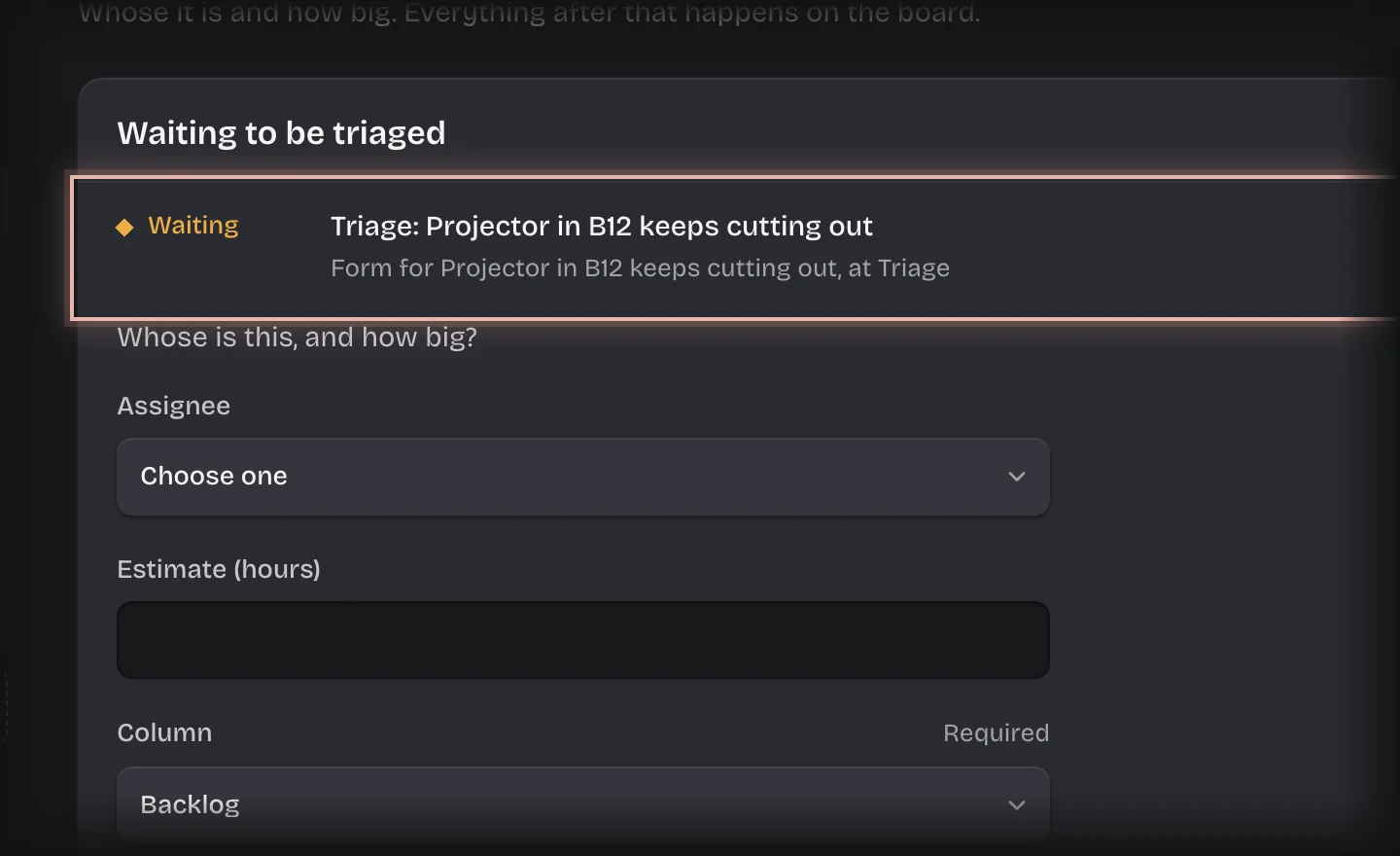
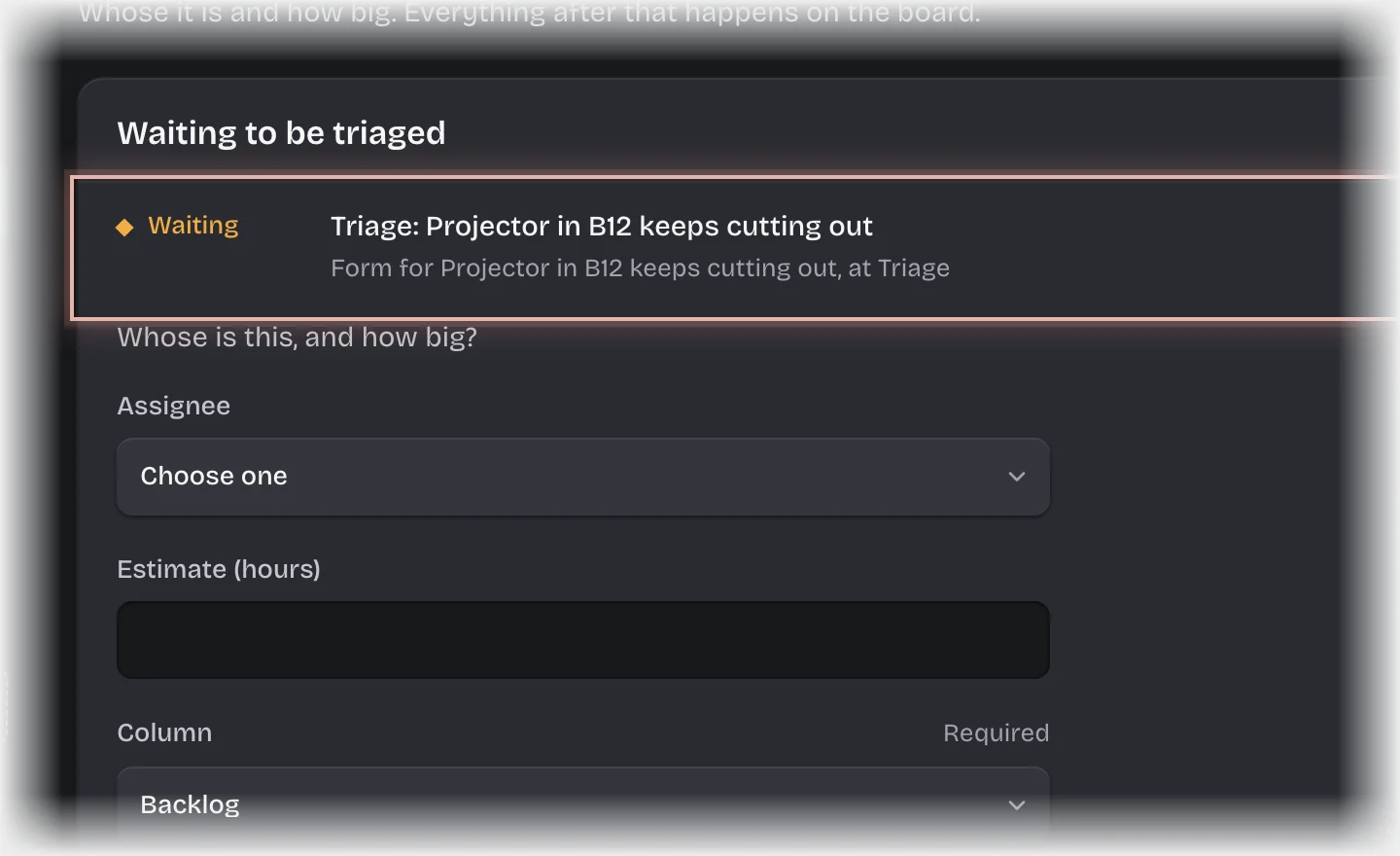
- Fill in:
- Assignee: who will do it.
- Estimate (hours): optional.
- Column: where it starts on the board, for example To do.
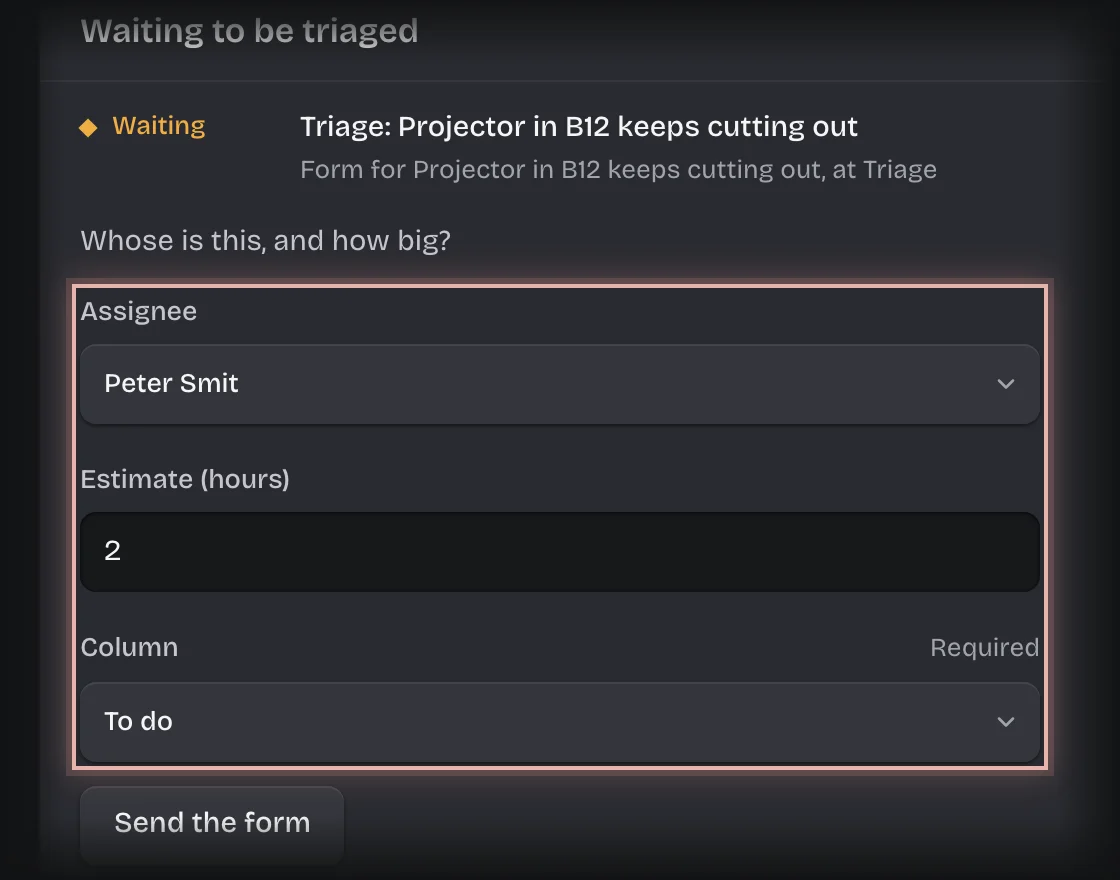
- Press Send the form.
What you will see
- With an assignee: the ticket in the column you chose, and the assignee gets a message, “Yours:” followed by the title.
- Without an assignee: the ticket is moved to Parked and nobody is told.
Common problems
- Another project lead triaged it first. Any one holder of the role can triage a ticket; it then leaves everyone’s list.
- Someone else should triage. Your tenant admin can change who triages under Manage > Pipeline values.