Steps
- Choose Projects in the rail. The board is on the Overview, and on the Triage stage of the Tickets tab.
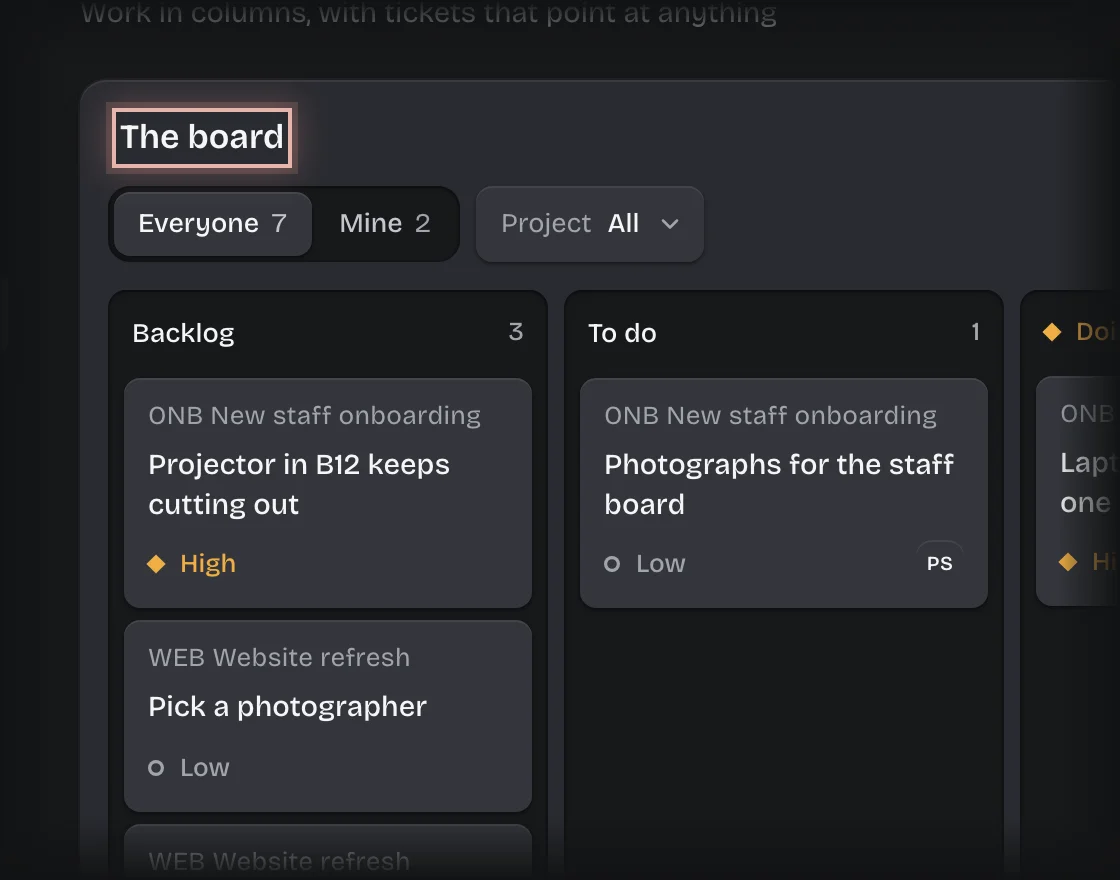
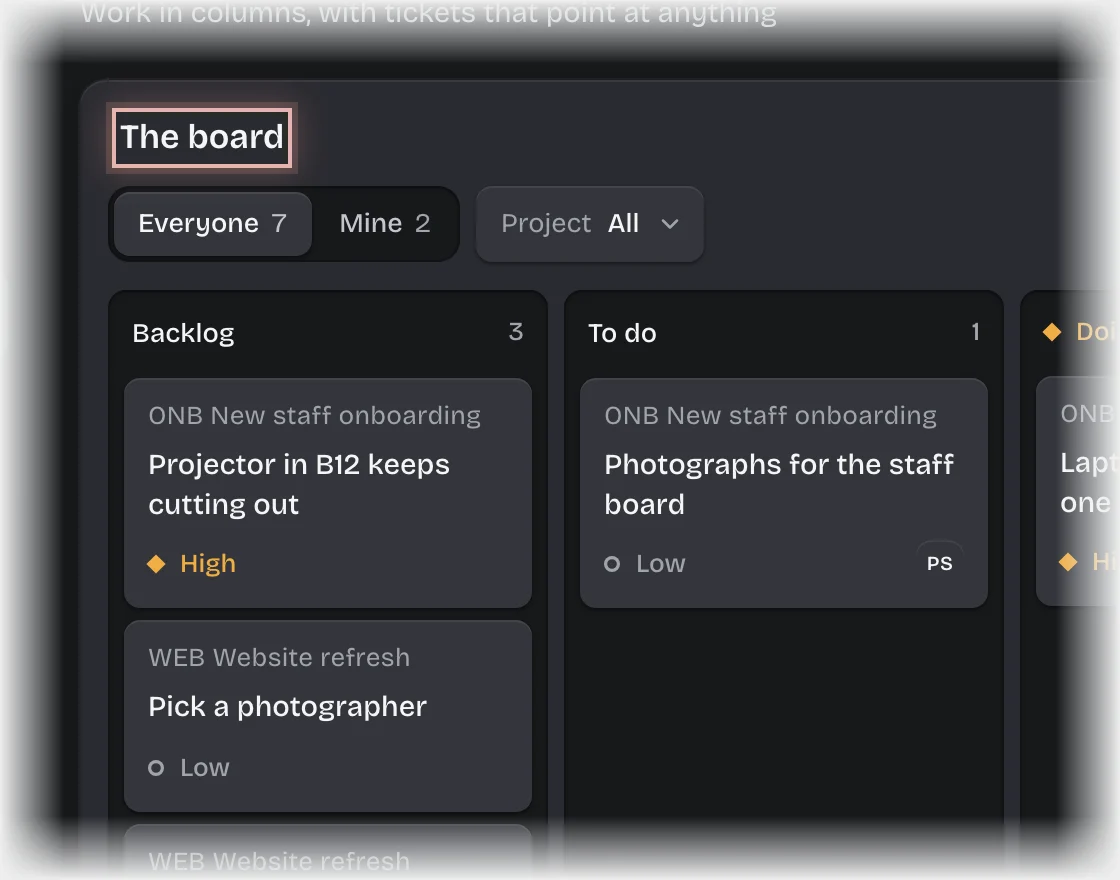
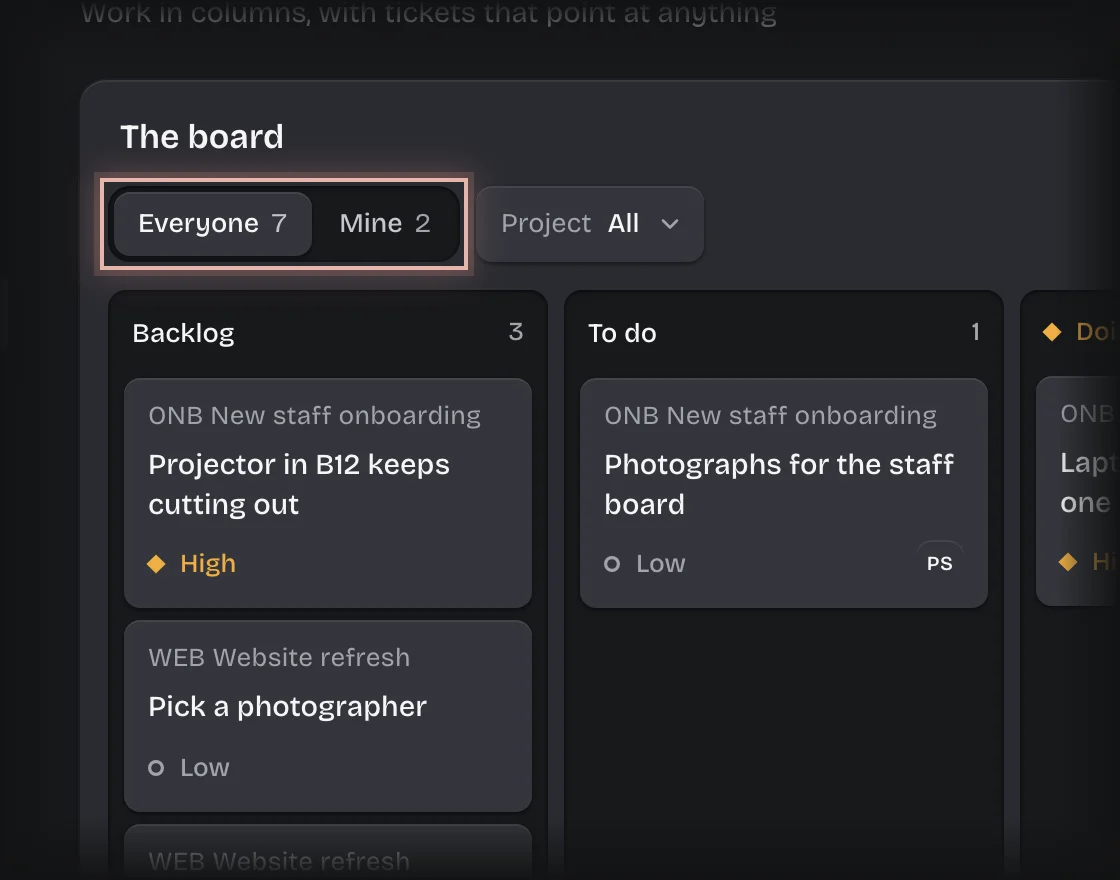
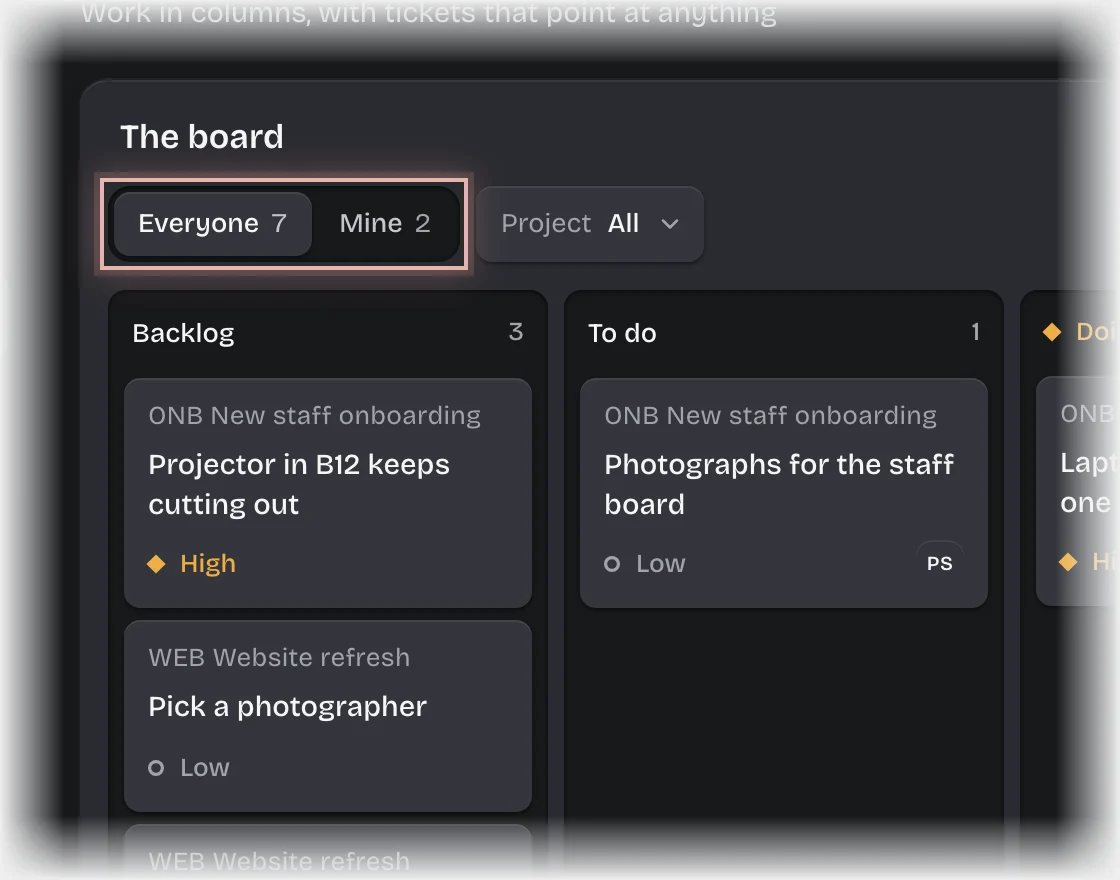
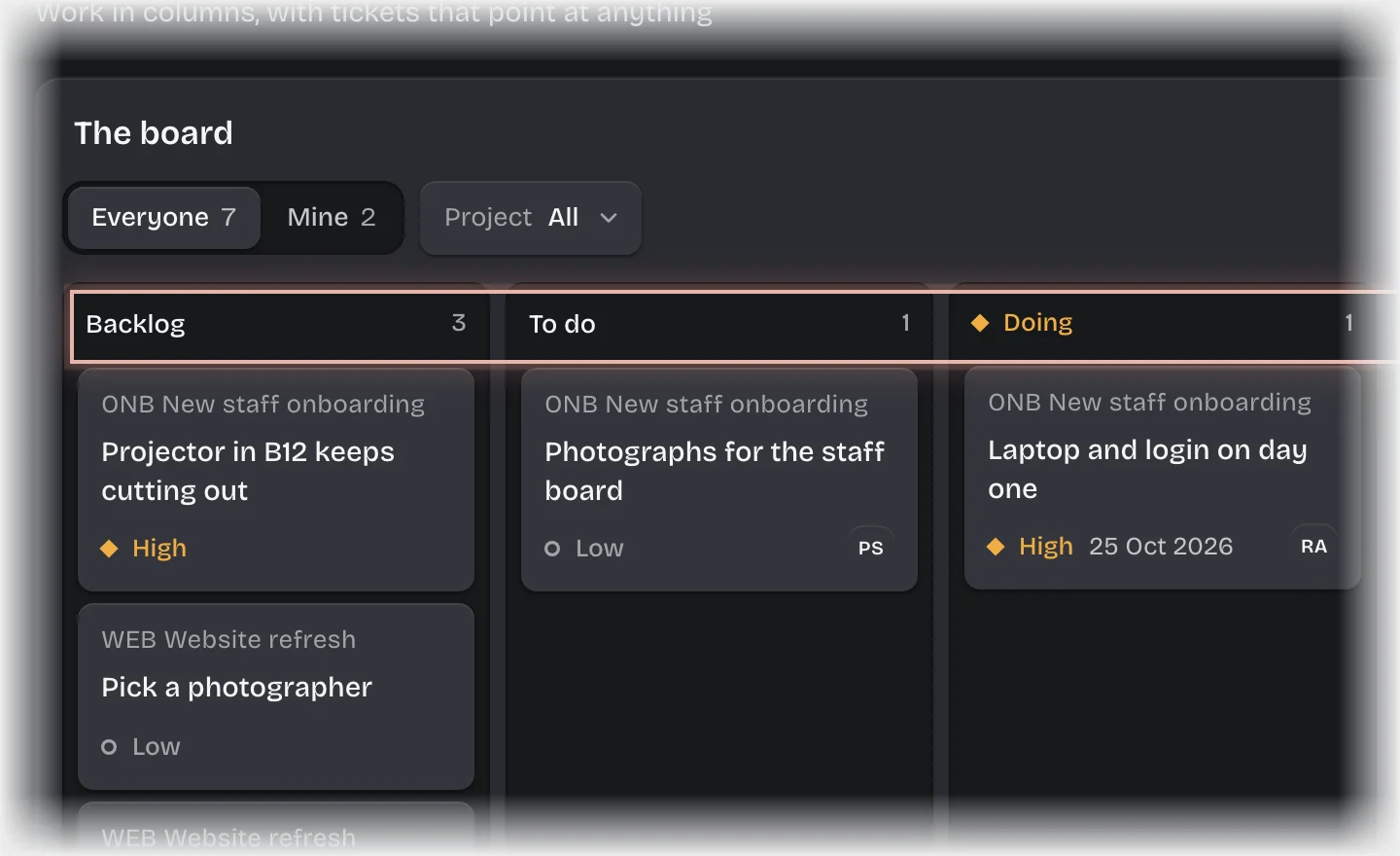
- Press Mine to see only your tickets, or Everyone for all. The number on each is how many cards it holds. To see one project’s tickets, choose it from Project beside them; Clear shows them all again. Each card shows its project above the title, then its priority and due date, and the initials of whoever has it.
- Drag the card to its new column: Backlog, To do, Doing, In review, Done or Parked.
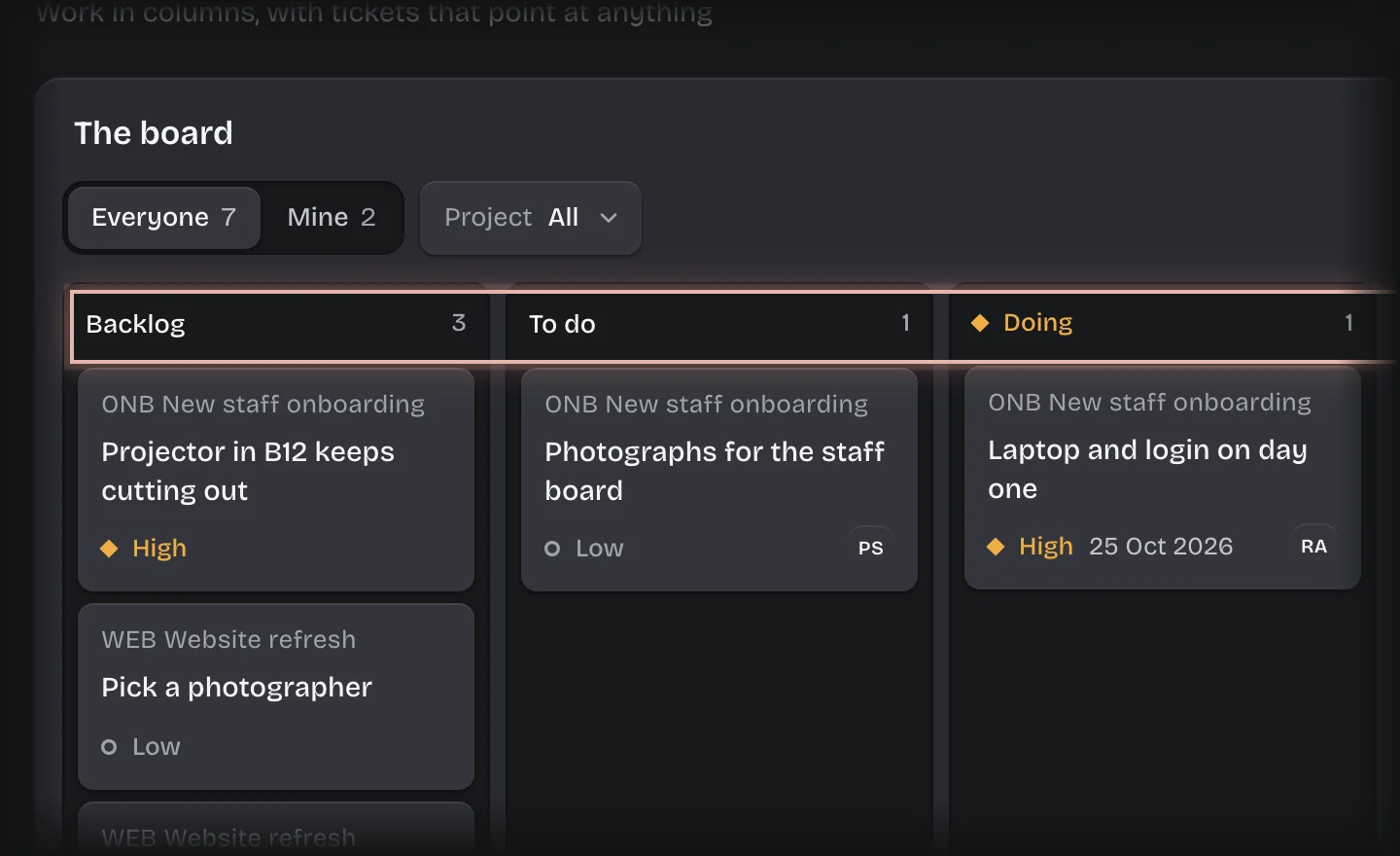
- Press a card to open the ticket on the right and read it in full.
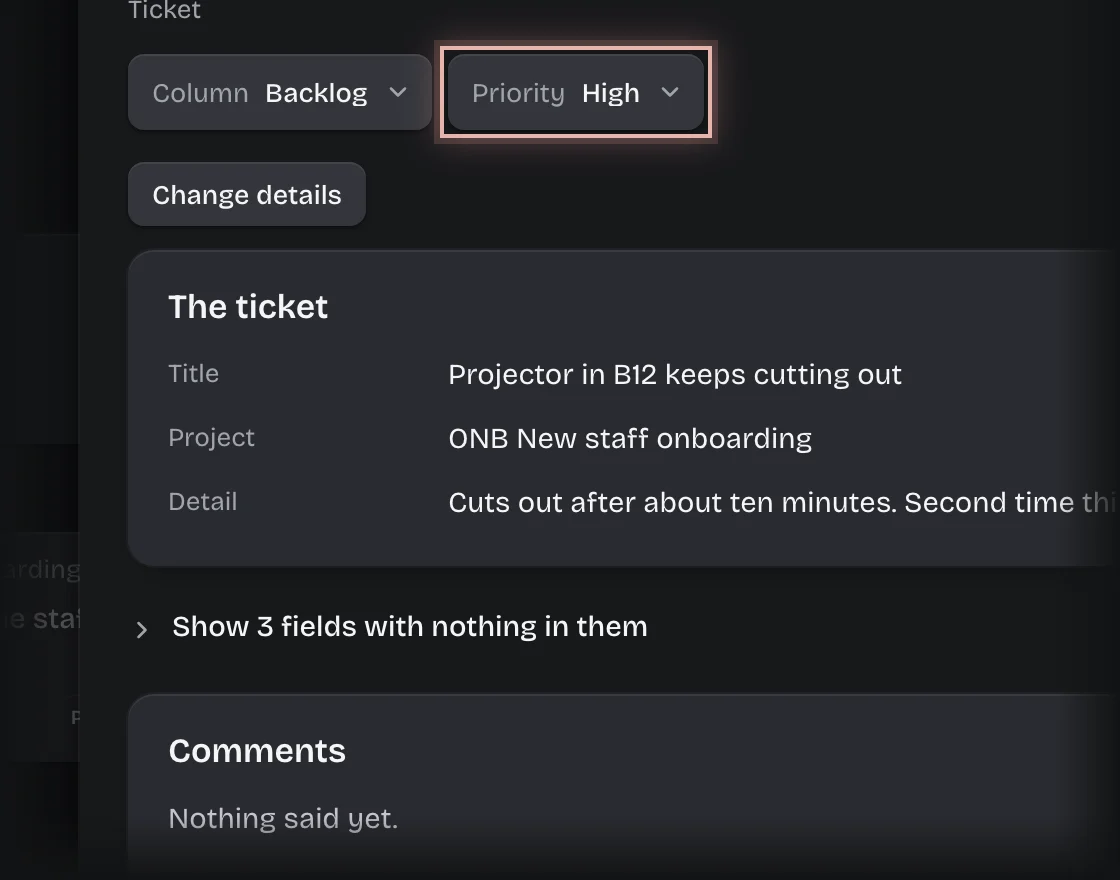
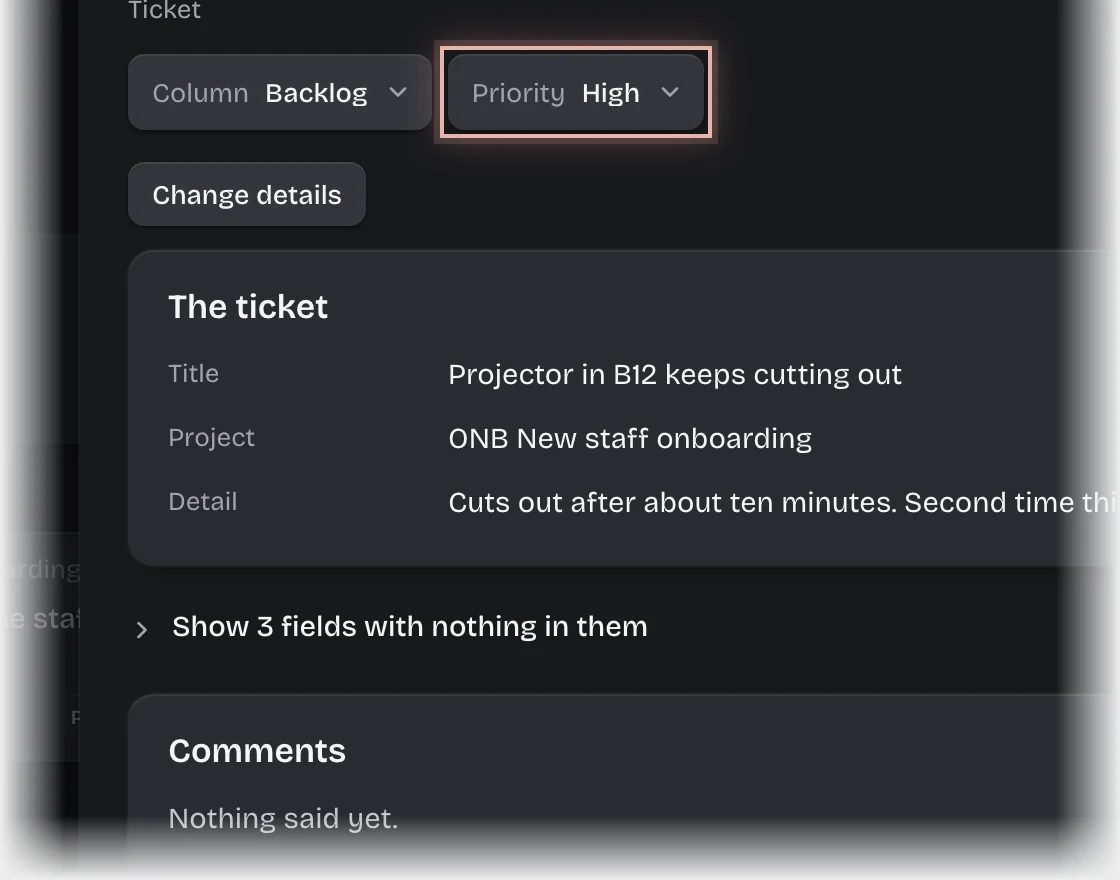
- To move it from there, choose a column from Column at the top of the ticket.
- To change its priority, choose Low, Normal, High or Urgent from Priority beside it.
What you will see
The card in its new column straight away. The move is on your workspace’s trail with who moved it.
Common problems
- The card jumps back with a message. The move was refused, for example because you are signed out. Sign in and try again.
- A No column column. It holds tickets with no column set. Drag them into a column.
- Column and Priority show as plain words, not dropdowns. You can move and set the priority of tickets that name you or that you made. Anything else needs a role that may edit tickets; a workspace administrator grants one in Manage, Roles.
- You need to change the assignee, due date or estimate. Whoever made the ticket, or somebody who may edit tickets, does that from the ticket with Change details. See Change a ticket’s details.