Anyone in the workspace can add a screenshot or a document to a ticket while it is open, whoever raised it.
Steps
- Choose Projects in the rail.
- Press the ticket’s card on the board. The ticket opens on the right.
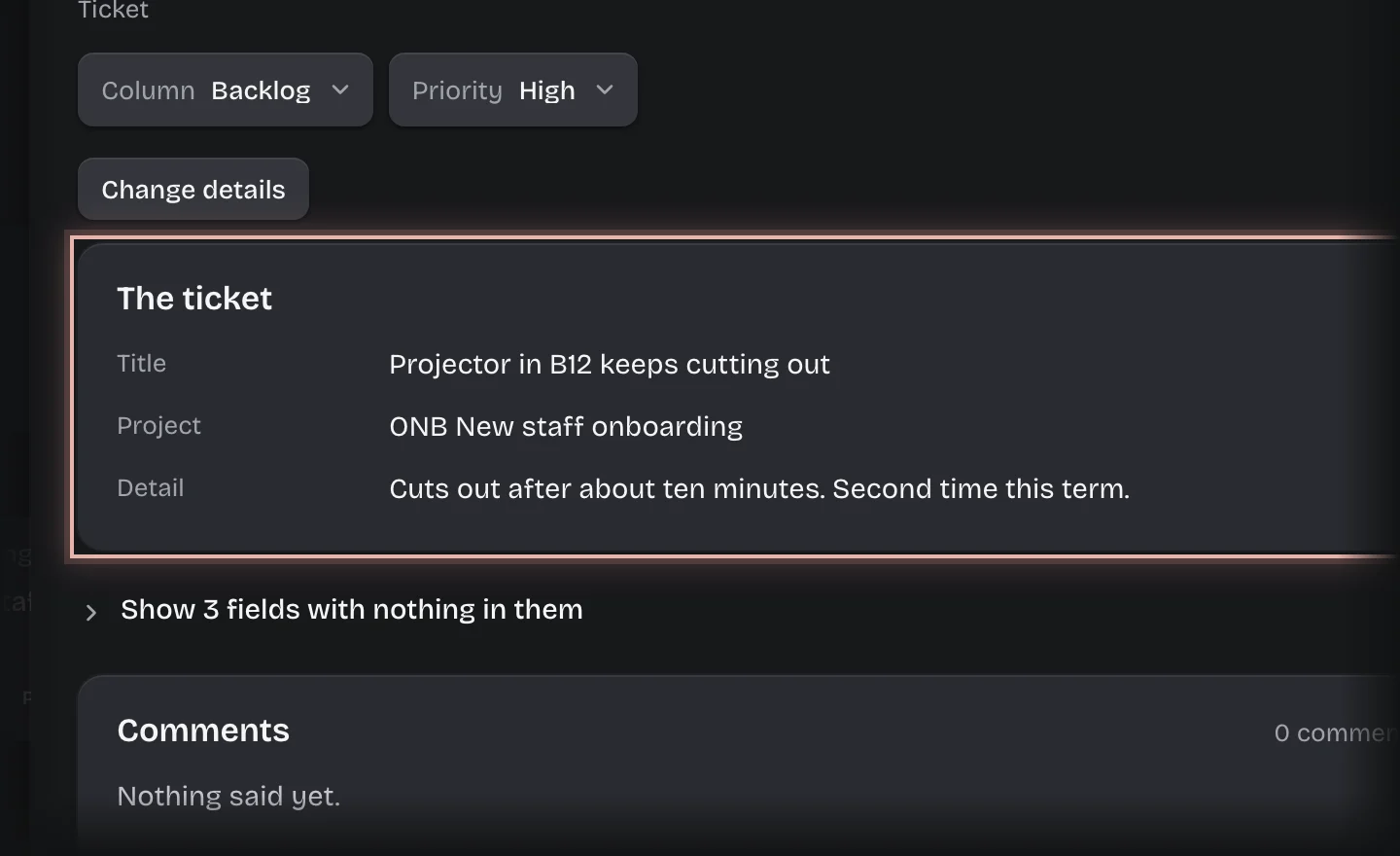
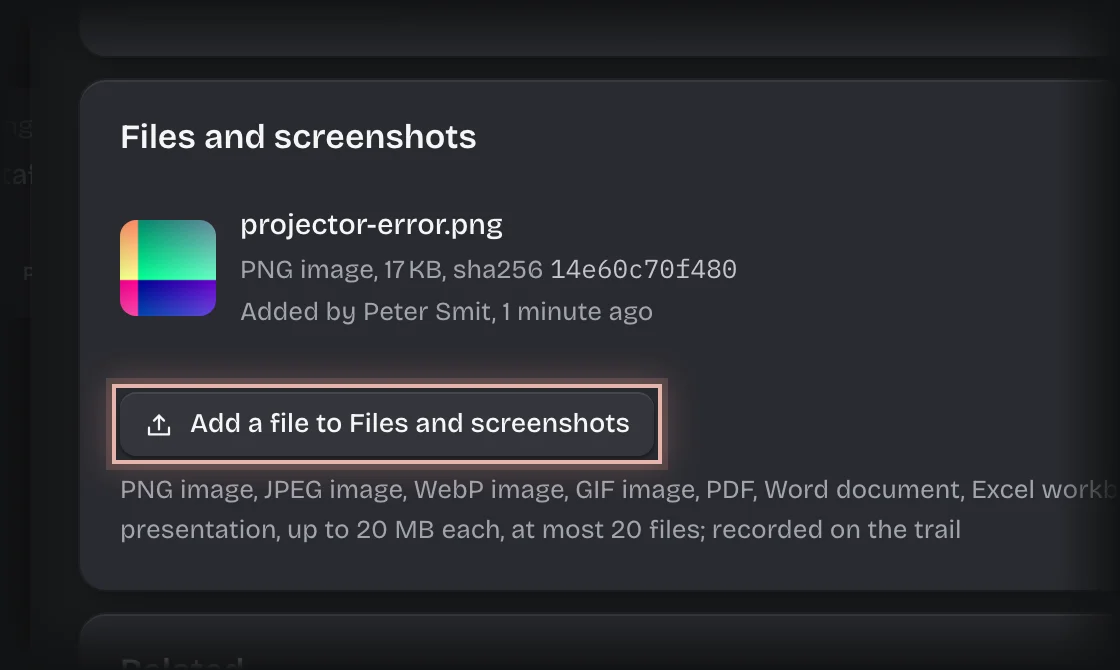
- Under Files and screenshots, press Add a file to Files and screenshots and pick the file.
What you will see
- The file at the end of Files and screenshots, with your name and the time you added it. A picture shows as a small preview; press it to open it full size.
- An entry under The trail, at the foot of the ticket, saying who added which file.
Common problems
- There is no Add a file to Files and screenshots button. The ticket is in Done, so it takes no more files. Move it back to another column first if the work is not finished.
- A file was added by mistake. Ask a tenant admin to remove it. See Change a ticket’s details.
- “this field takes …”. The file is of a kind tickets do not take, such as a ZIP. Send a screenshot, a PDF or an office document instead.