Steps
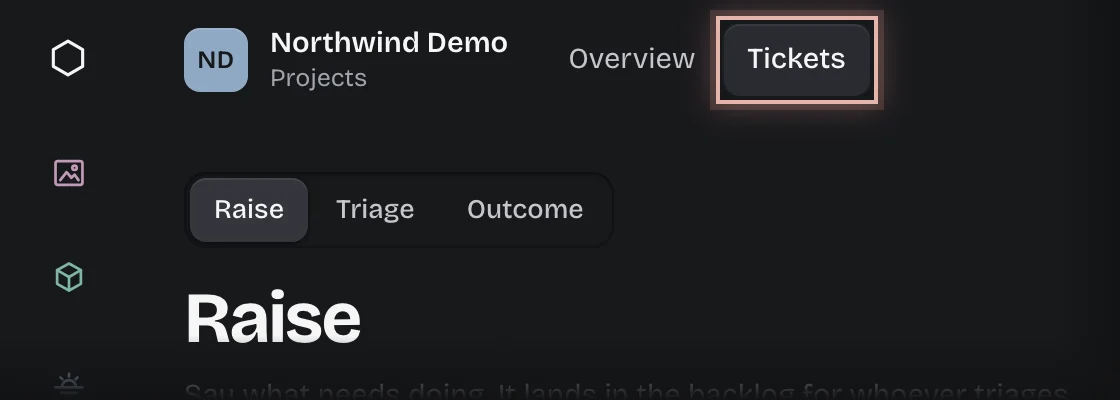
- Choose Projects in the rail, then the Tickets tab. The Raise stage opens.
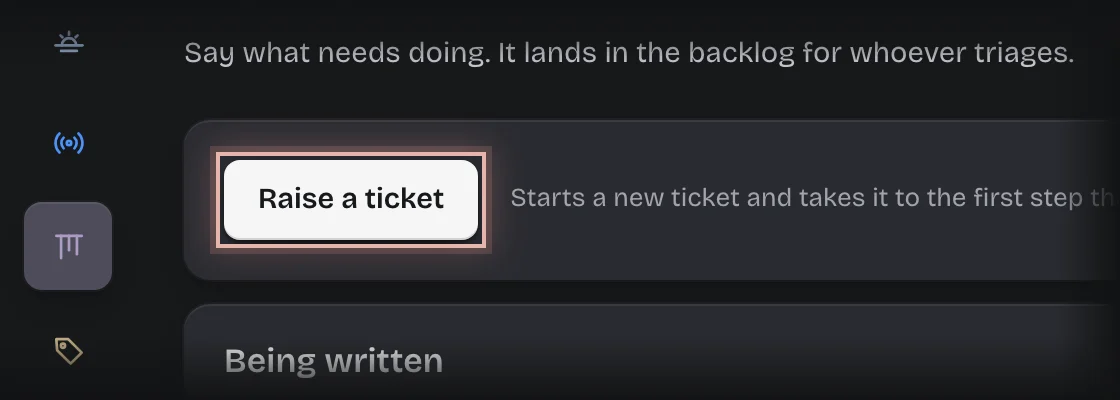
- Press Raise a ticket.
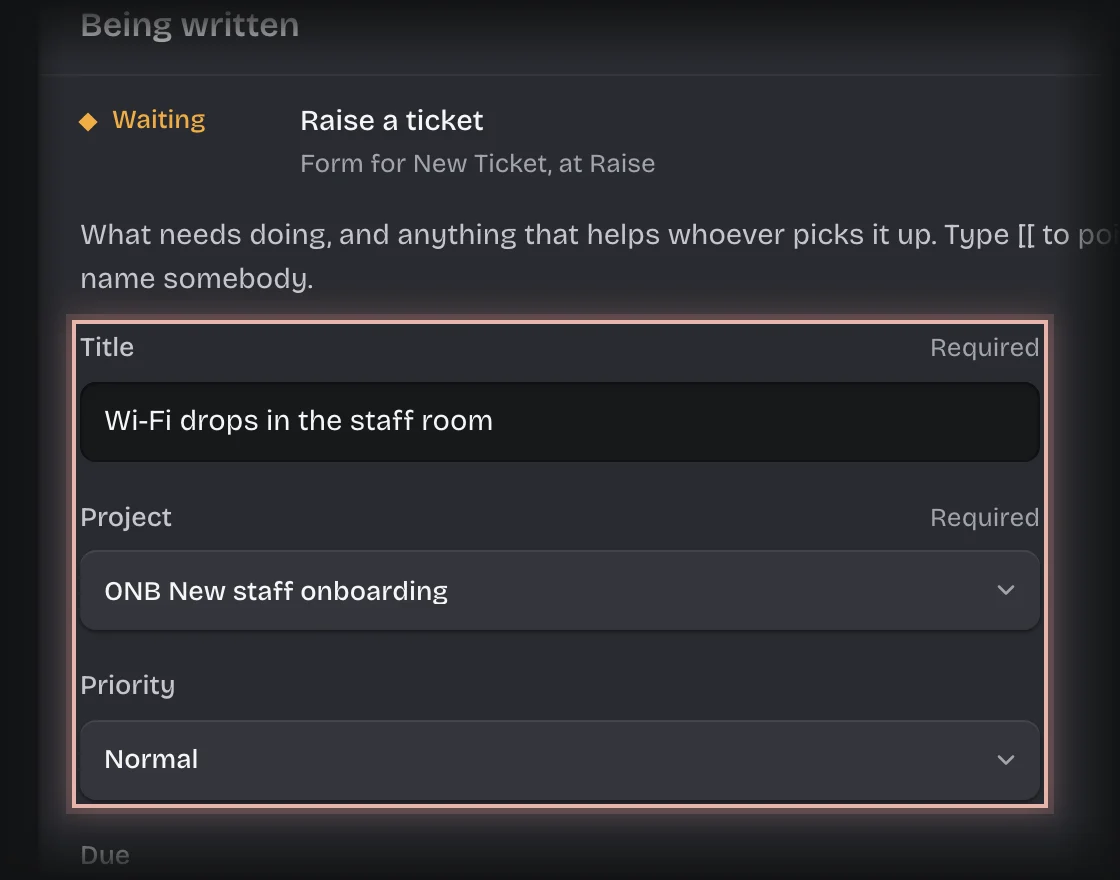
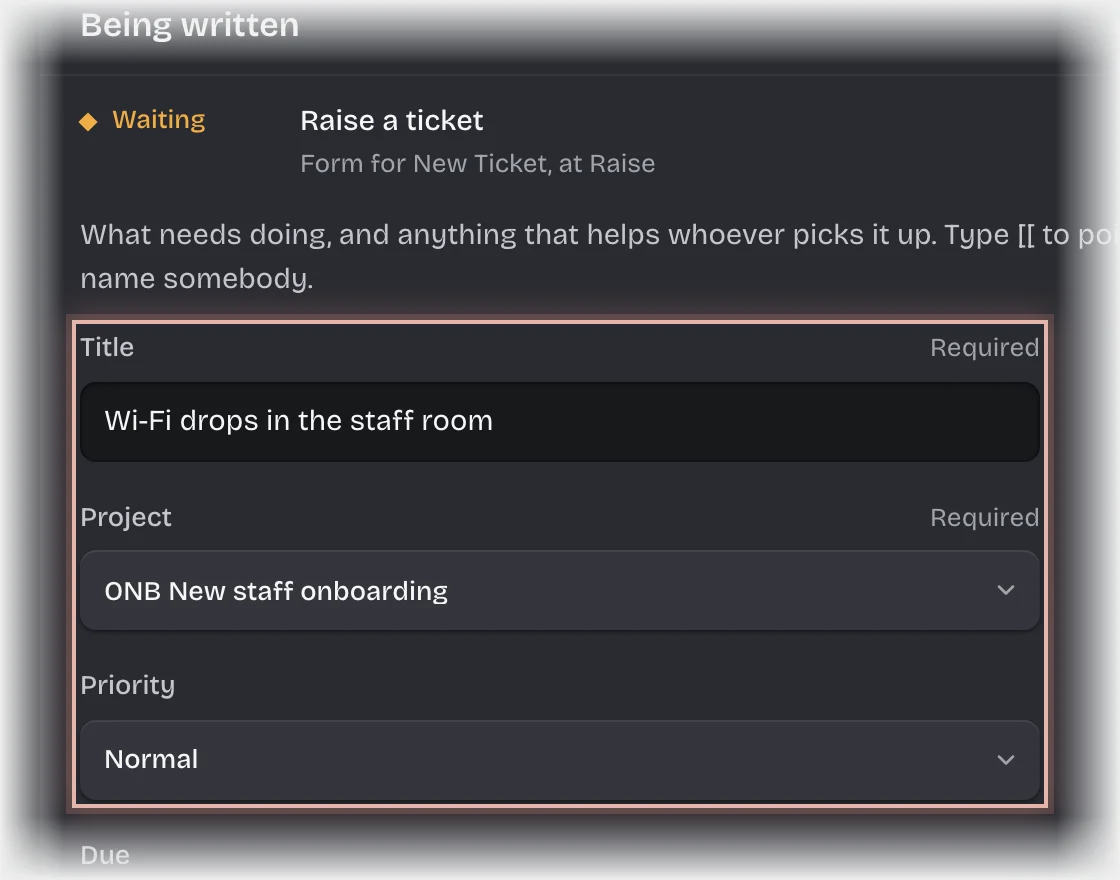
- The form Raise a ticket opens under Being written. Fill in:
- Title
- Project
- Priority: Low, Normal, High or Urgent.
- Due: optional. Choose the date from the calendar.
- Detail: type
[[to point at a record, or@to name somebody, and choose from the list. - Files and screenshots: optional. Press Choose files and pick screenshots or documents. Images (PNG, JPEG, WebP, GIF), PDF, Word, Excel and PowerPoint files are accepted, up to 20 MB each and 20 files in all.
- Press Send the form.
Put a ticket straight onto the board
When you already know where the work goes, add it to its column without the form. It is not triaged: it goes where you put it.
- On The board, press Add a ticket at the foot of the column it belongs in.
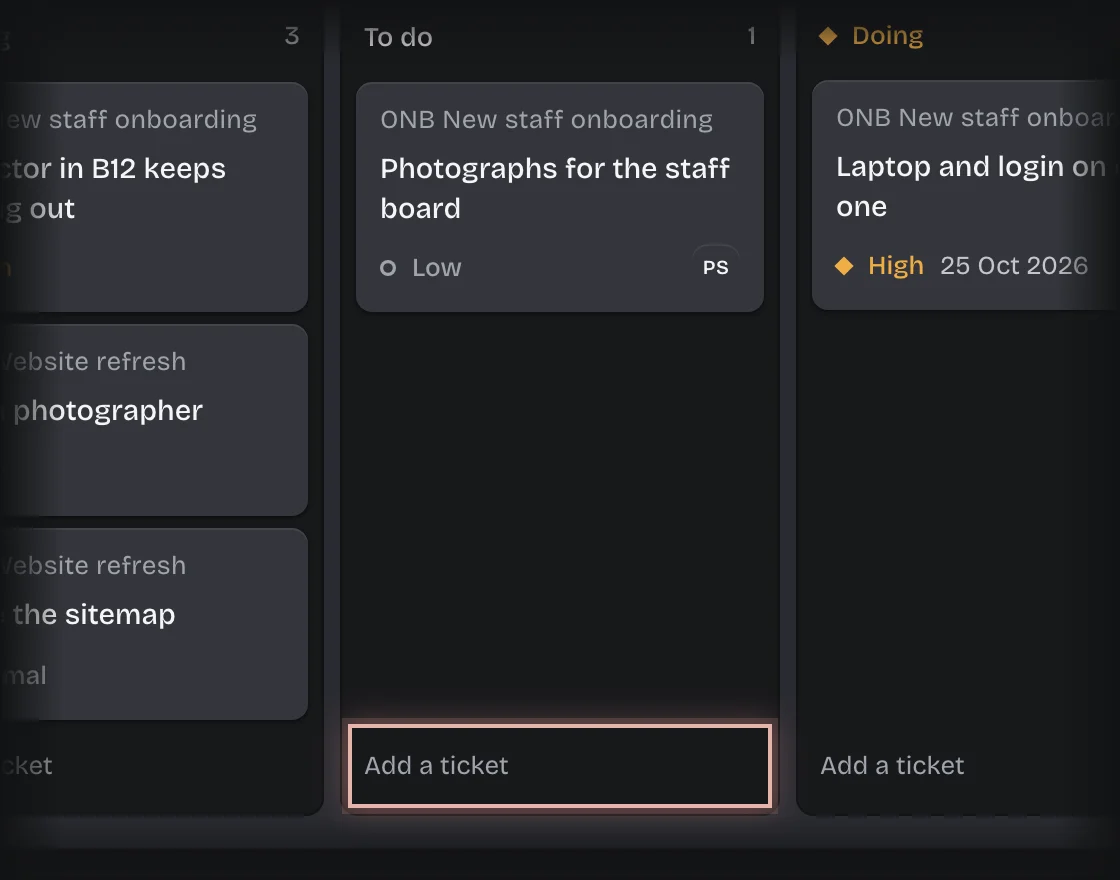
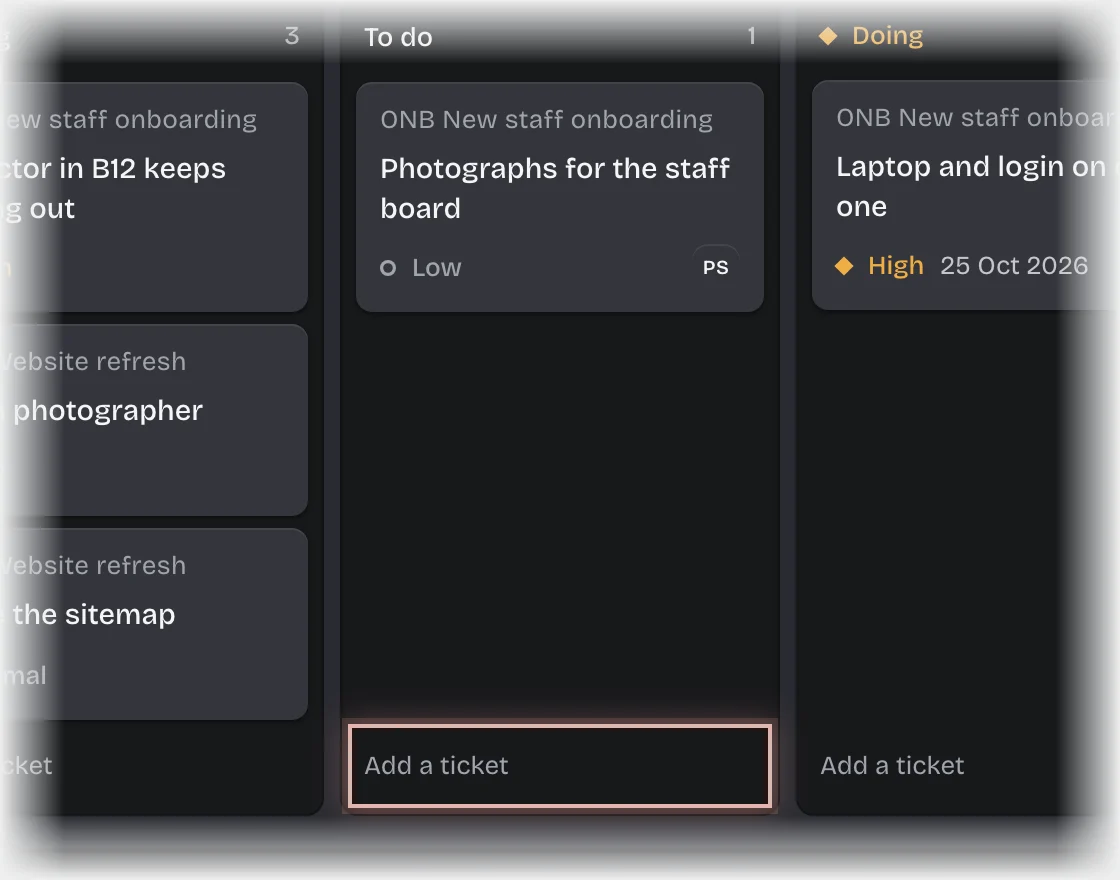
- Type the Title, choose the Project, and press Add. The project you chose last is offered again. With Mine chosen, the ticket is yours.
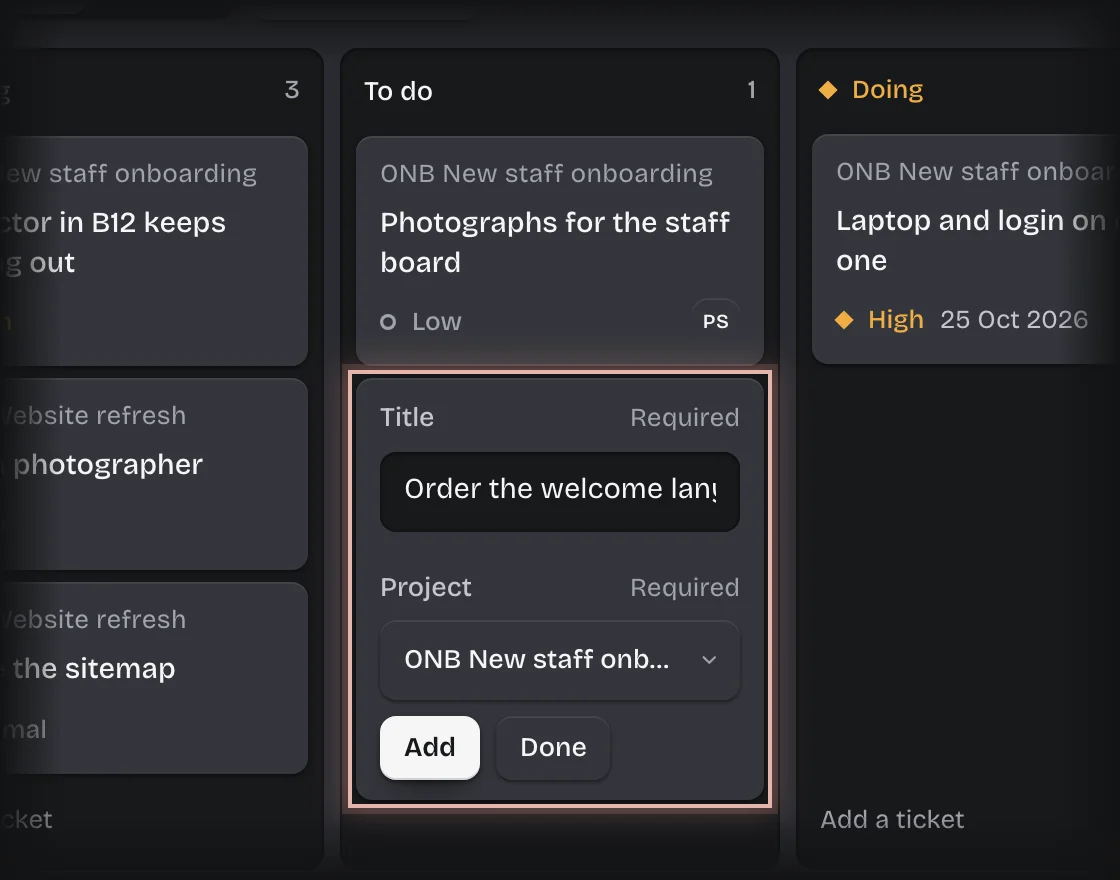
- The card appears in that column, and the form stays open for the next one. Press Done when you have finished. As its maker, you can change its details later from the ticket with Change details.
- A raised ticket in the Backlog column of the board. It waits for a project lead to triage it. When they give it to someone, that person gets a message: “Yours:” followed by the title.
- In Detail, a reference shows as the name of what it points at. Backspace removes a whole reference at once. If the record is renamed later, the reference shows its new name.
Common problems
- The project is not in the list. Projects are created by a tenant admin. See Create a project.
- You need to add a file after sending the form. See Add a file to a ticket.
[[does not find a record. It lists only records you can see in this workspace.