Every upload becomes the next version of the job. Earlier versions are kept with what happened to them.
Steps
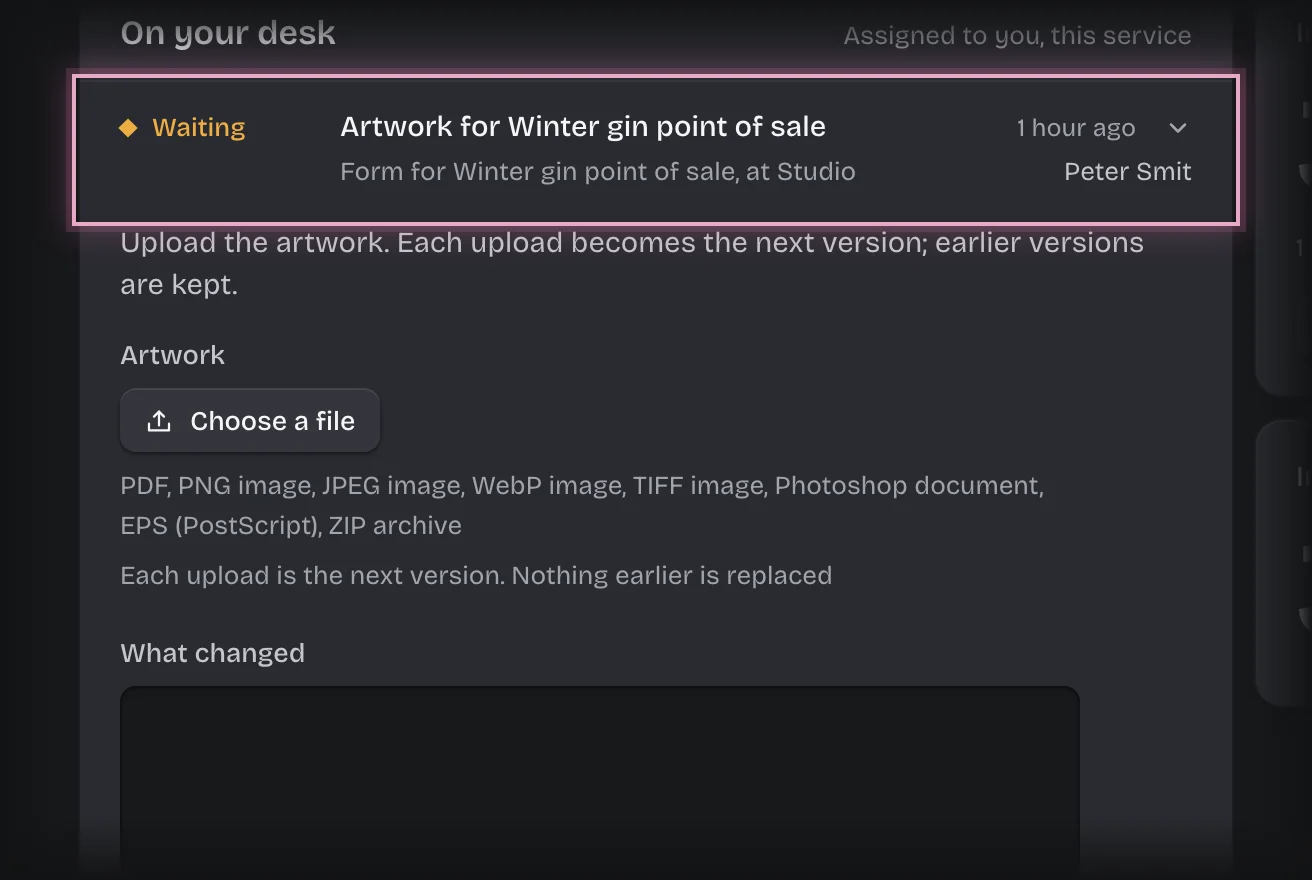
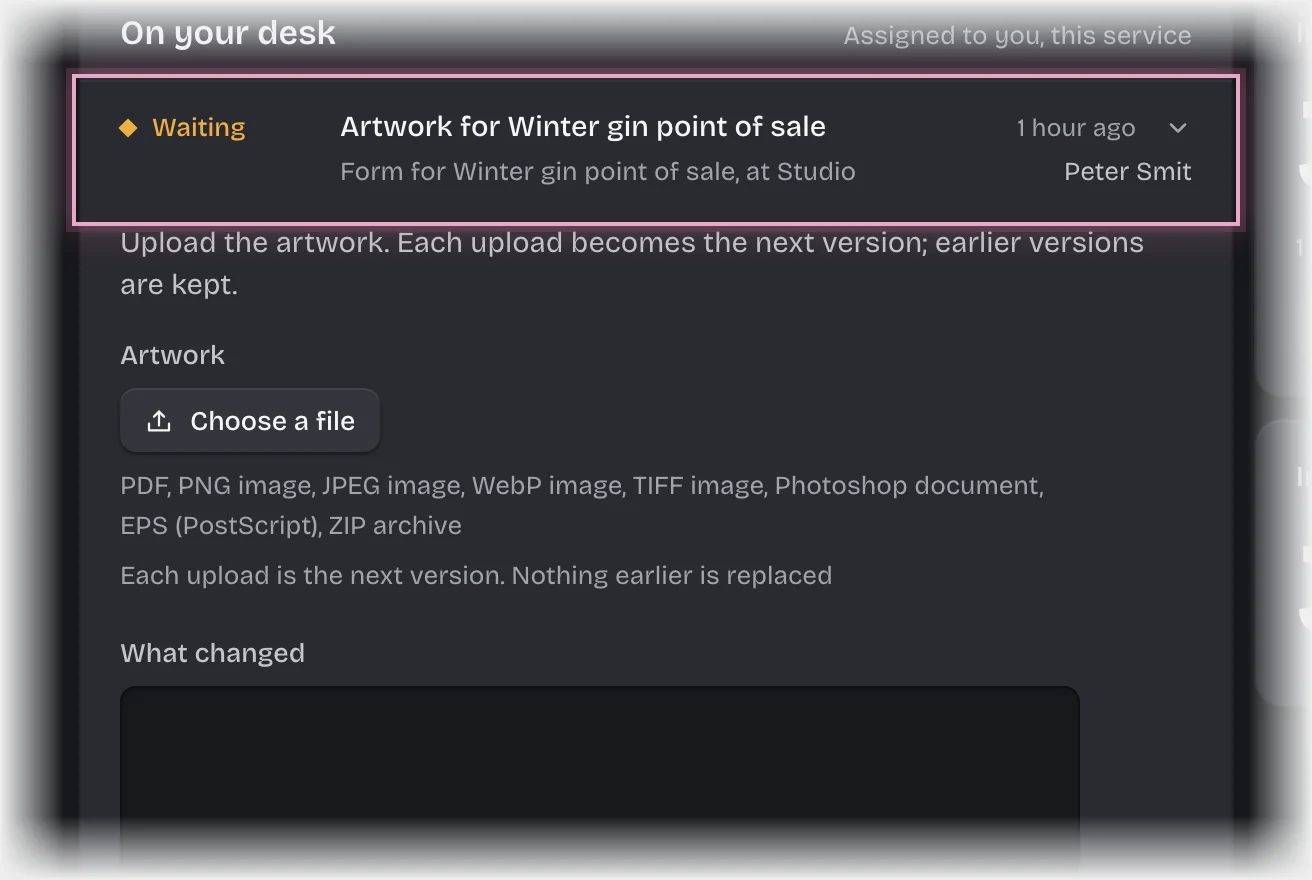
- When a job is given to you, you get the message “New artwork job:” with the title. Choose Artwork Approvals in the rail. The form Artwork for followed by the job is on On your desk. Press the card’s header to open it.
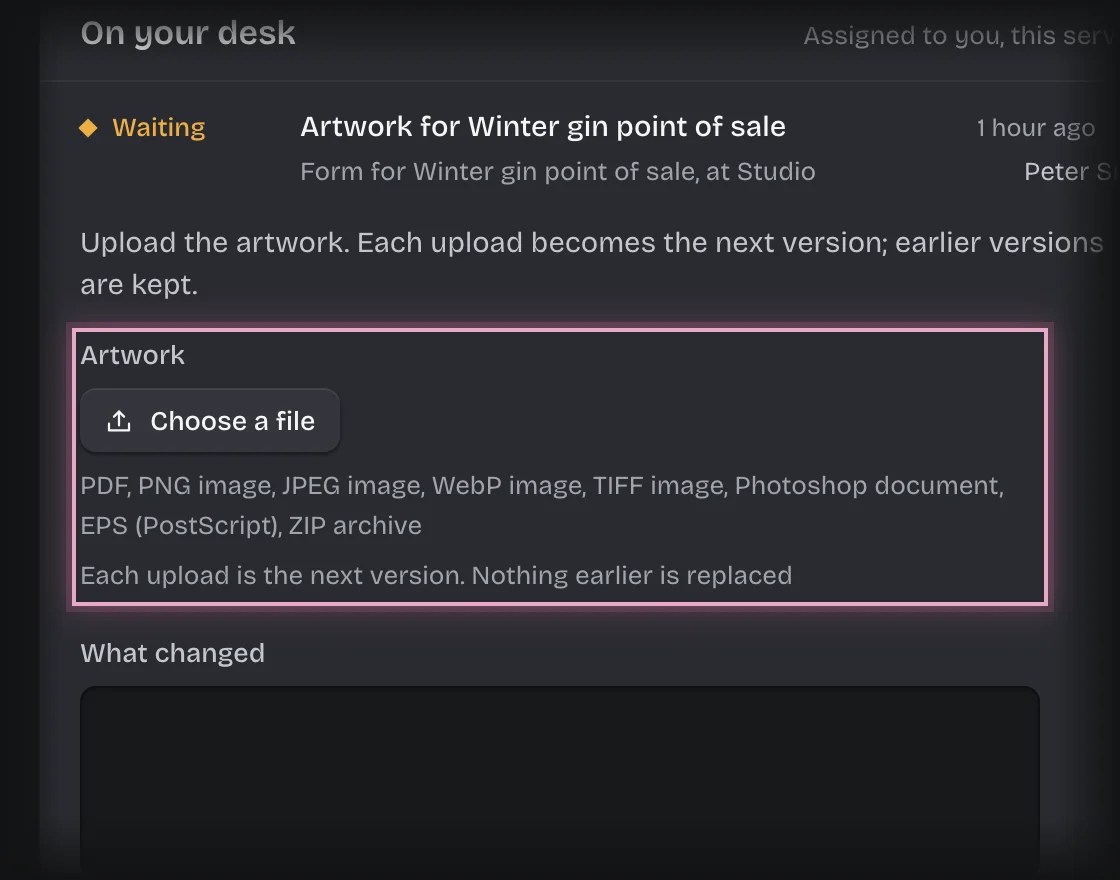
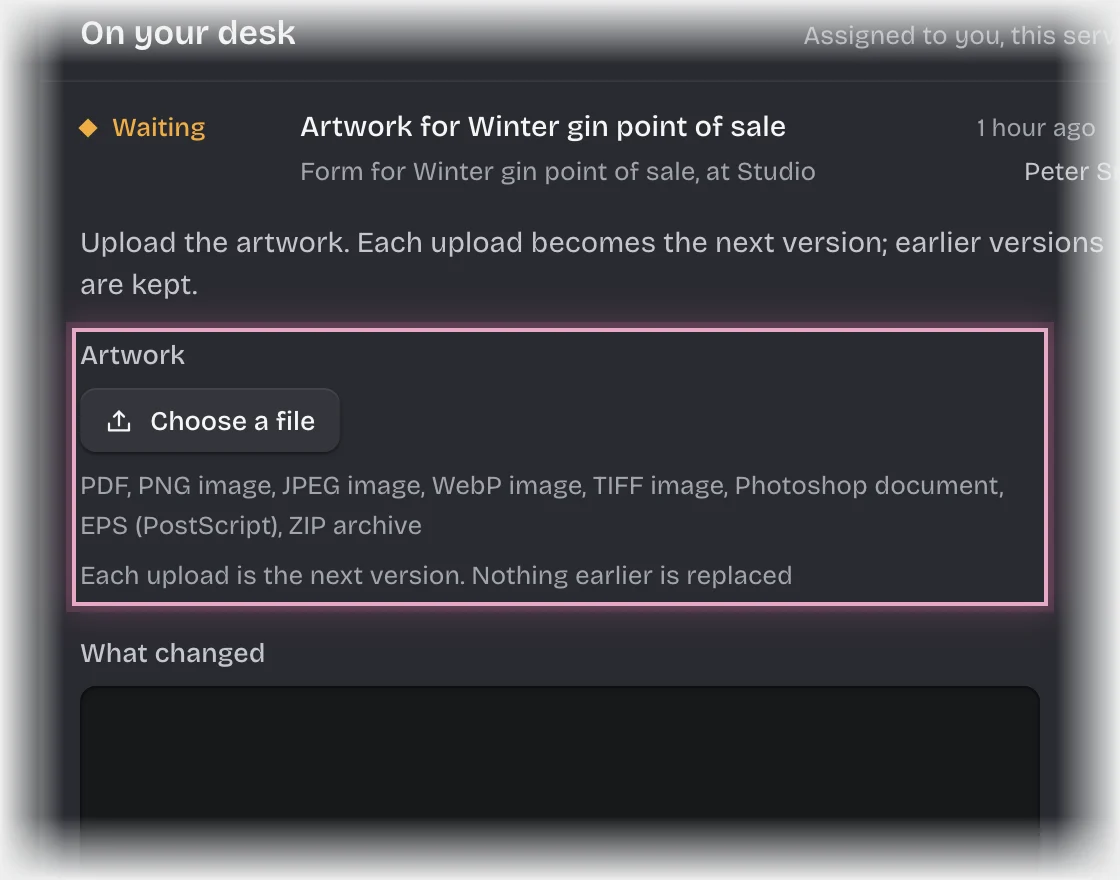
- Press Choose a file under Artwork and pick the file. It uploads straight away and shows its name, size and the start of its sha256.
- Fill in What changed, for example “Bigger logo”.
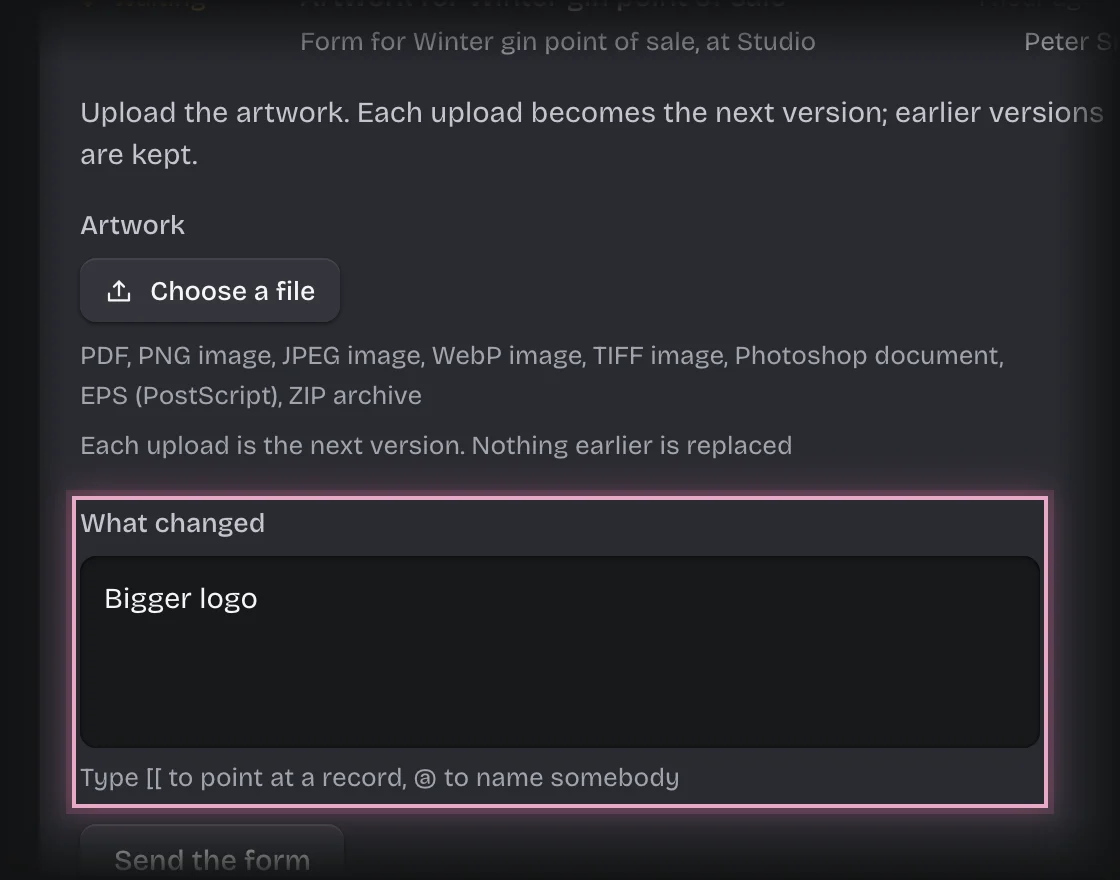
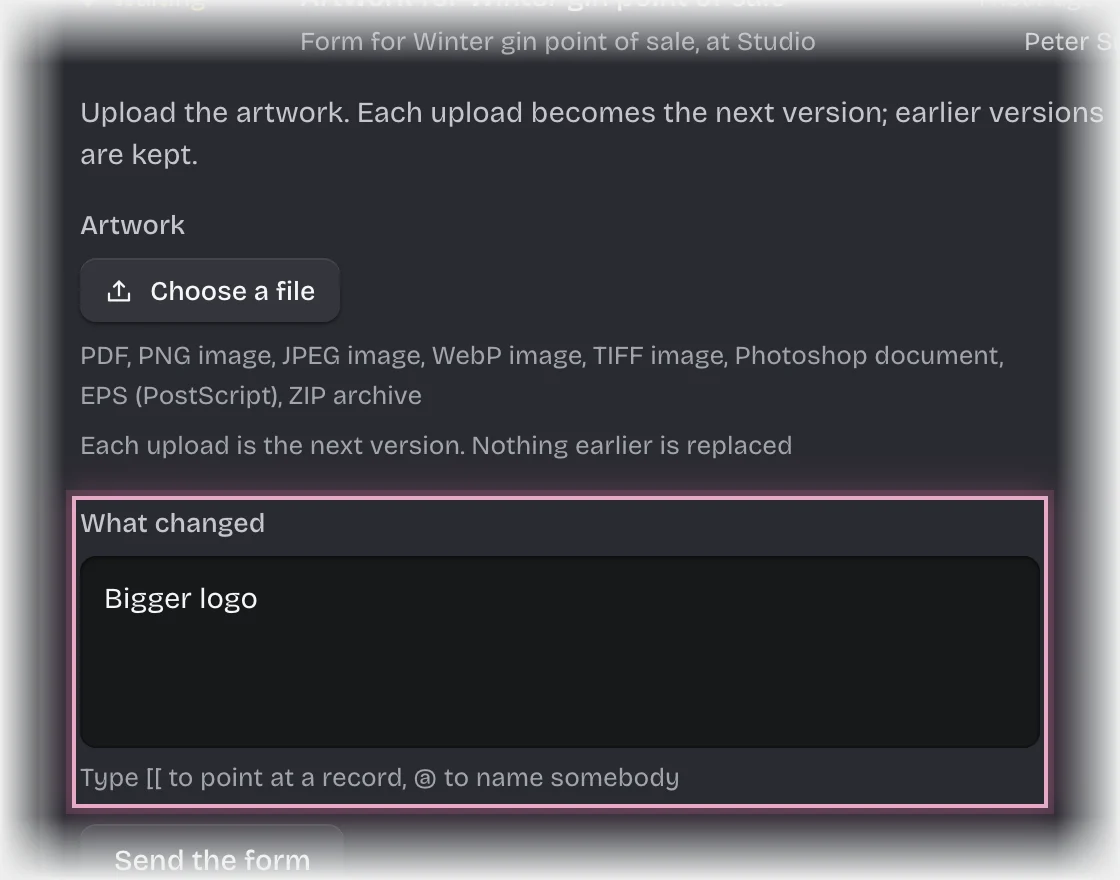
- Press Send the form.
What you will see
- A new Artwork version for the job, numbered one more than the last, in the Versions list.
- The version goes to an art director to sign off, unless the job says it does not need one. Then it goes straight to the account manager to send to the client. You are never asked to sign off your own artwork.
- If changes are asked for, by the art director or by the client, you get a message with their comment and the form Artwork for comes back to you. Your next upload is the next version.
Common problems
- “That kind of file is not accepted”. Artwork can be PDF, PNG, JPEG, WebP, TIFF, PSD, EPS or ZIP. SVG and HTML are never accepted. Export to PDF, or put the files in a ZIP.
- “The file is larger than … MB”. Make the file smaller, or ask your tenant admin about the limit.
- You chose the wrong file. Press Choose another file before you press Send the form. After that the upload is a version and cannot be changed; upload the right file when the job comes back to you.
- “File storage is not configured”. Your workspace cannot store files yet. Tell your tenant admin.