Share this page with your clients and suppliers if they ask what the email is. They do not need a Koldheim account.
The email
It comes from Koldheim on behalf of your organisation, with one of these subjects:
- Your approval is needed: a version of the artwork, or the printer’s proof of it, to approve or comment on.
- Please confirm it arrived: a delivery, or the final files, to confirm.
- A file has been shared with you: the approved file, for a supplier to download.
Steps for a client approving artwork
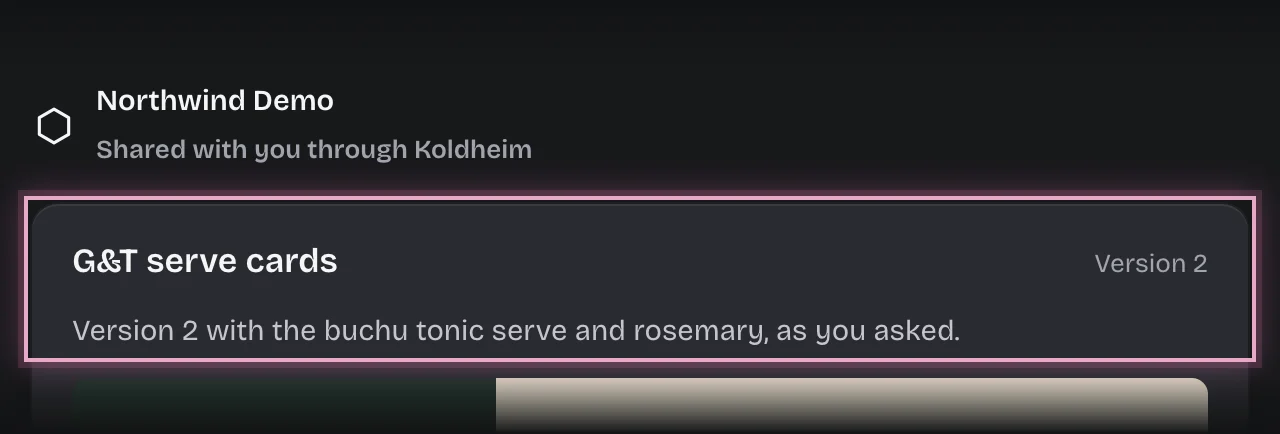
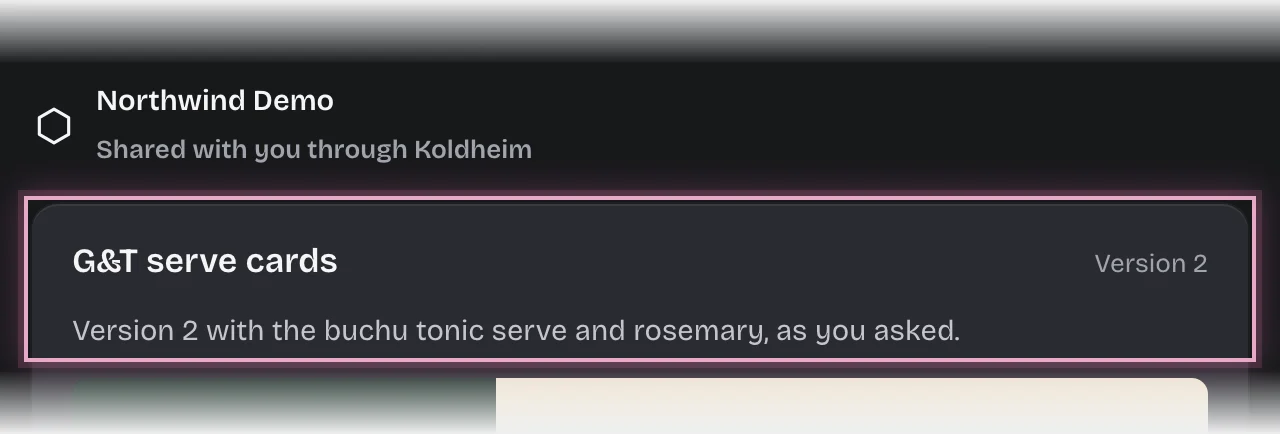
- Open the link in the email. The page shows the job, the version, any message, and the artwork itself.
- Press Open to see it full size, or Download to save it.
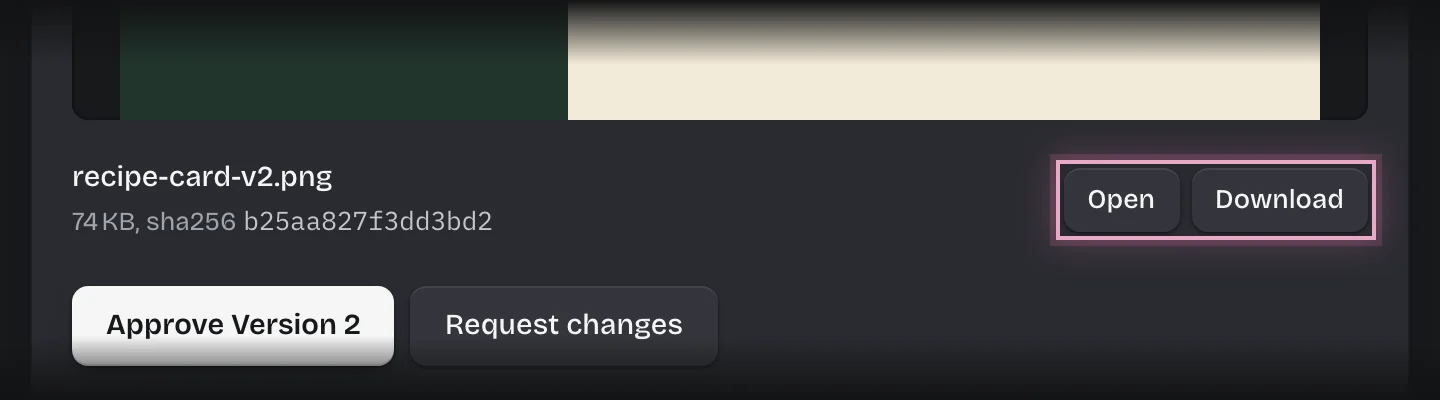
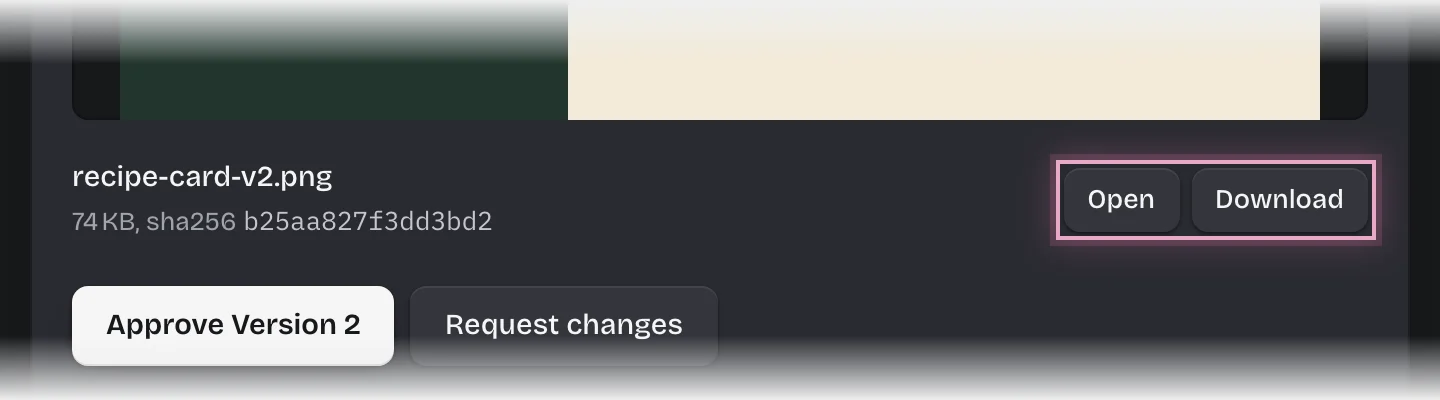
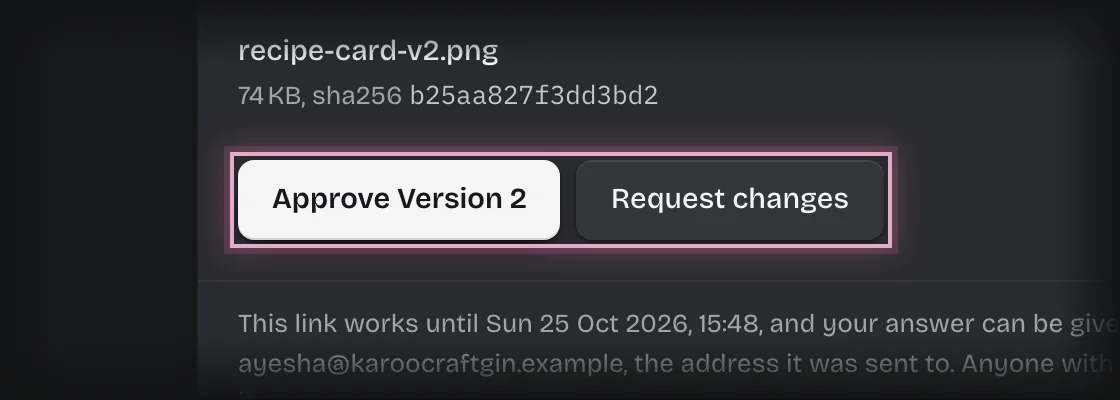
- Press Approve followed by the version, for example Approve Version 2, or press Request changes, type what needs to change, and press Send my changes.
Steps for a client signing off a proof
Some organisations ask the client to see the printer’s proof before anything is made.
- Open the link in the email. The page shows the job, “Proof of version” and the version it is a proof of, when the printer sent it, and the proof itself.
- Press Open or Download to check it.
- Press Approve if it can be made, or press Request changes, type what needs to change, and press Send my changes. The printer makes a new proof, and they get a new email for it.
What they will see
- After answering, the page says what they decided and when. The link cannot be used to answer again.
- If they asked for changes, they get a new email with the next version. The old link then says it has been replaced, and no longer shows the artwork.
- To confirm a delivery, they press Confirm it arrived. For files, they press Download first.
Common problems
- “This link has expired.” Links work for a limited time, 7 days for an approval unless your organisation changed it. Ask the account manager to send it again.
- “This link has been replaced by a newer one.” A newer version, or a newer proof, was sent. Use the most recent email.
- “This link has been withdrawn.” The job was cancelled.
- “This link is not valid.” The address was copied incompletely. Open it from the email again.
- Forwarding the email. Anyone with the link can answer it, and the answer is recorded against the address it was sent to. Ask them not to forward it; the account manager can send it to someone else instead.