You write the brief. The job is yours from then on: you send each version to the client and decide whether it is printed.
Steps
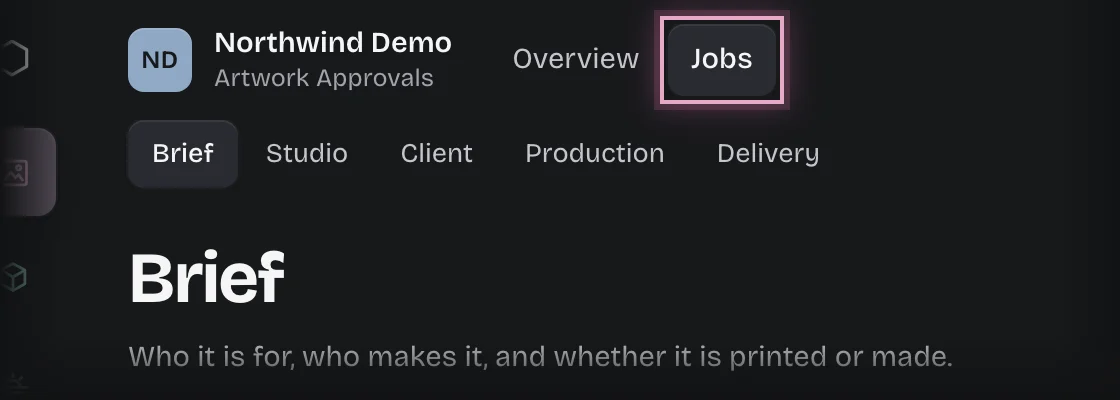
- Choose Artwork Approvals in the rail, then the Jobs tab. The stages are the tabs under the top bar, and Brief opens first.
- Press Start an artwork job. You can also press Start an artwork job under In the studio on the Overview.
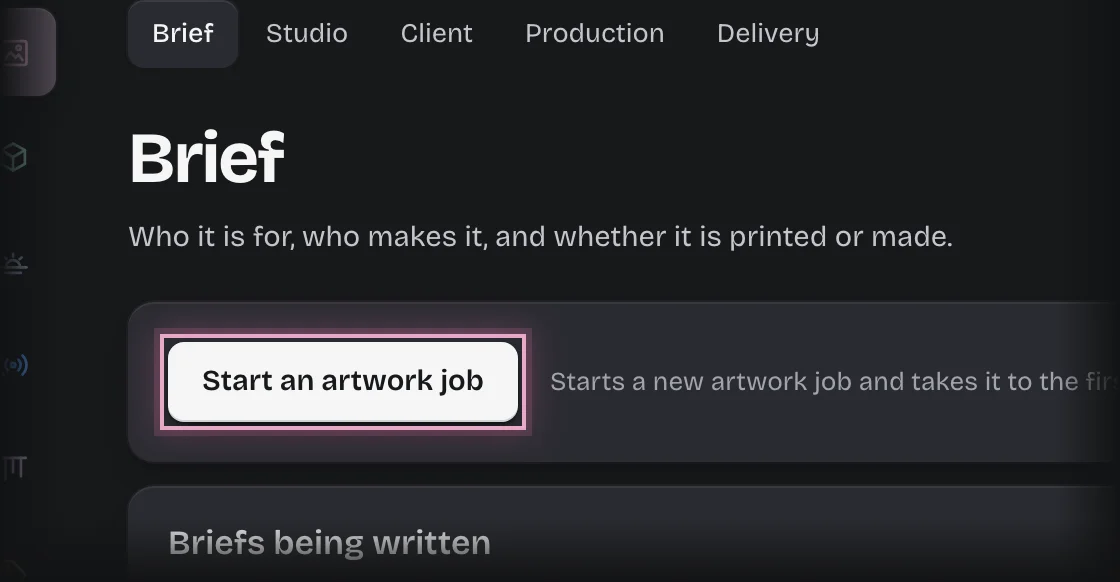
- The form Brief opens under Briefs being written. Fill in:
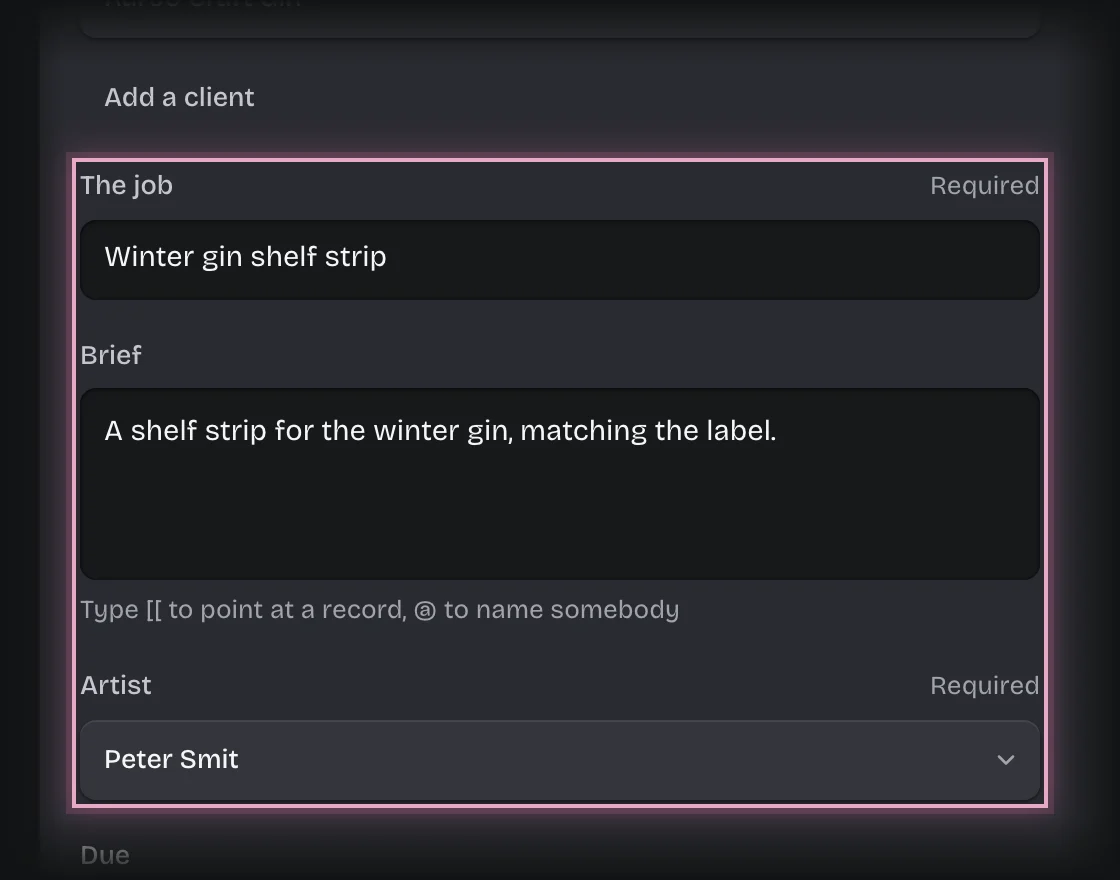
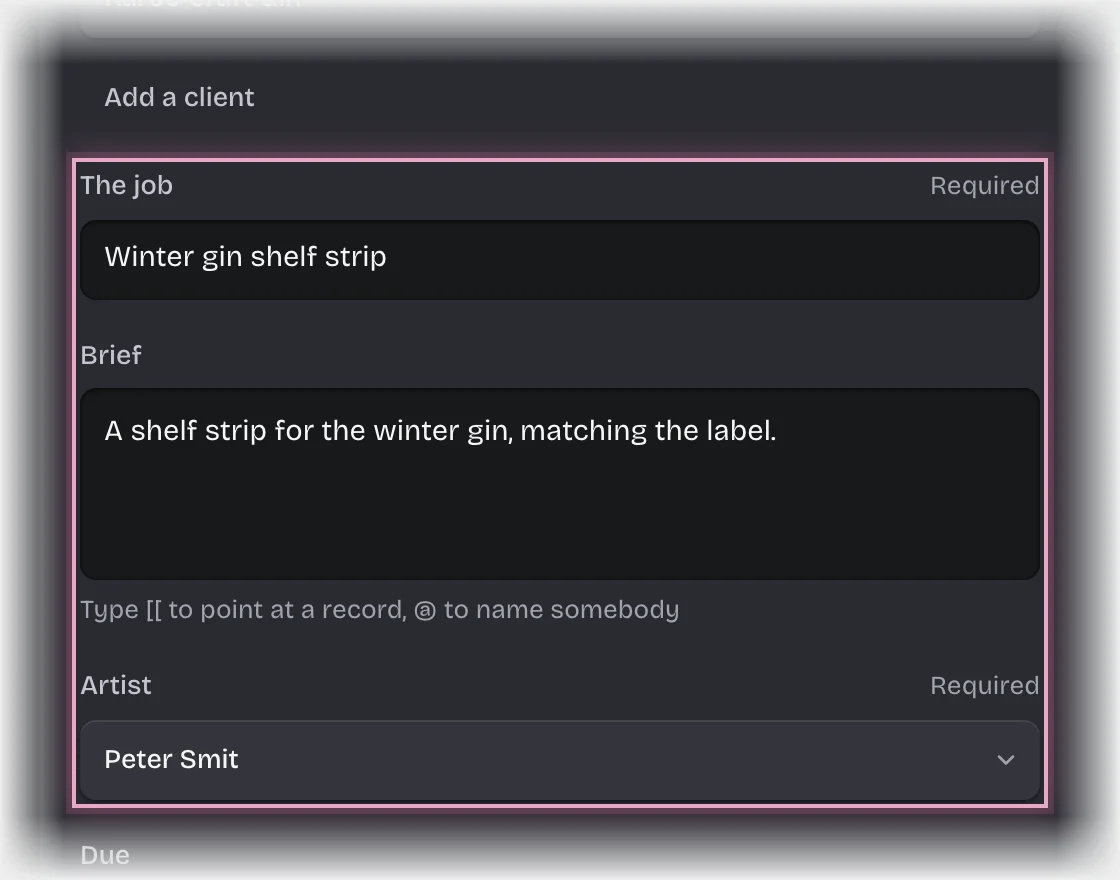
- Client: choose one. If Add a client shows under it, you can add a new client there.
- The job
- Brief: what the artist needs to know.
- Artist: who makes it.
- Due: optional. Pick the date from the calendar.
- An art director signs it off: starts as your workspace’s setting. No sends the artist’s version straight to you to send to the client.
- Needs printing or manufacture: Yes if it goes to a printer or manufacturer, No if the client gets files. You can change this after the client approves.
- What to make: quantity, size, stock and finish. It goes to the supplier with the file.
- Press Send the form.
What you will see
- The job’s State is In the studio, and the artist gets the message “New artwork job:” with the title.
- The address the client’s links go to is filled in from the client’s Contact email.
Started one by mistake
Until you press Send the form, the job can be deleted. Press Discard draft on the Brief form, then Discard draft in the box that asks Discard this draft?. The job leaves the Jobs list and its counts. Once the brief is sent it can only be cancelled; see Cancel a request you started.
Common problems
- The client is not in the list. Press Add a client under Client if you see it. Otherwise a tenant admin adds clients. See Add a client or a supplier.
- The artist is not in the list. Only people in your workspace can be chosen. A tenant admin adds people under Manage > People.