Clients and production suppliers do not sign in. Their email address is where their links go.
Steps
- Open Manage > Records and choose Client or Production supplier under Record types.
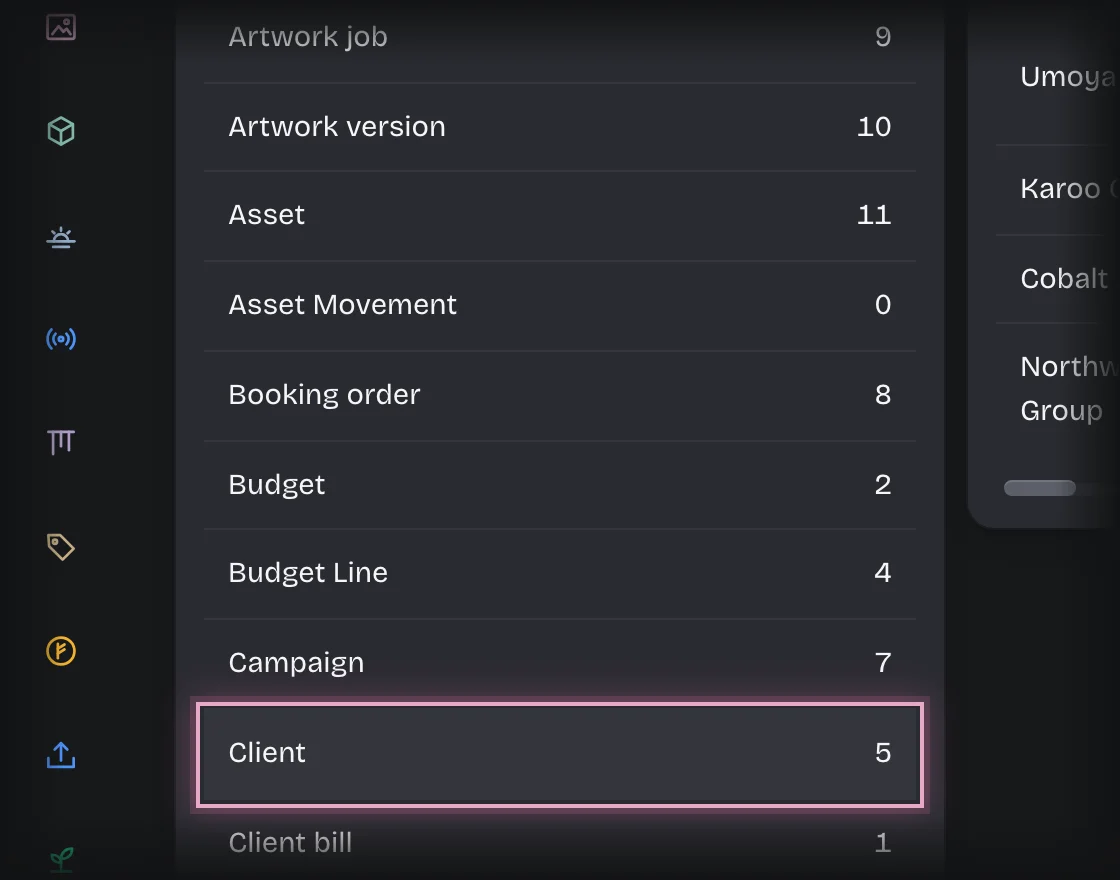
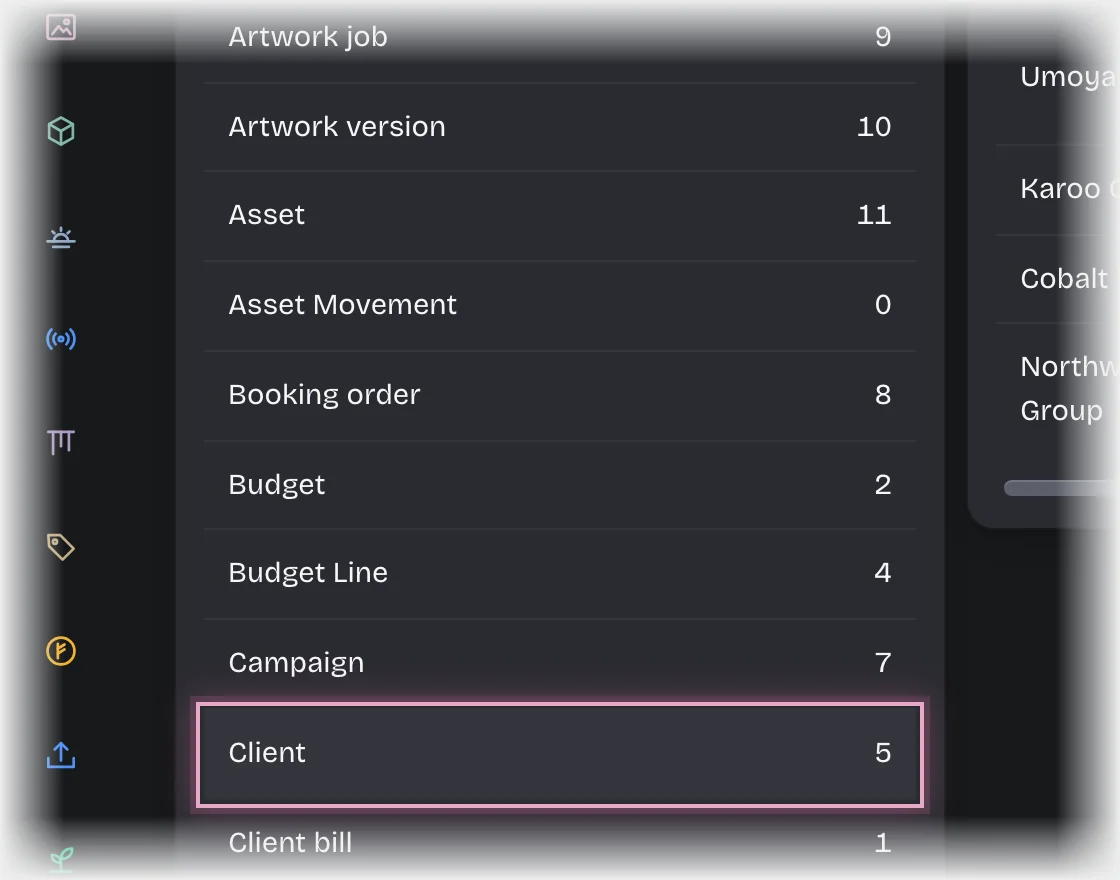
- Press Add client or Add production supplier at the top of the list.
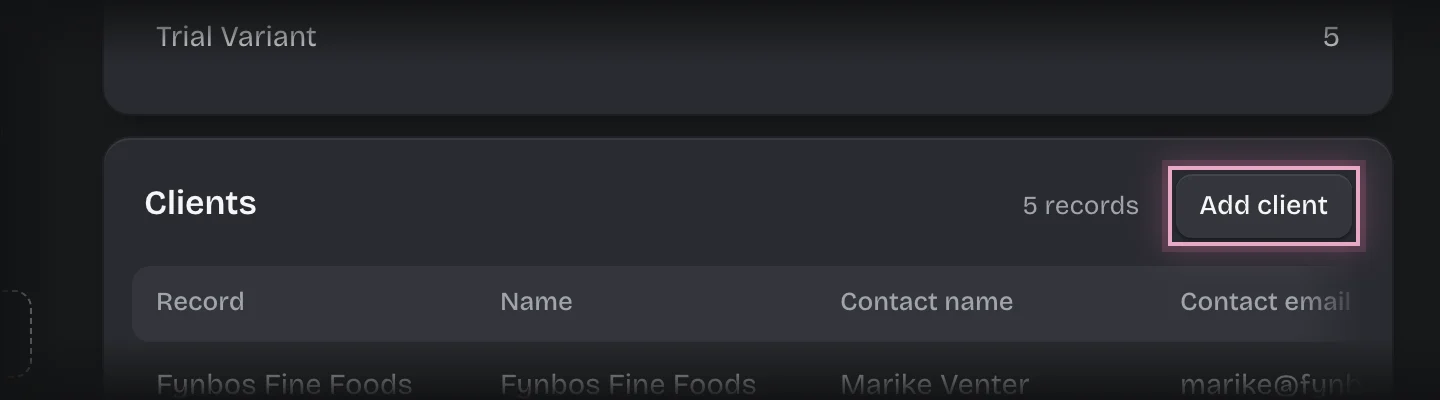
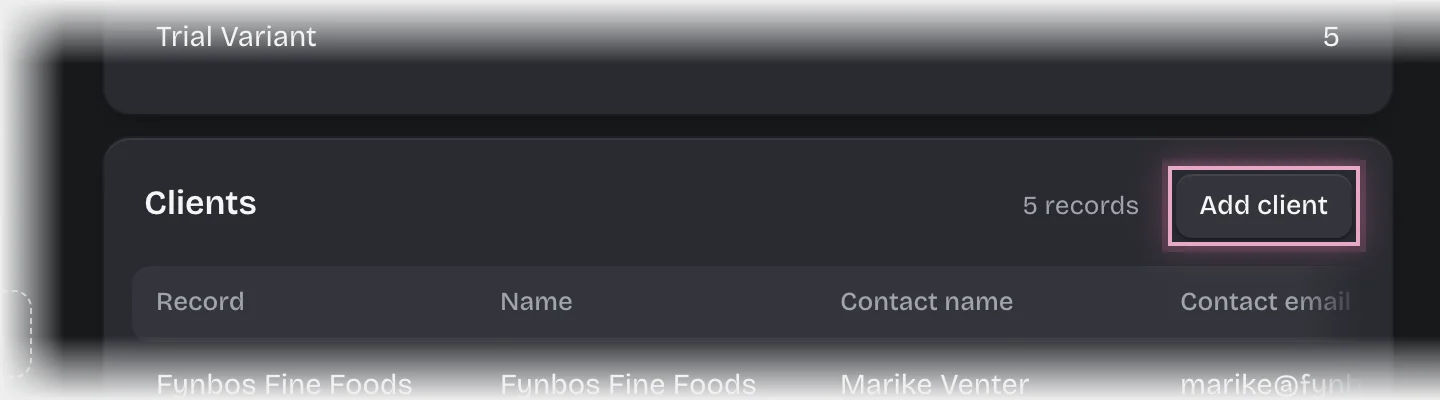
- Fill in Name and Contact email, and Contact name and Phone if you have them. For a supplier, What they make helps the account manager choose. Set Active to Yes.
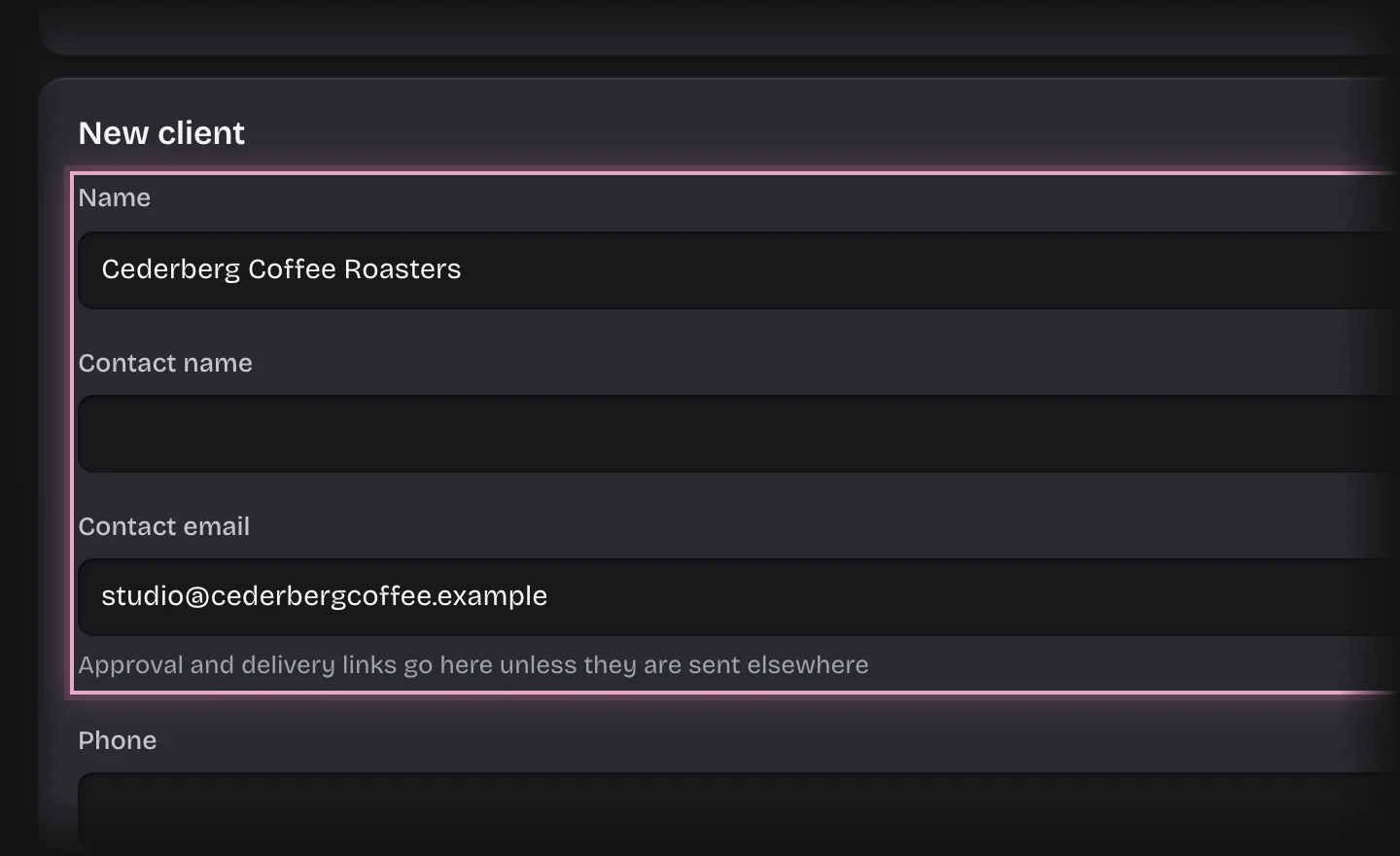
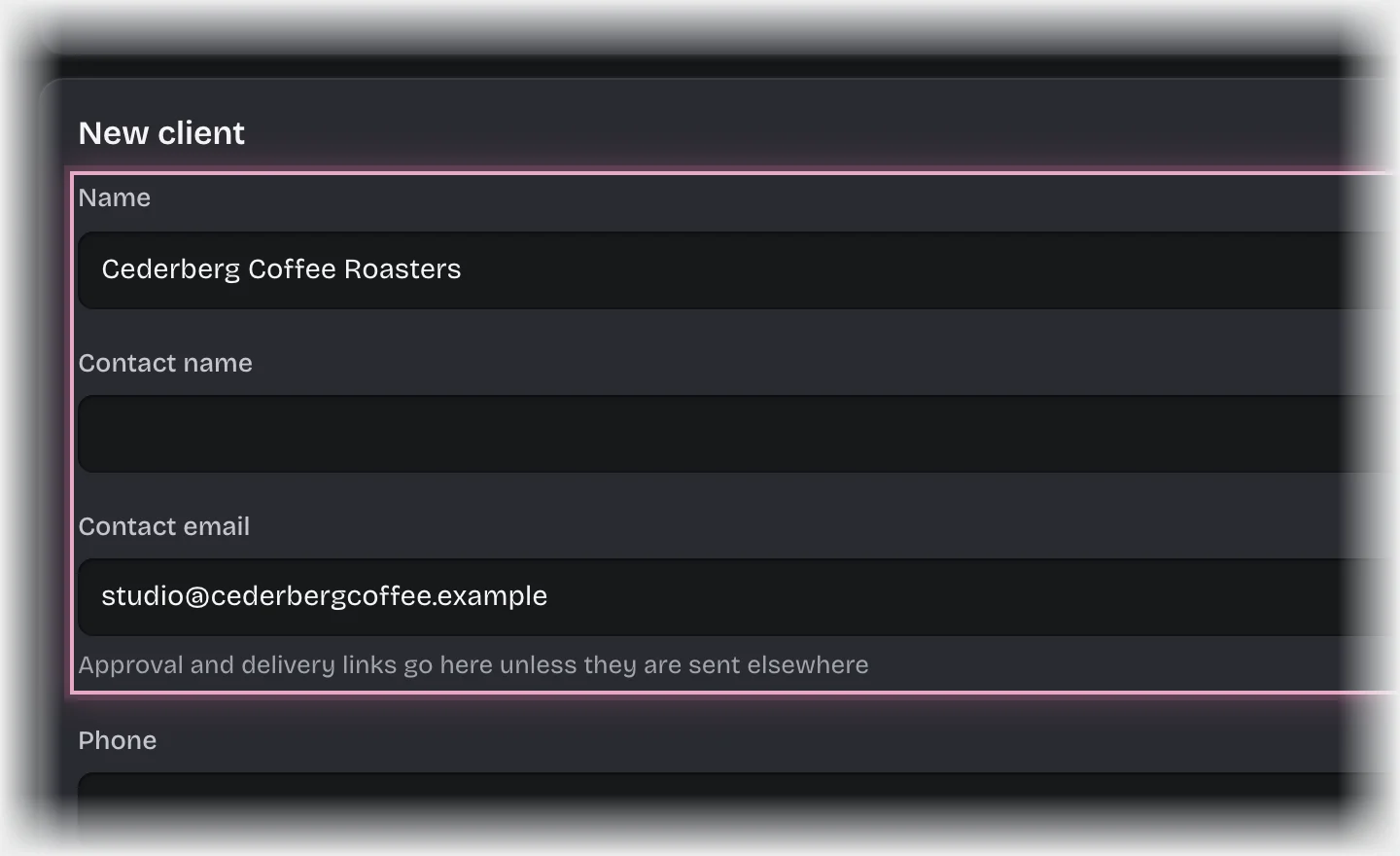
- Press Add client or Add production supplier under the form.
What you will see
The client is offered under Client on the brief, and the supplier under Supplier when the account manager chooses print.
Common problems
- A client’s approvals go to the wrong person. The account manager can change the address for one job when they send a version. Change Contact email here to change it for new jobs.
- Who signs off, who records production, and how long links work are pipeline values. See Change who is asked and how long they have.