When an approved job is printed or made, the supplier is emailed a link to the approved file. You record what happens next.
Steps
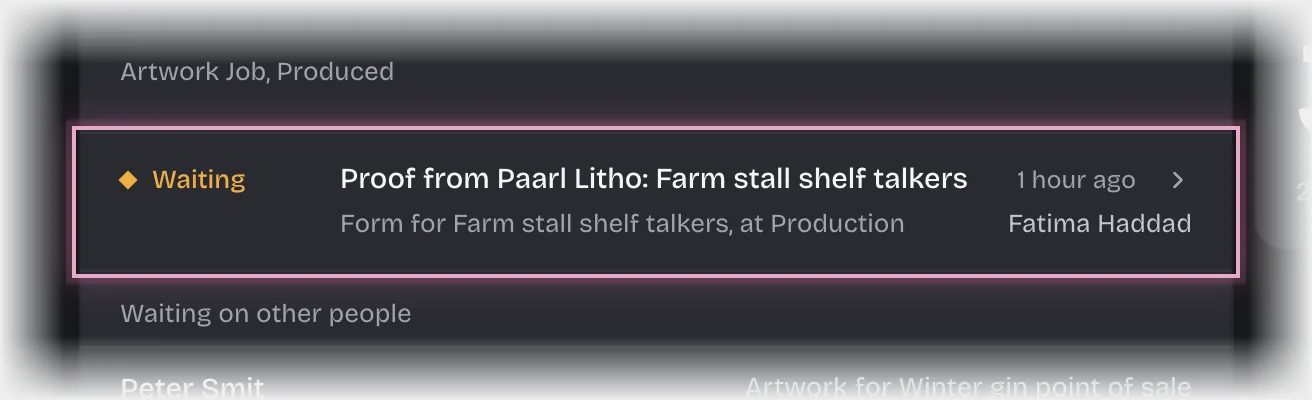
- You get the message “To production:” with the job. Choose Artwork Approvals in the rail. The form Proof from followed by the supplier and the job is on On your desk, and on the Production stage of the Jobs tab. Press the card’s header to open it.
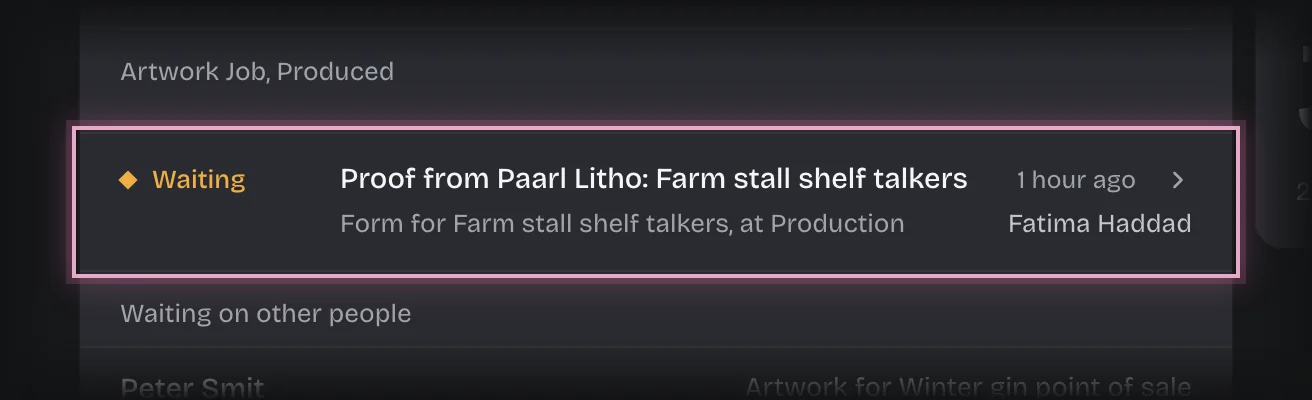
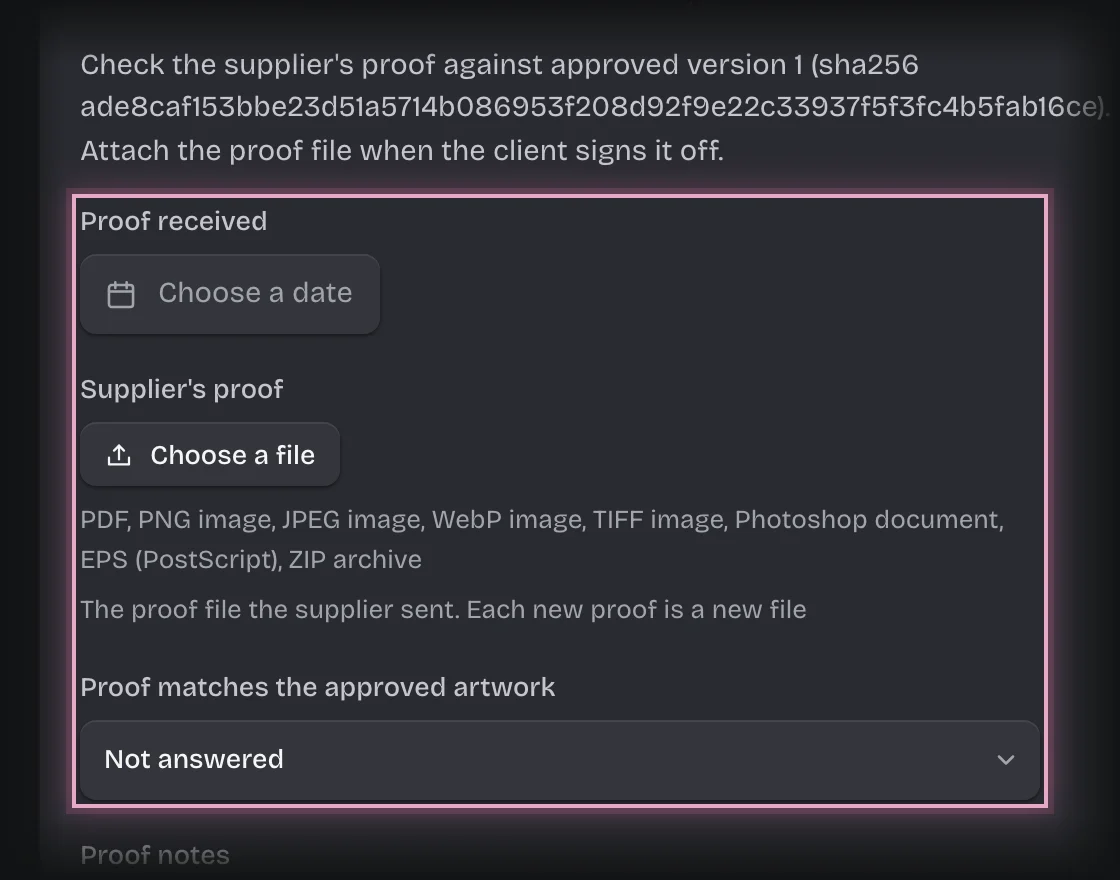
- When the supplier’s proof arrives, compare it with the approved version. The form names the approved version and its sha256; open the job to see Approved file.
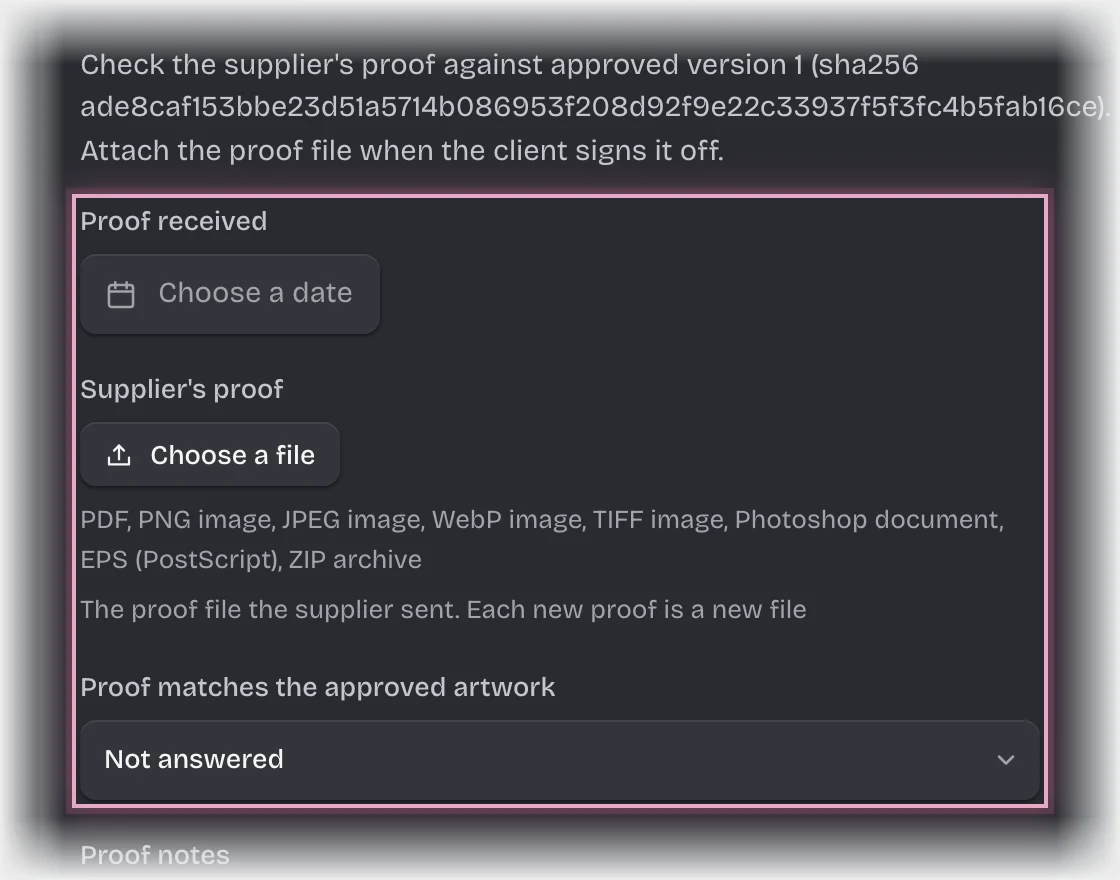
- Pick the Proof received date from the calendar, set Proof matches the approved artwork to Yes or No, and add Proof notes. If the client signs off the proof on this job, press Choose a file under Supplier’s proof and attach the supplier’s proof. Press Send the form.
- If the client signs off the proof, they are emailed a link to it now. When they approve it, the form Produced: comes to you. If they ask for changes, see below.
- When it has been made, the form Produced: comes to you. Pick the Produced date and press Send the form.
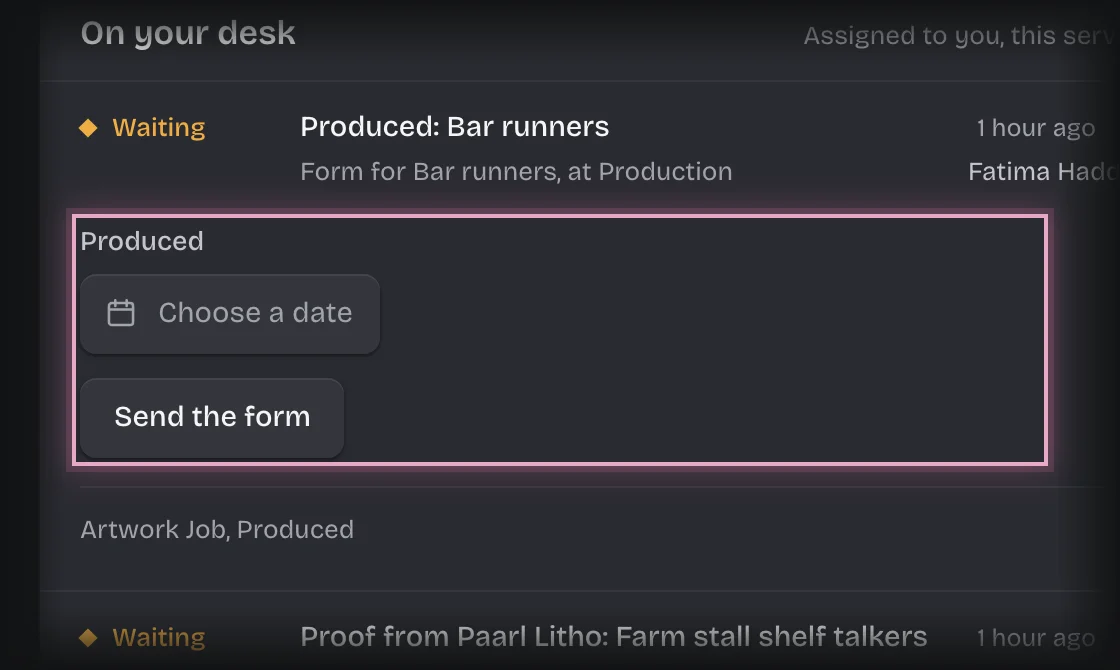
- When it leaves, the form Dispatched: comes to you. Pick the Dispatched date, fill in Tracking or waybill, and press Send the form.
What you will see
- A proof that does not match: you and the account manager get the message “Proof does not match:”, and the proof form comes back to you for the corrected proof.
- Whether the client signs off the proof is set for the whole workspace under Manage > Settings, and the account manager can change it for one job when choosing print or files. The job’s The client signs off the supplier’s proof says which.
- The client signs off the proof: the job’s State is Proof with the client until they answer. Their approval is recorded on the job against the exact proof file: Proof approved by the client, Approved proof sha256, Proof approved by and Proof approved at.
- The client asks for changes to the proof: you and the account manager get the message “Proof changes requested:” with what they said, the job’s State is Proof changes requested, and the proof form comes back to you. Ask the supplier for a new proof, then record it with the new file. The client gets a new link, and the link to the old proof stops working.
- After dispatch, the client is emailed a link to confirm the delivery arrived, with the tracking number. The job’s State is Dispatched, then Complete when they confirm.
Common problems
-
You get the form “Attach the supplier’s proof for the client”. The client signs off this job’s proof and no file was attached, or the file attached is the proof the client already asked changes to. Attach the supplier’s new proof and press Send the form.
-
The supplier lost the email. Their link works for 14 days. The account manager can see who it was sent to on the job’s activity.
-
Someone else’s job reaches you. Production forms go to everyone with the Production manager role. Your tenant admin can change who records production under Manage > Pipeline values.