Steps
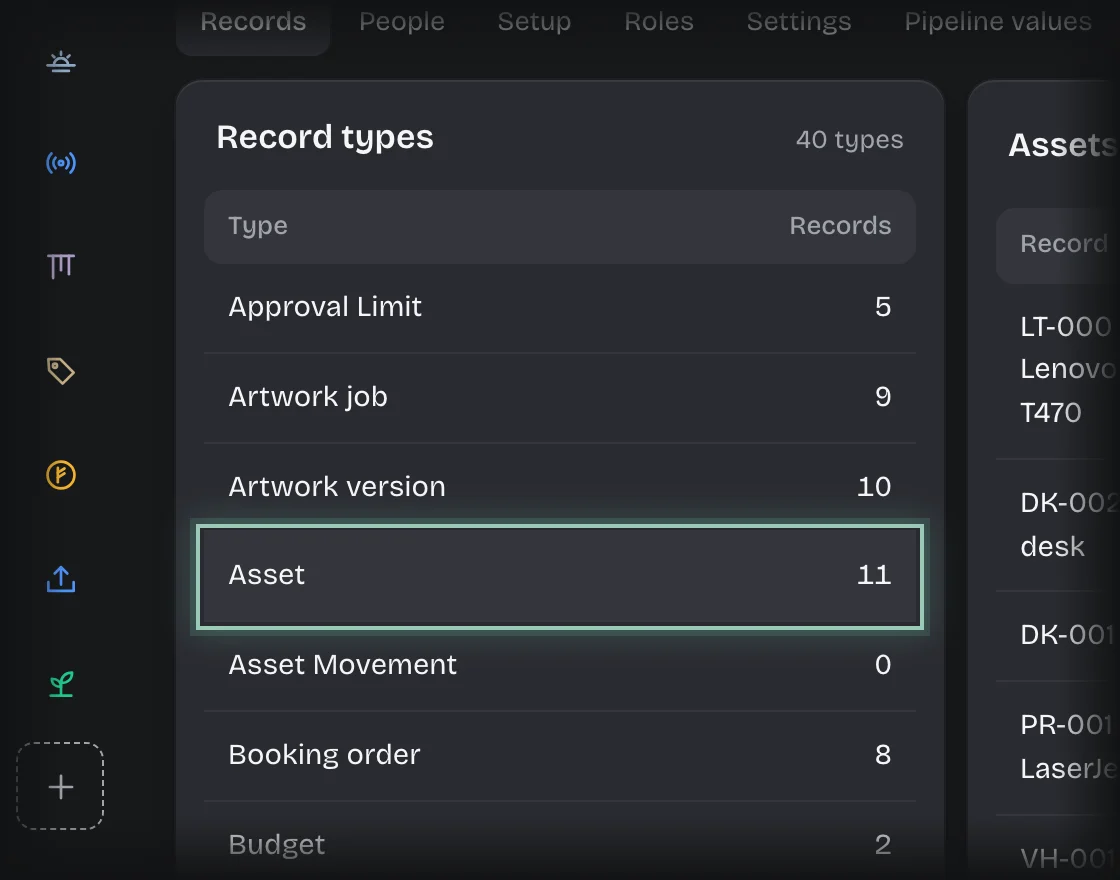
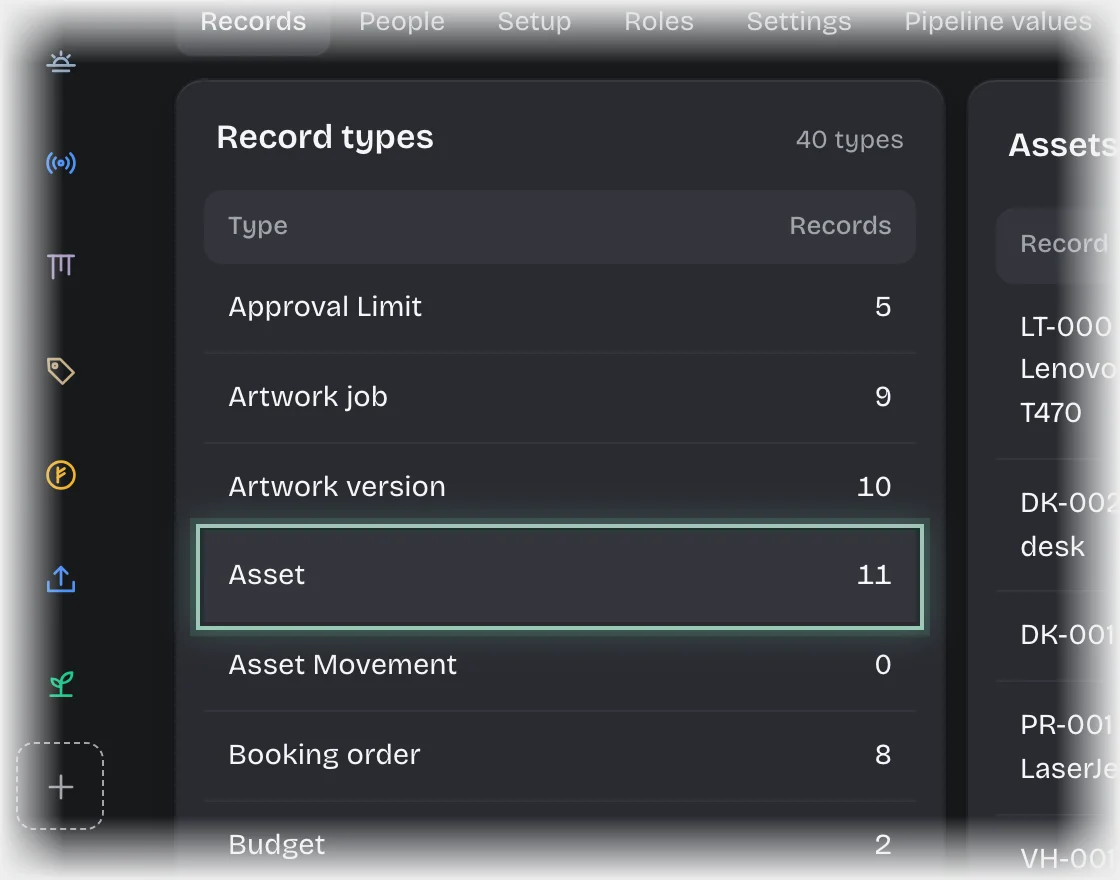
- Open Manage > Records and choose Asset under Record types.
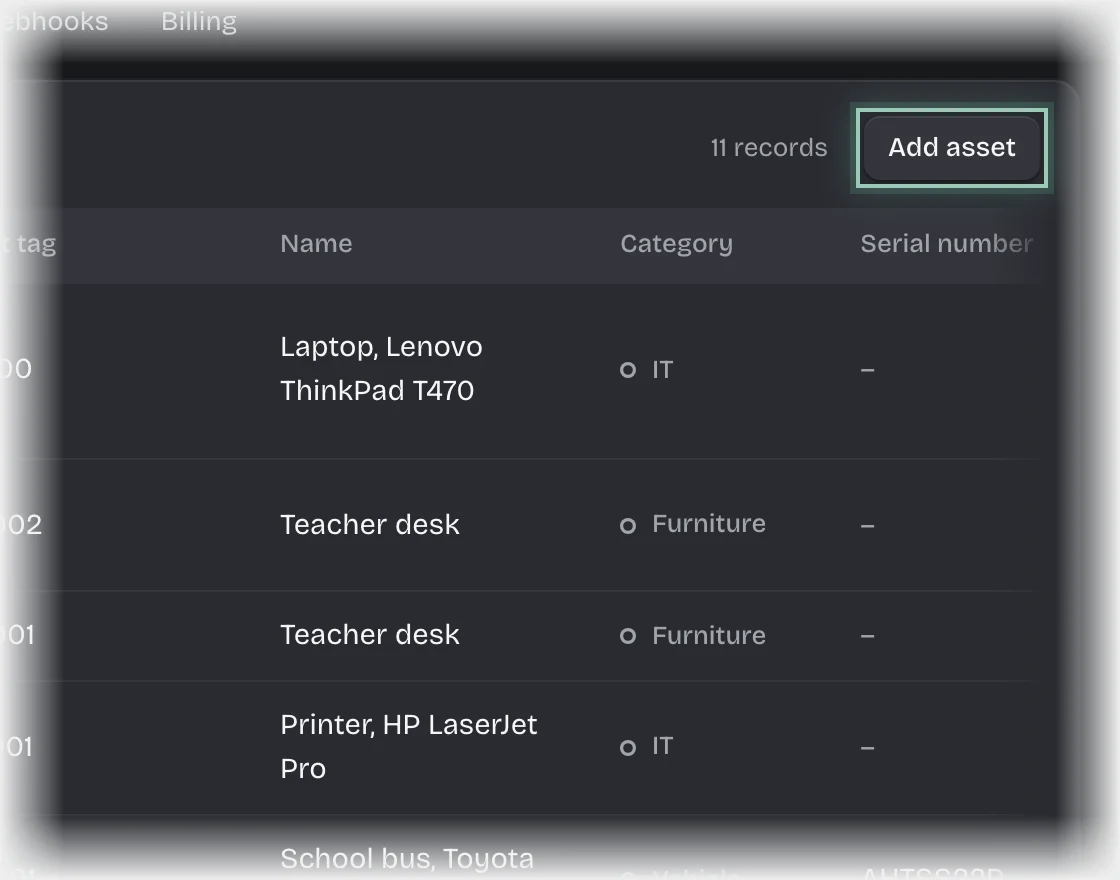
- Press Add asset.
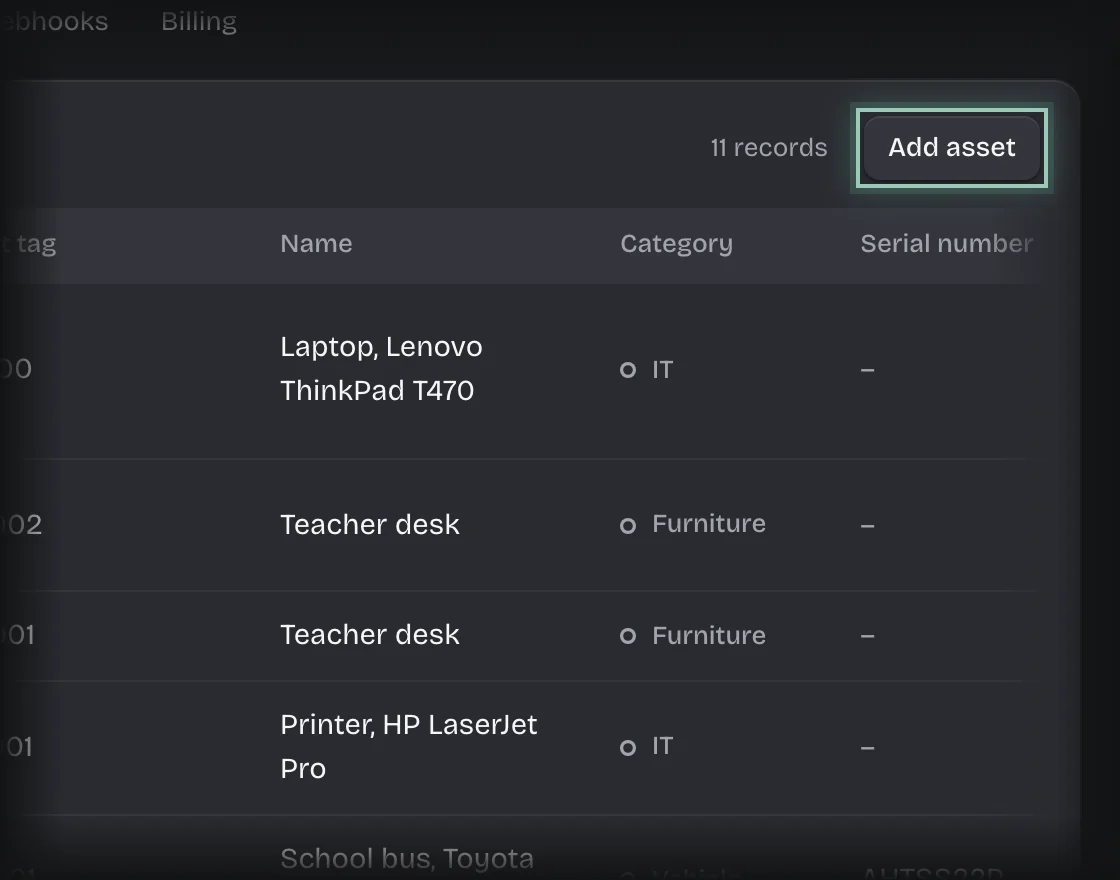
- The New asset form opens. Fill in at least Asset tag and Name. Add what you know of Category, Serial number, Supplier, Bought on, Purchase cost, Warranty until, Condition, Assigned to and Location.
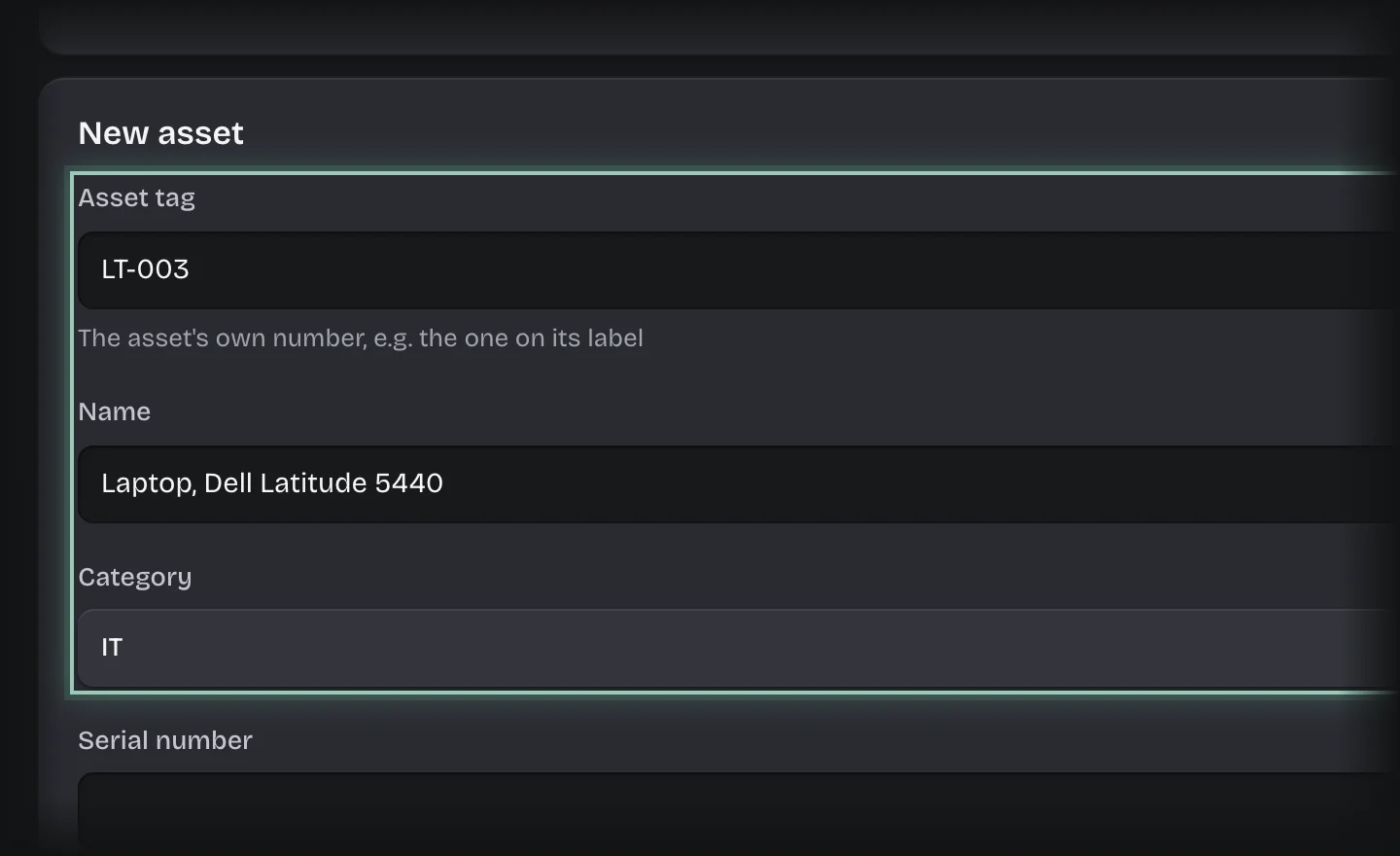
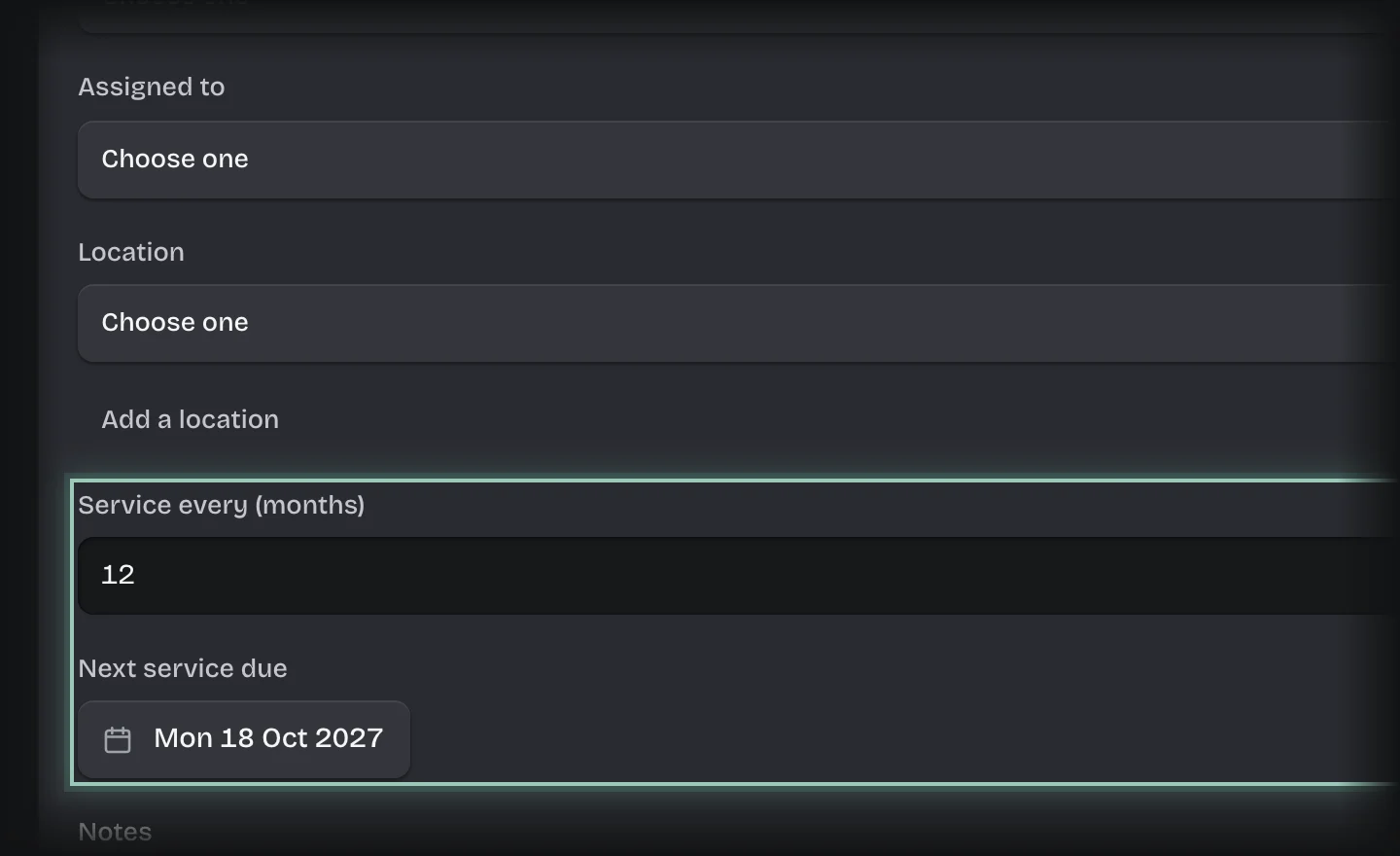
- For anything that needs servicing, set Service every (months) and Next service due.
- Press Add asset.
What you will see
The asset on the Register on the Assets Overview, and offered on the Receive, Assign, Service and Retire forms.
Common problems
- Assets bought through Spend Requests are added by themselves when the request is approved, tagged NEW and marked On order. Edit the tag here, and use Receive an asset when it arrives.
- Bulk import. Assets are added one at a time.