Assets · Asset manager

Agree to retire an asset

Browse the guidesAssets

Steps

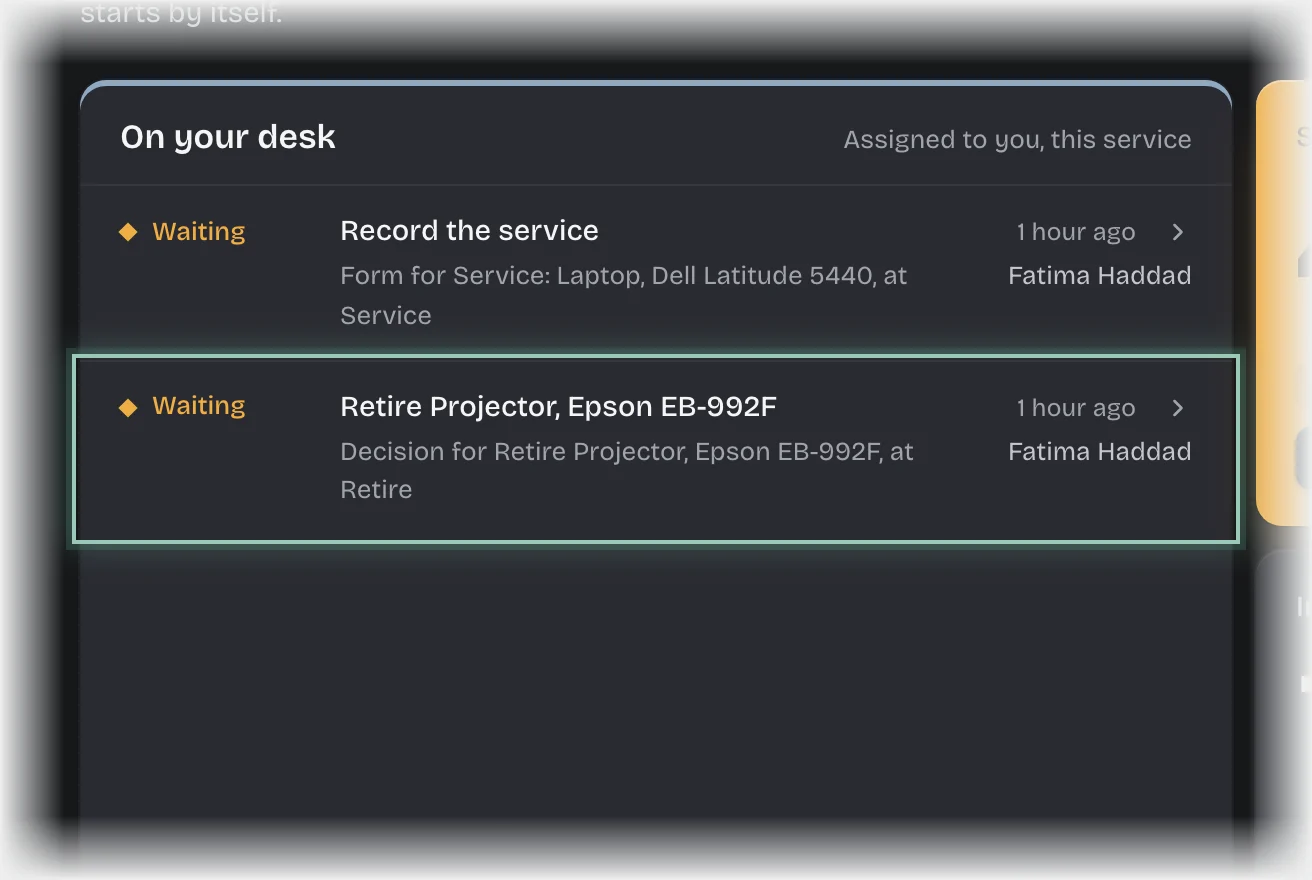
  1. Choose Assets in the rail. The request is a card on On your desk, titled Retire followed by the asset’s name. It is also under Waiting on the Retire tab.
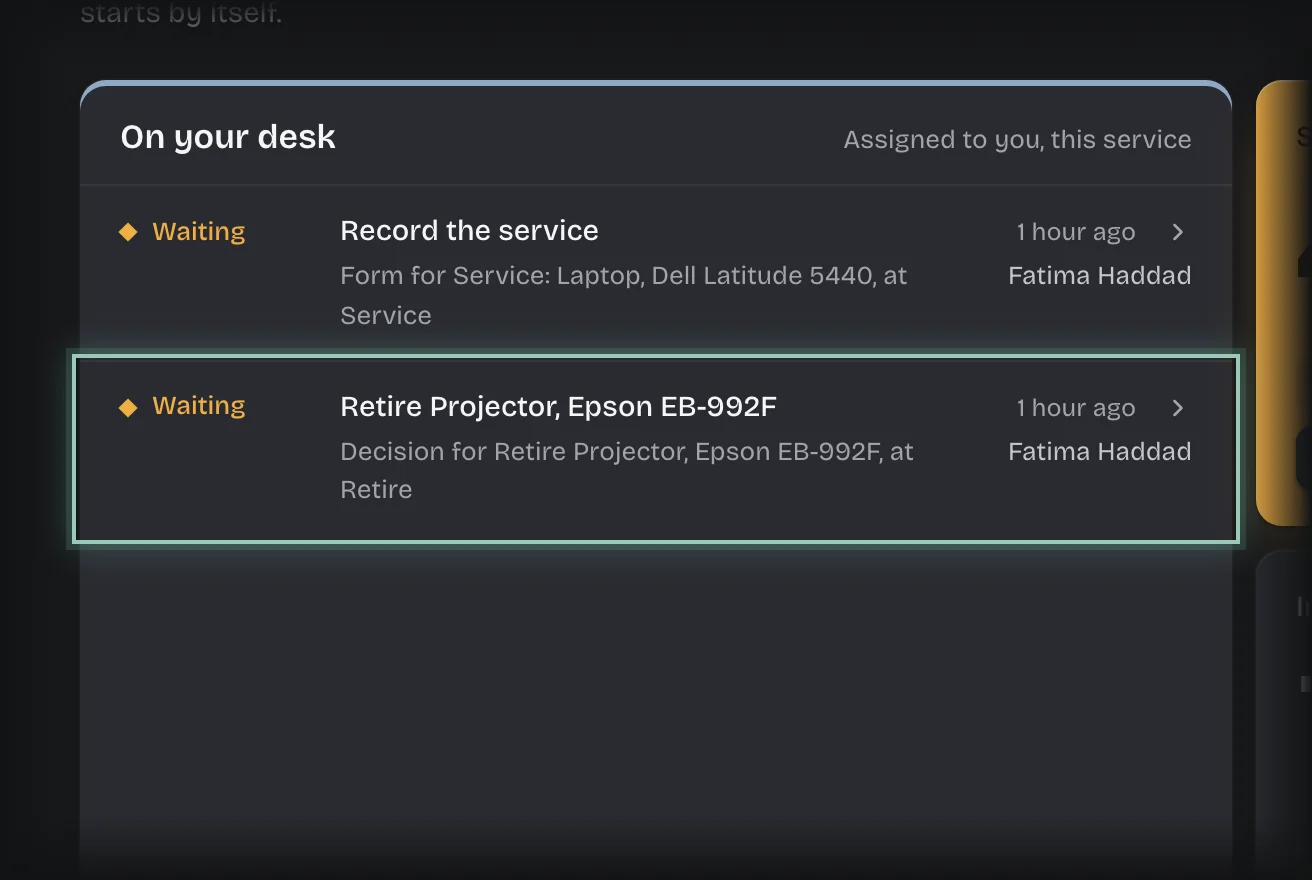
    A request titled Retire followed by a projector’s name on On your desk, its title outlinedA request titled Retire followed by a projector’s name on On your desk, its title outlined
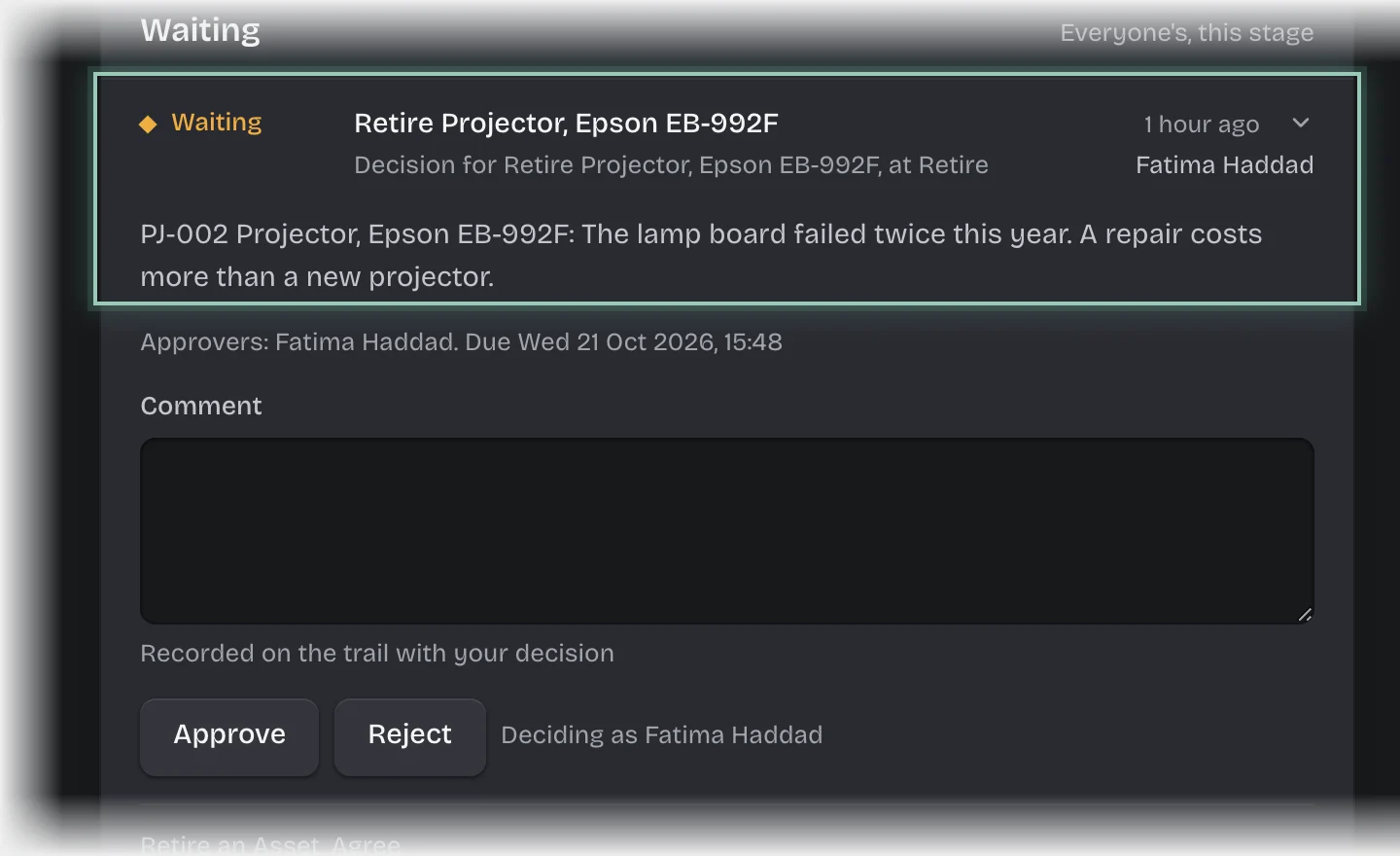
  2. If the card is folded, press its header to open it. It shows the asset’s tag and name, and why it should go.
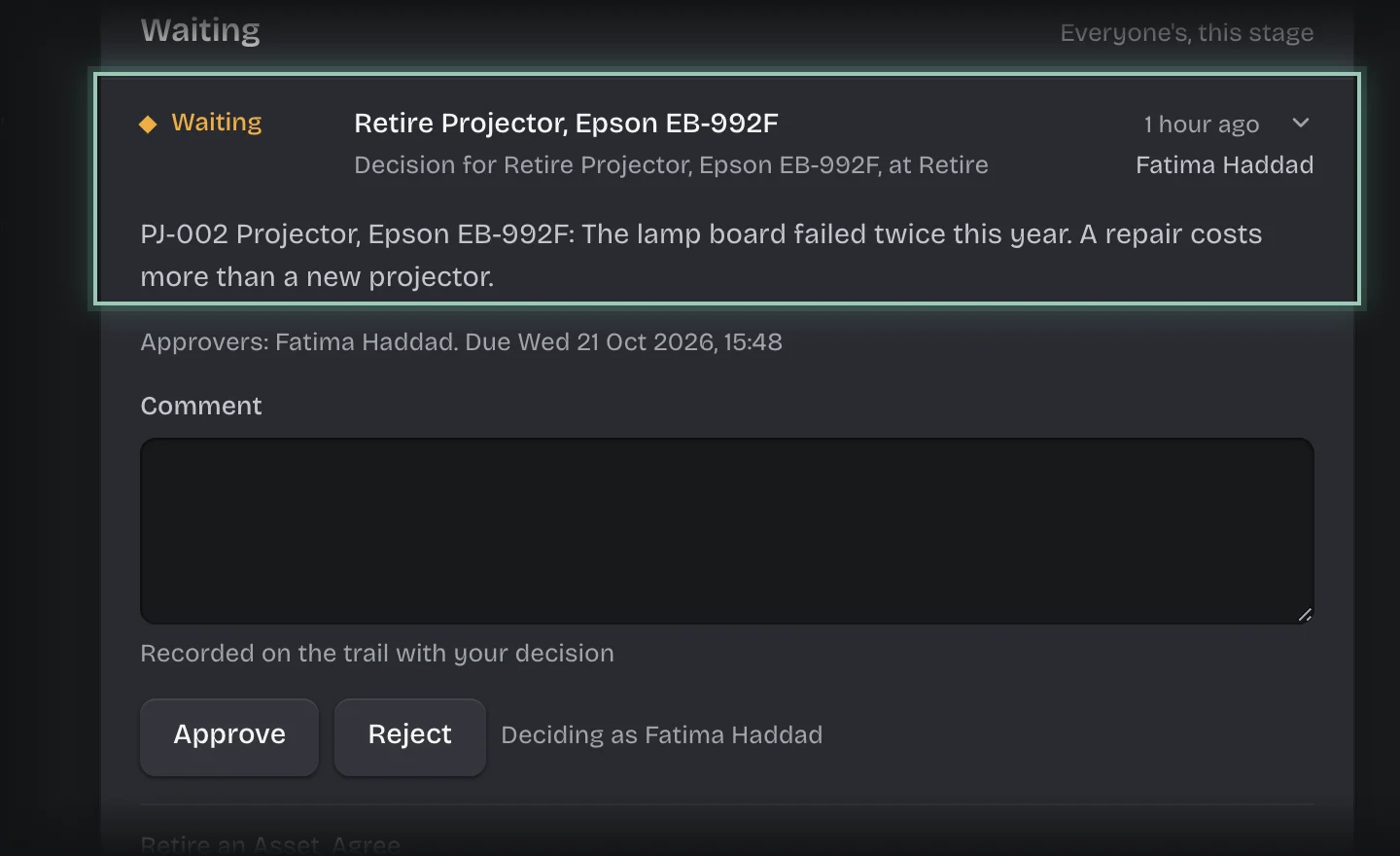
    The retirement request under Waiting on the Retire tab, with its title and the asset’s tag, name and reason outlinedThe retirement request under Waiting on the Retire tab, with its title and the asset’s tag, name and reason outlined
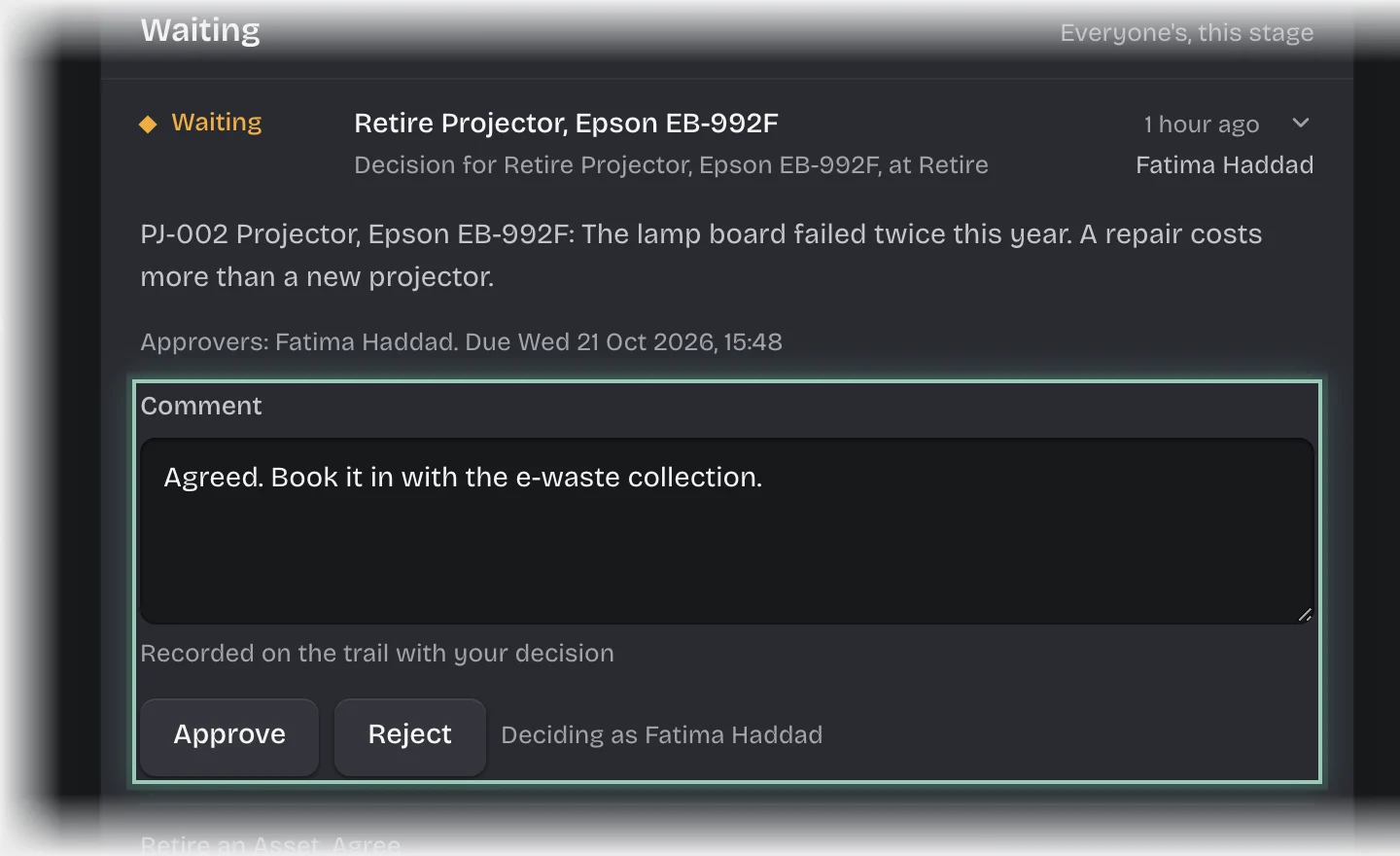
  3. Type a Comment if you want one.
  4. Press Approve to retire it, or Reject to keep it.
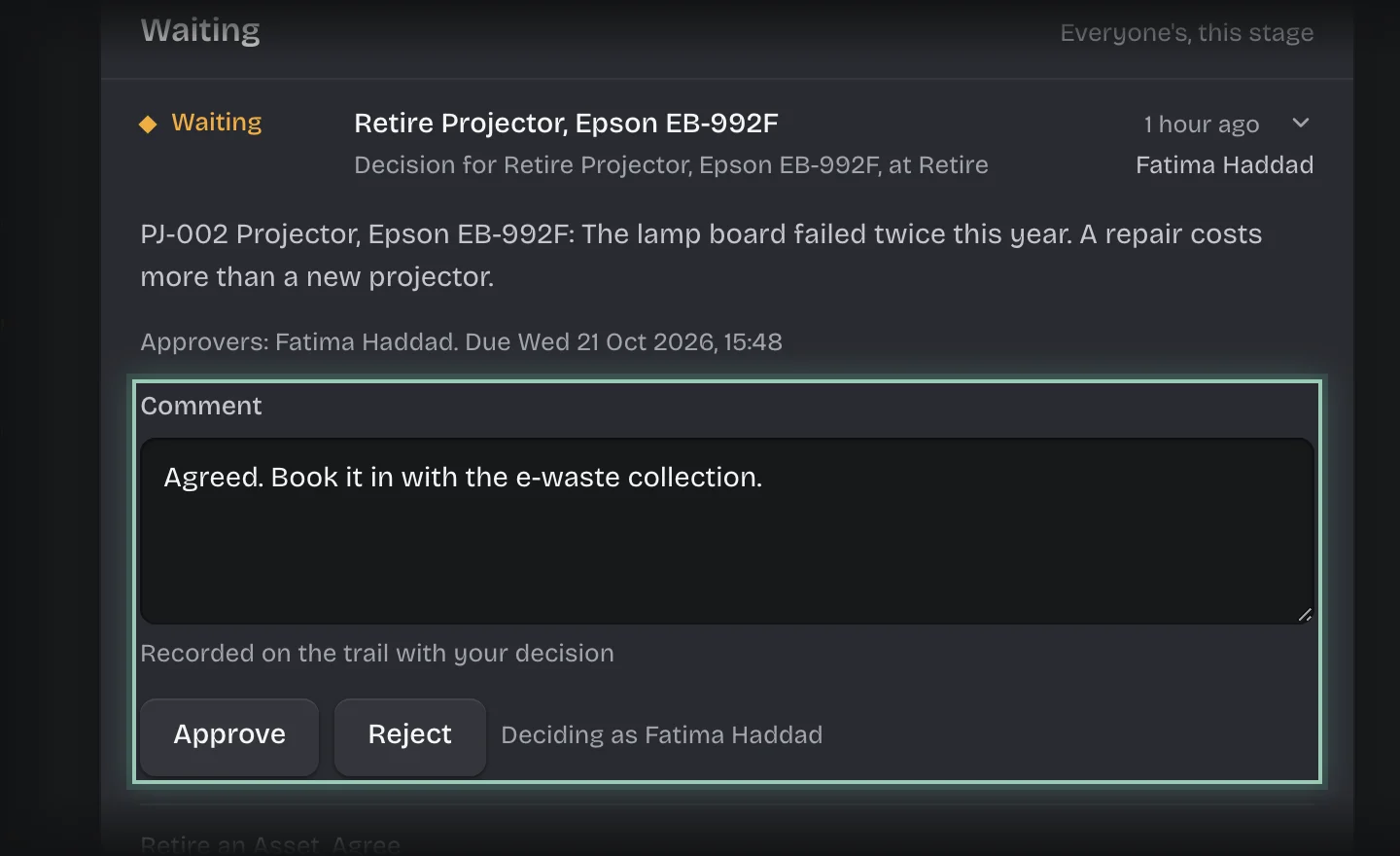
    The retirement request with a comment typed, and the Comment field and the Approve and Reject buttons outlinedThe retirement request with a comment typed, and the Comment field and the Approve and Reject buttons outlined

What you will see

  • Approved: the asset’s condition becomes Retired and it is no longer assigned to anyone.
  • Rejected: whoever asked gets a message naming you and saying it stays on the register.

Common problems

  • An overdue message. A retirement is overdue after 72 hours undecided, unless your organisation changed this.