Give an asset to someone, or put it somewhere. Usually done by whoever looks after the assets.
Steps
- Choose Assets in the rail, then the Assign tab.
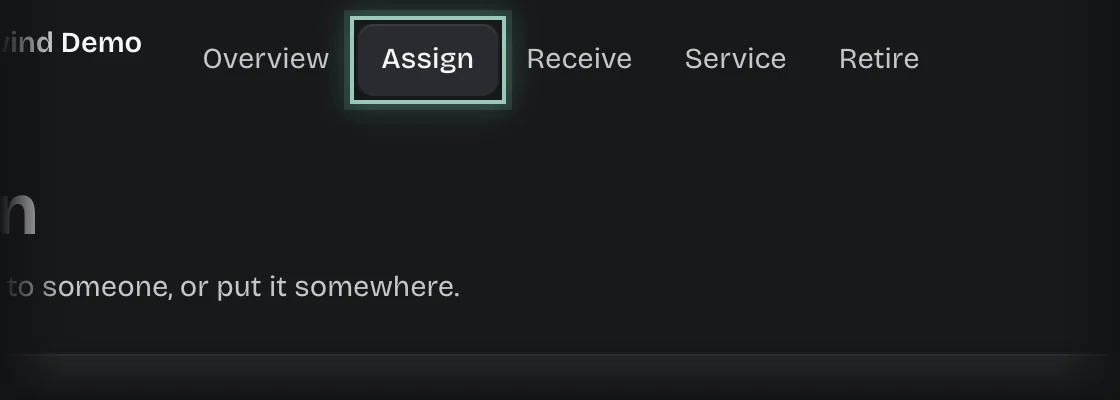
- Press Assign. You can also press Assign one under In use on the Overview.
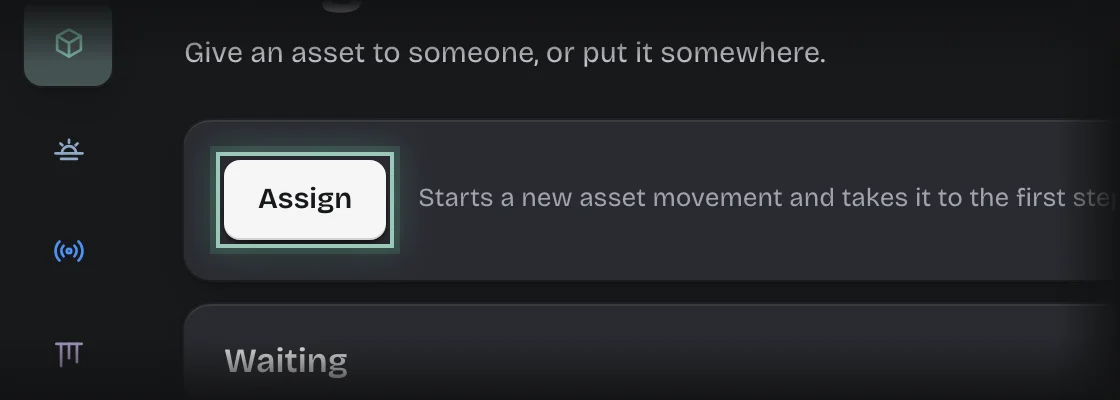
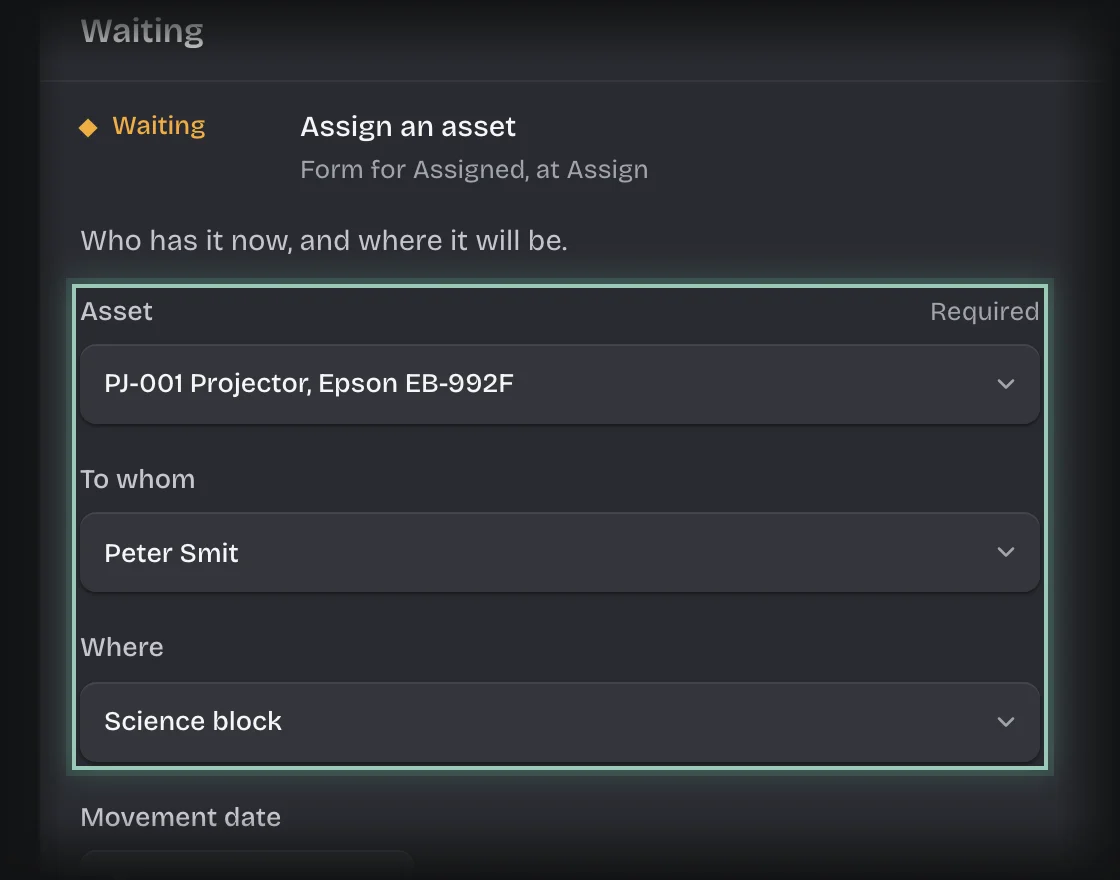
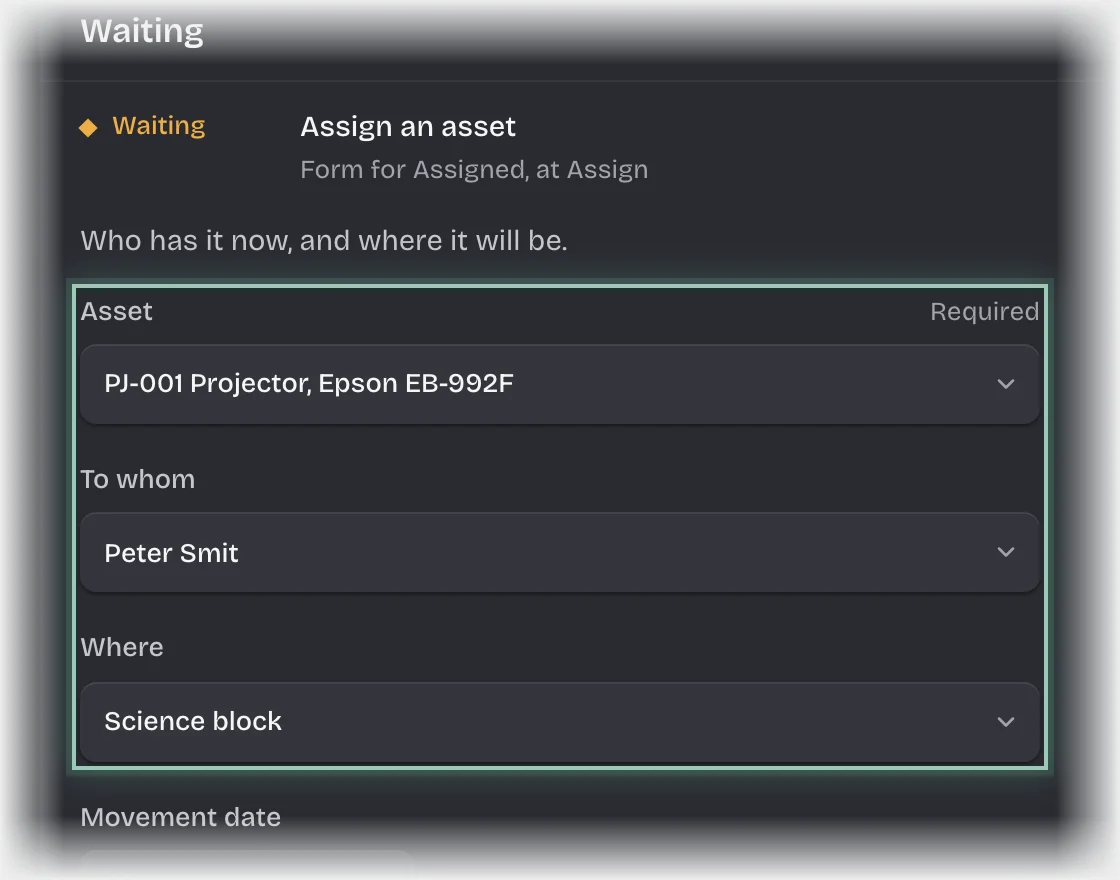
- The form Assign an asset opens under Waiting. If it is folded, press its header to open it. Fill in:
- Asset
- To whom
- Where
- Movement date: filled in with today.
- Note: optional.
- Press Send the form.
What you will see
- The asset’s condition becomes In use, with that person and location under With and Where on the Register.
- The person gets a message: “You have” followed by the asset’s name.
Common problems
- The person is not in the list. They have to be in your workspace. Ask your tenant admin to add them.