A budget line is money for one cost centre and one expense category in one financial period. Every request is checked against exactly one budget line.
Steps
- Open Manage > Records.

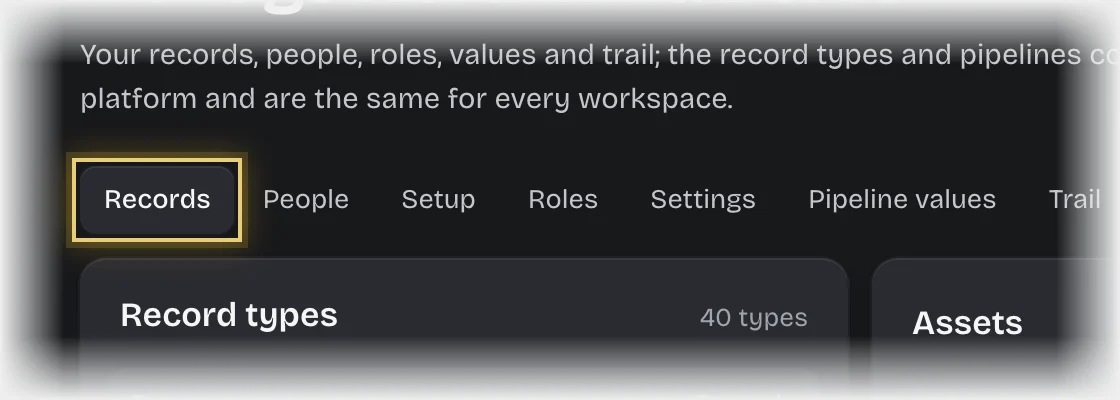
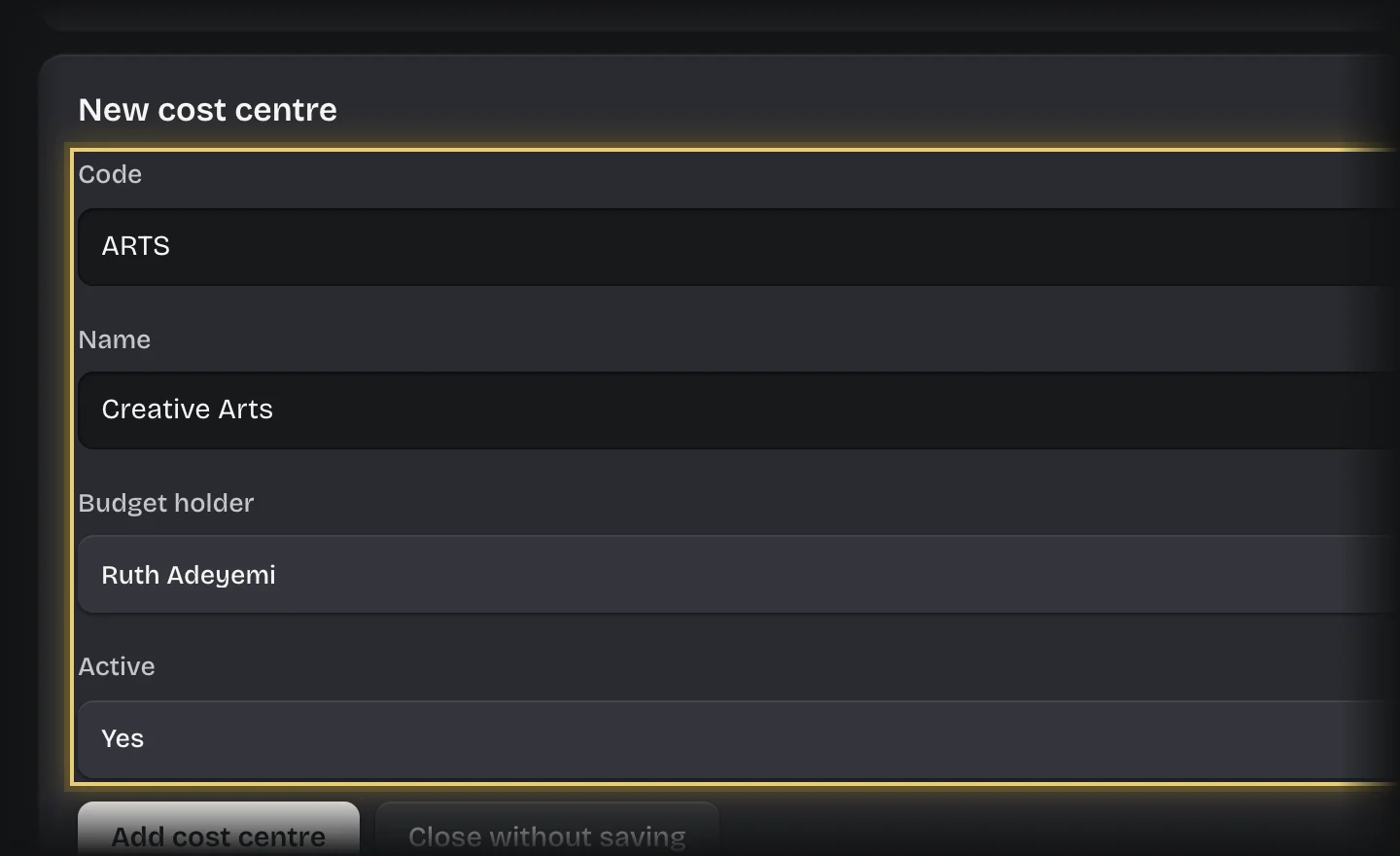
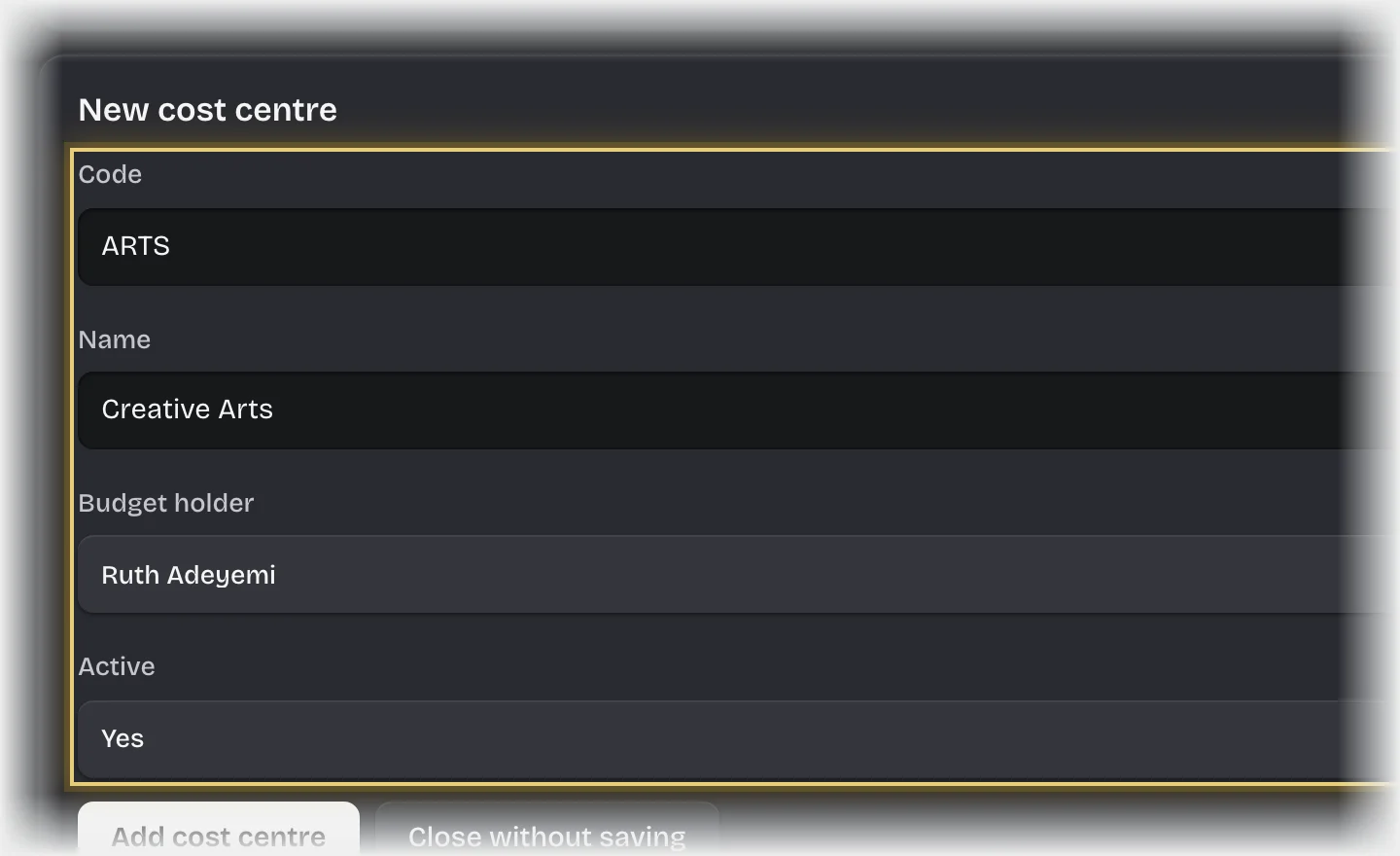
- Press Cost Centre under Record types. For each one, press Add cost centre, fill in Code, Name, Budget holder, set Active to Yes, and press Add cost centre under the form.
- Press Expense Category. Press Add expense category and add each with Code, Name and Operating or capital.
- Press Financial Period. Press Add financial period and add each financial year or quarter with Name (for example FY2026), Starts and Ends.
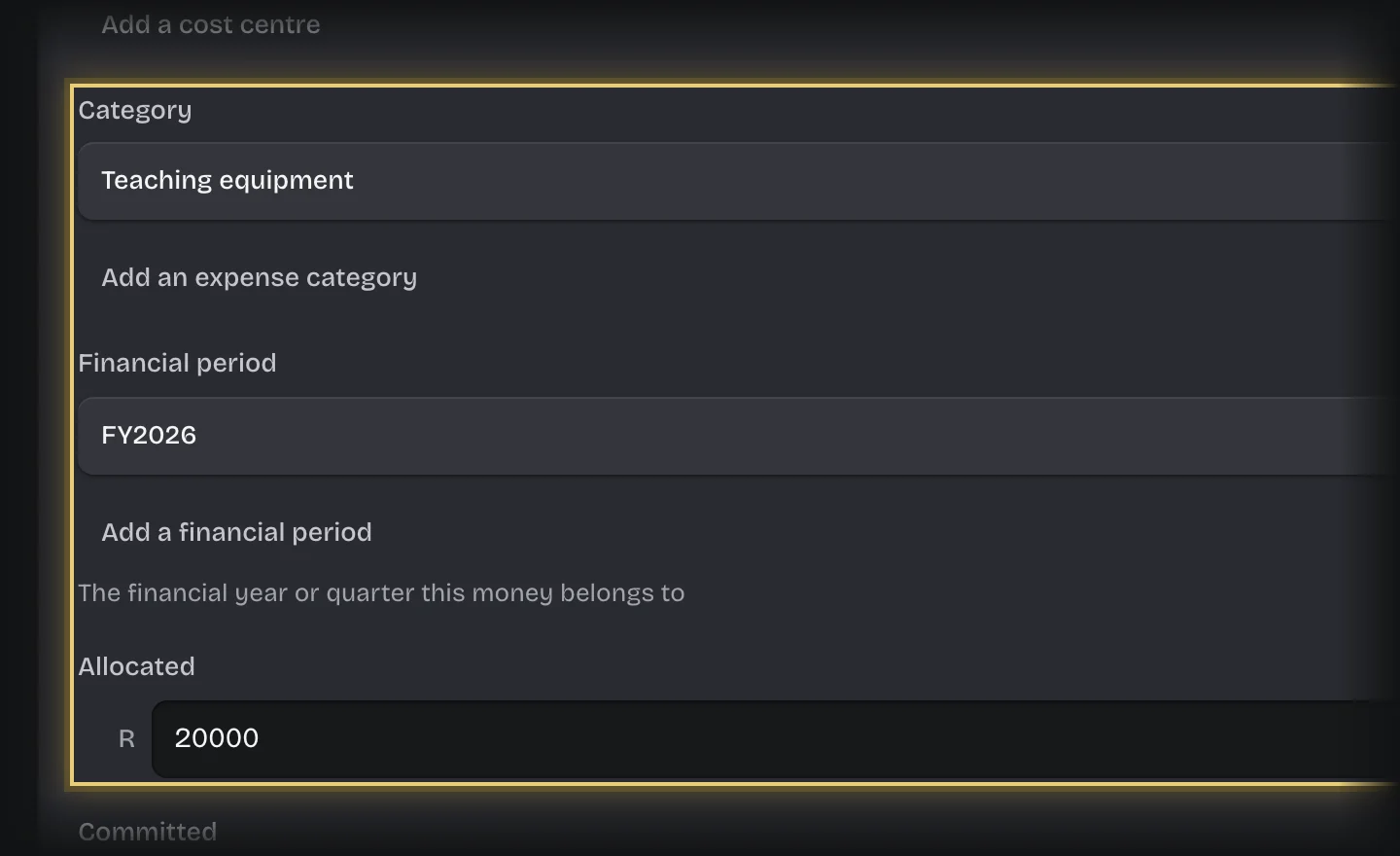
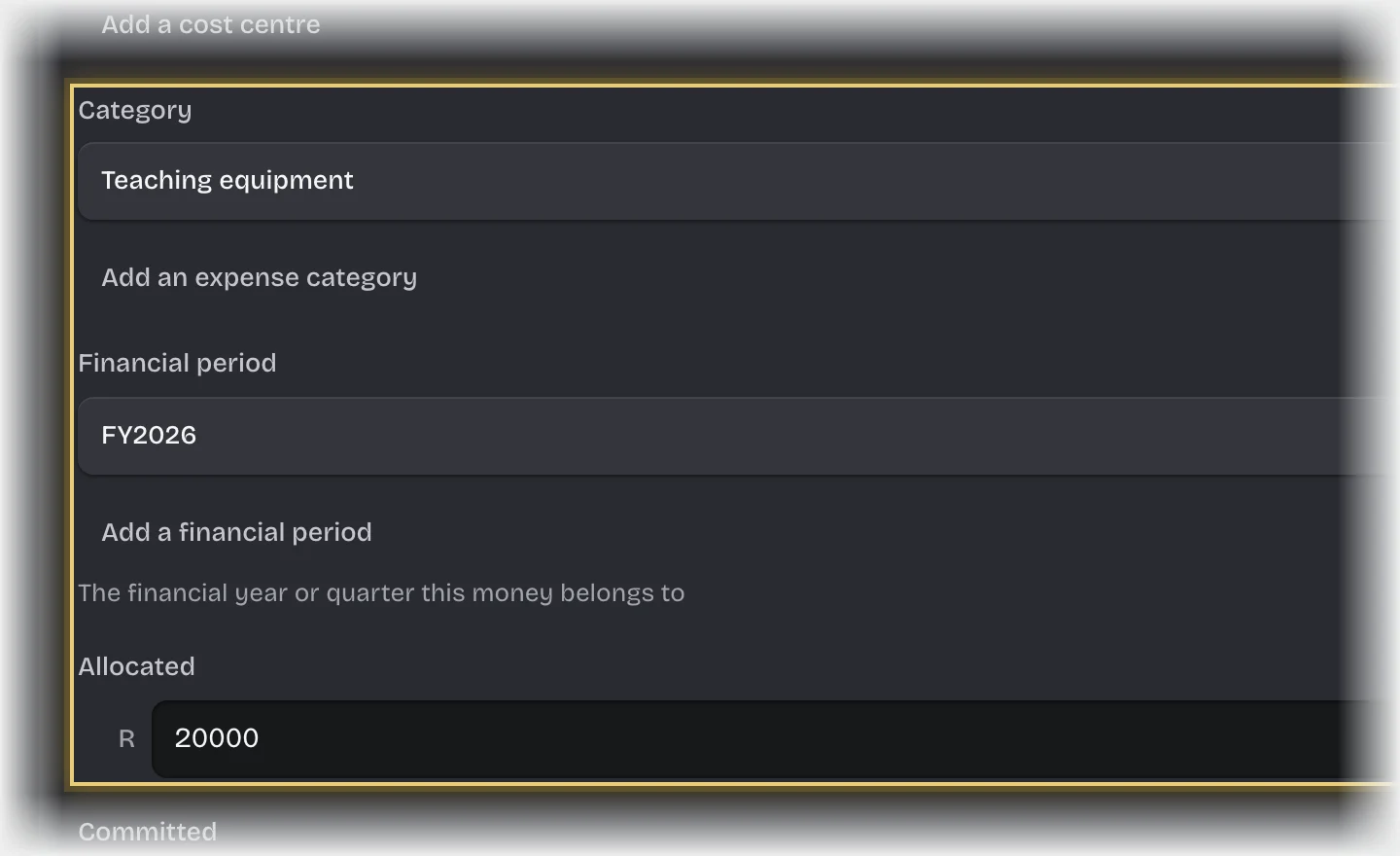
- Press Budget Line. For each cost centre and category that can be spent against, press Add budget line and fill in Cost centre, Category, Financial period and Allocated. Set Available to the same as Allocated less Actual.
What you will see
Your budget lines under Budgets on the Spend Requests Overview.
Common problems
- A request fails with “no BudgetLine matches”. There is no line for that cost centre, category and period. Add one.
- “more than one BudgetLine matches”. Two lines share a cost centre, category and period. Keep one.
- Committed changes by itself. It is kept by approvals. An edit to it is overwritten by the next request.