Steps
- Choose Spend Requests in the rail.
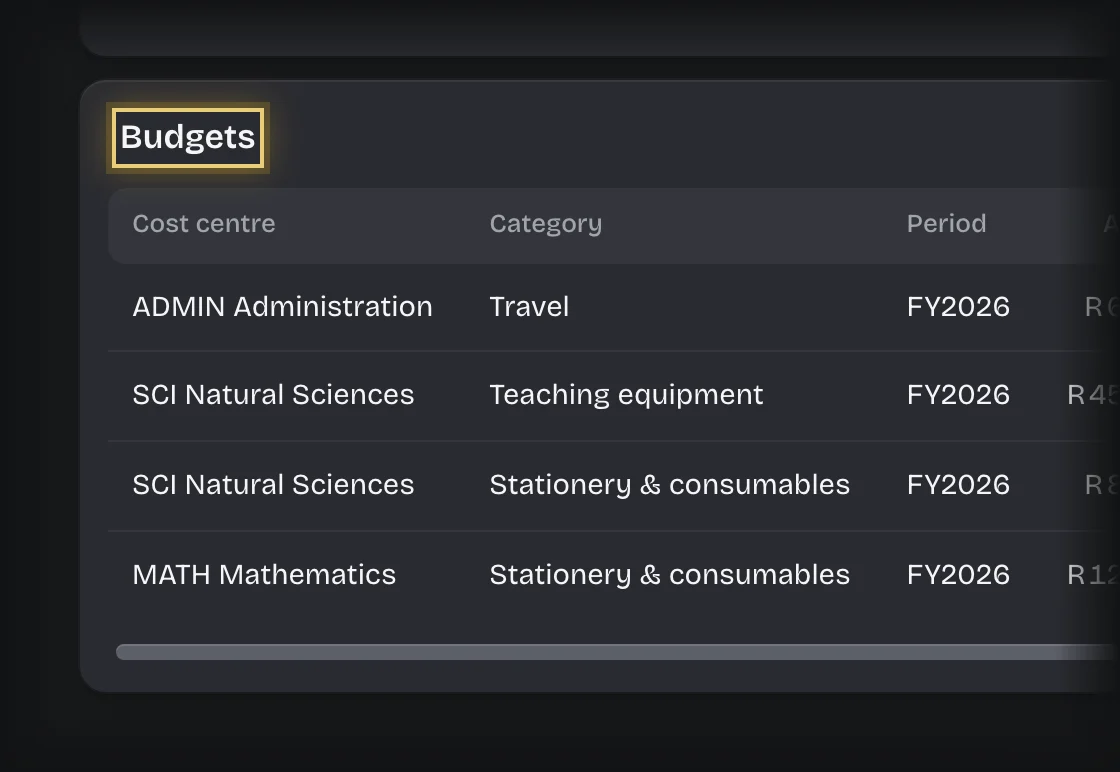
- Read Budgets on the Overview. Each budget line is a cost centre and category for one financial period.
- Compare your total, including VAT, with Available.
What you will see
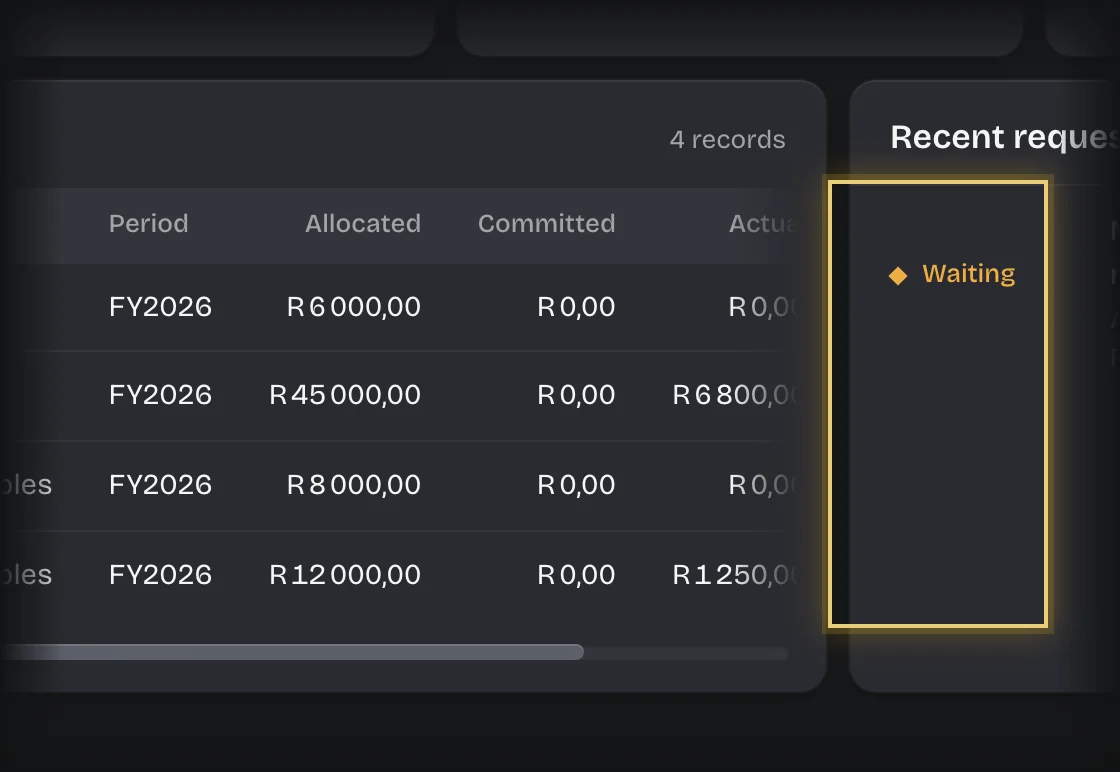
- Allocated: the budget for the line.
- Committed: approved requests not yet spent.
- Actual: spent, from your organisation’s books.
- Available: allocated, less committed, less actual.
- The Available and Committed numbers at the top add these up across all lines. Press a number to see the lines behind it.
Common problems
- Available looks out of date. The check made when you raise a request always works it out from Allocated, Committed and Actual, so it can differ from the figure shown.