You approve a spend request when your organisation’s approval limits name you, or a role you hold, for that cost centre and amount. A large request can need a second approver after the first.
Steps
- Choose Spend Requests in the rail. The request is a card on On your desk, titled Spend: followed by what it is for. A second approval is titled Spend, second approval:. Both are also under Decisions waiting on the Approval stage.
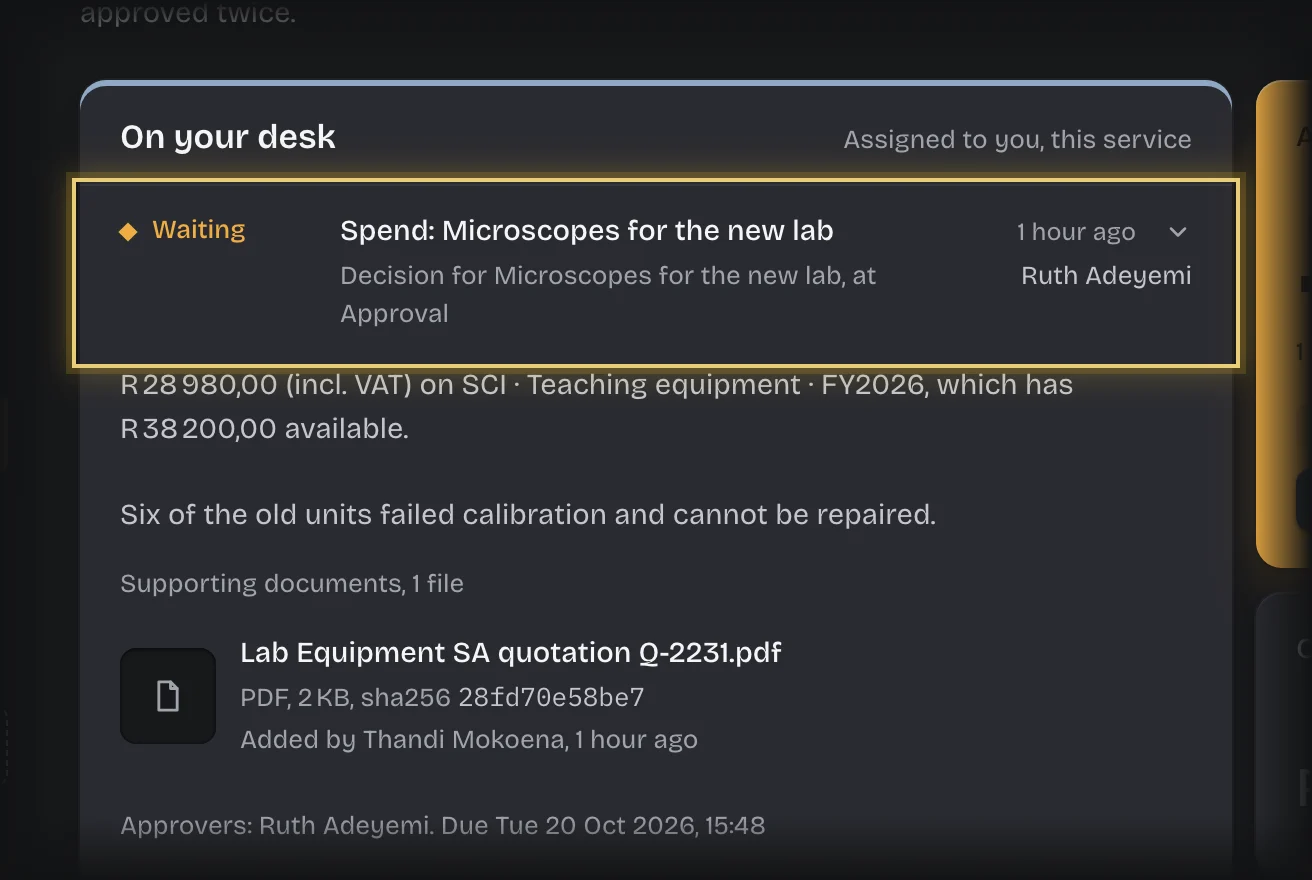
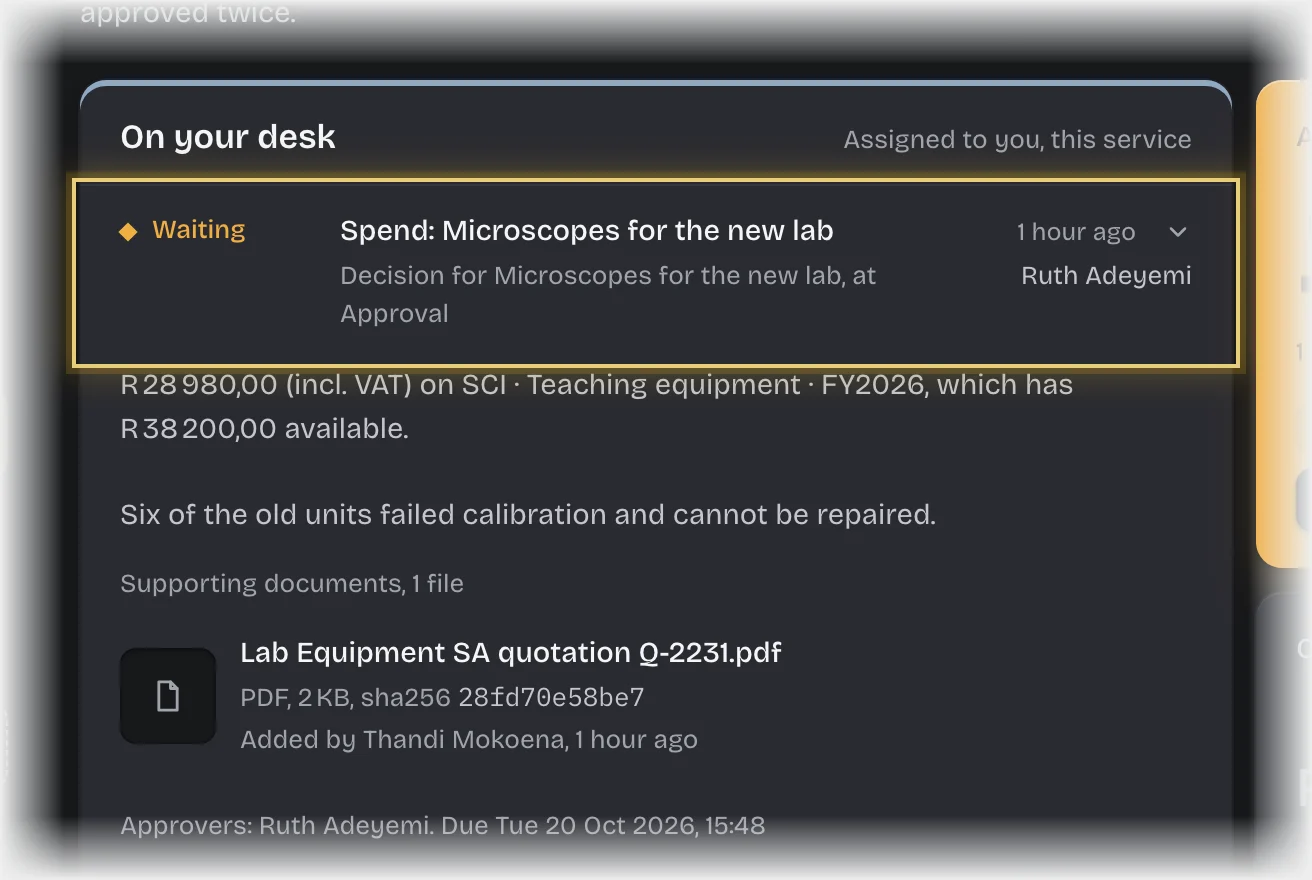
- Press the card’s header to open it. It shows the total including VAT, the budget line and what it has available, and the requester’s reason. A second approval also names who approved first.
- Read the Supporting documents on the card, if the requester attached any. Press a file’s name to open it: a PDF or image opens in a new tab, and a Word or Excel file downloads. Each file shows who added it and when.
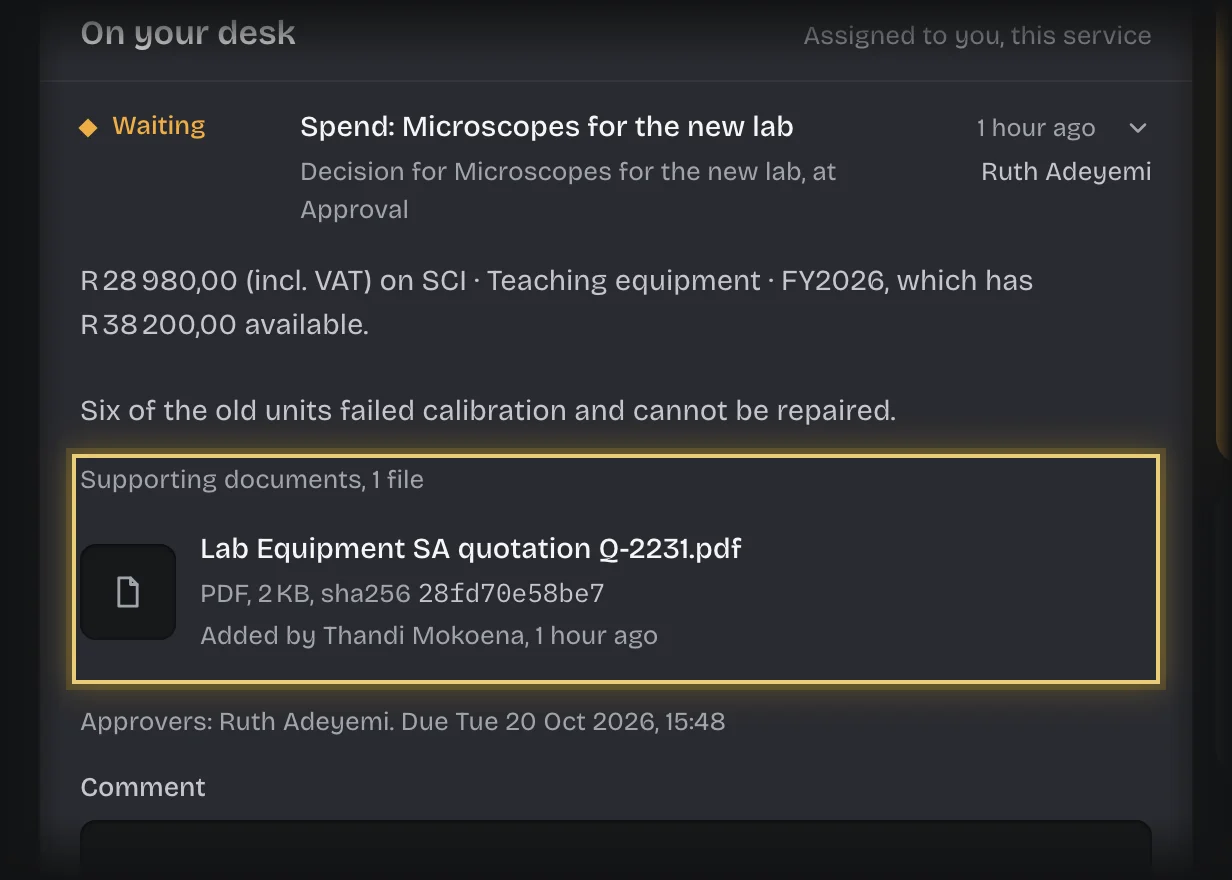
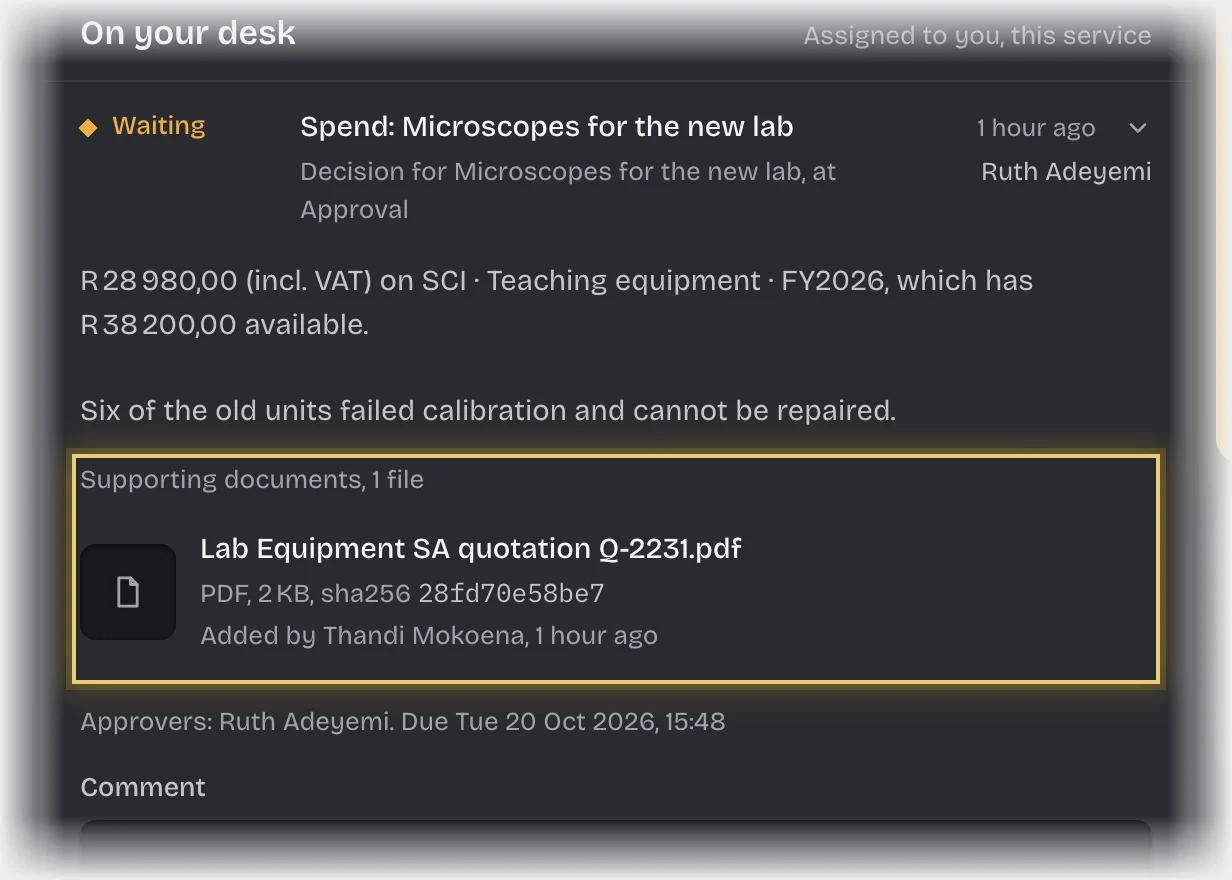
- Type a Comment if you want one. It is recorded on the trail with your decision.
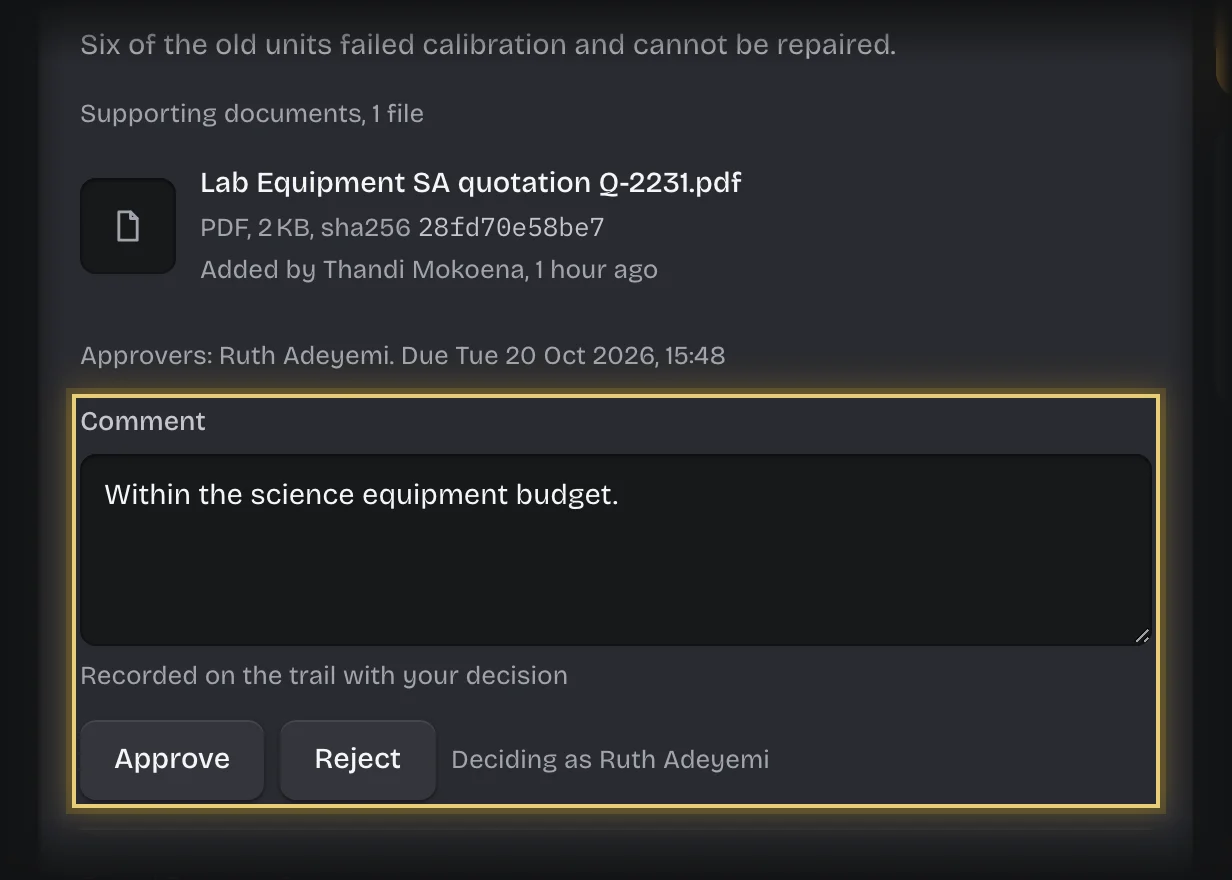
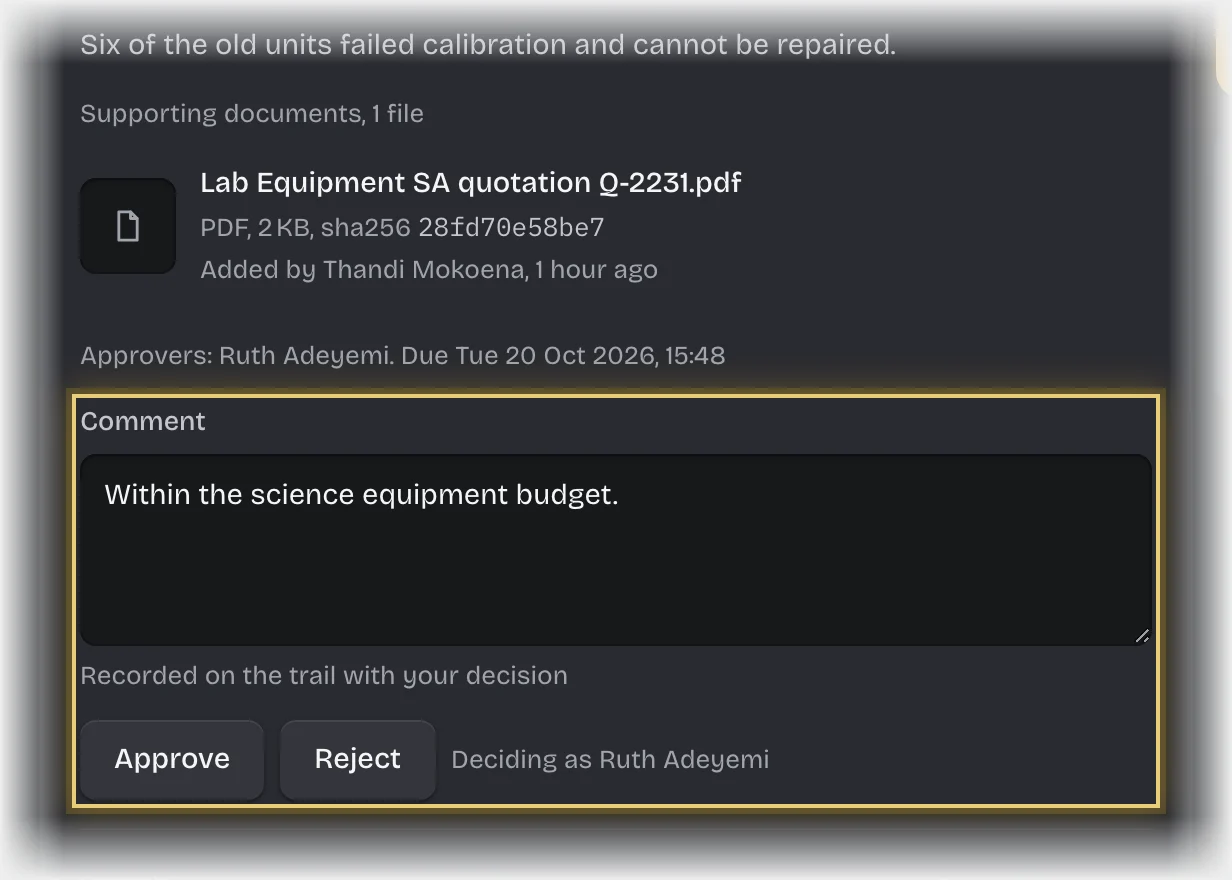
- Press Approve or Reject.
What you will see
- Approved by the last approver needed: the money is committed on the budget line, the request is marked Approved, and the requester is told.
- Approved where a second approver is needed: the request goes on to them.
- Rejected: the request is marked Rejected and the requester is told.
- Your decision is recorded with the documents the request held when you decided.
Common problems
- You are never asked to approve your own request. It goes to another approver at the same level. If there is none, it goes to your tenant admins instead, and the card tells them why. If you are also the only tenant admin, it stops with the status failed.
- A request reached you as a tenant admin. The card says “This came to you as an administrator of this workspace”: the only approver at that level raised it, or already approved the first level. Decide it as you would any other.
- You approved the first level and are not asked for the second. Nobody decides two levels of the same request. If your approval limits name you at both levels, the second goes to the approver for the next amount band up at that level (for example the principal above the bursar), or to your tenant admins if there is none. Their card says “This came to you as the level above” or “This came to you as an administrator of this workspace”.
- An overdue message. A request is overdue after 48 hours undecided, with a reminder every 24 hours after that, unless your organisation changed these times.
- “File added after your decision:”. The requester, or a tenant admin, added a document after you decided, such as the invoice. Open the request from the message to see it. Your decision is unchanged.
- The budget changed after you approved. If another request took the last of the budget first, yours is marked over budget and nothing is committed. The requester is told.