Add a document to a request you raised after you sent it, for example the invoice once it arrives. You can add documents while the request is awaiting approval and after it is approved. You cannot remove or replace a document once it is on the request.
Steps
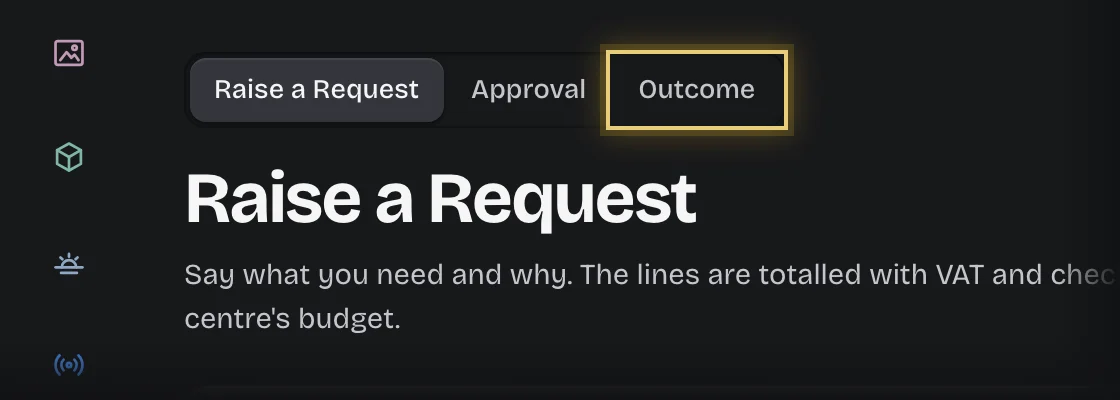
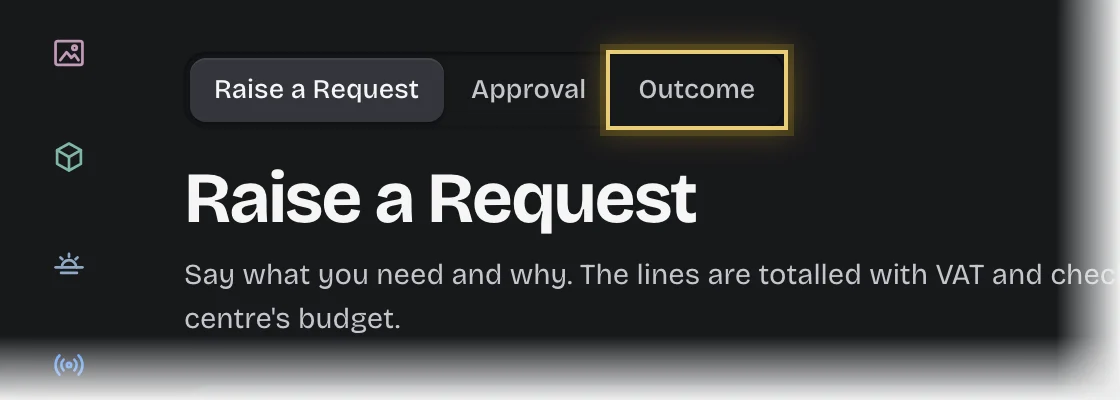
- Choose Spend Requests in the rail, then the Spend Requests tab. Press Outcome in the stage switch at the top of the page.
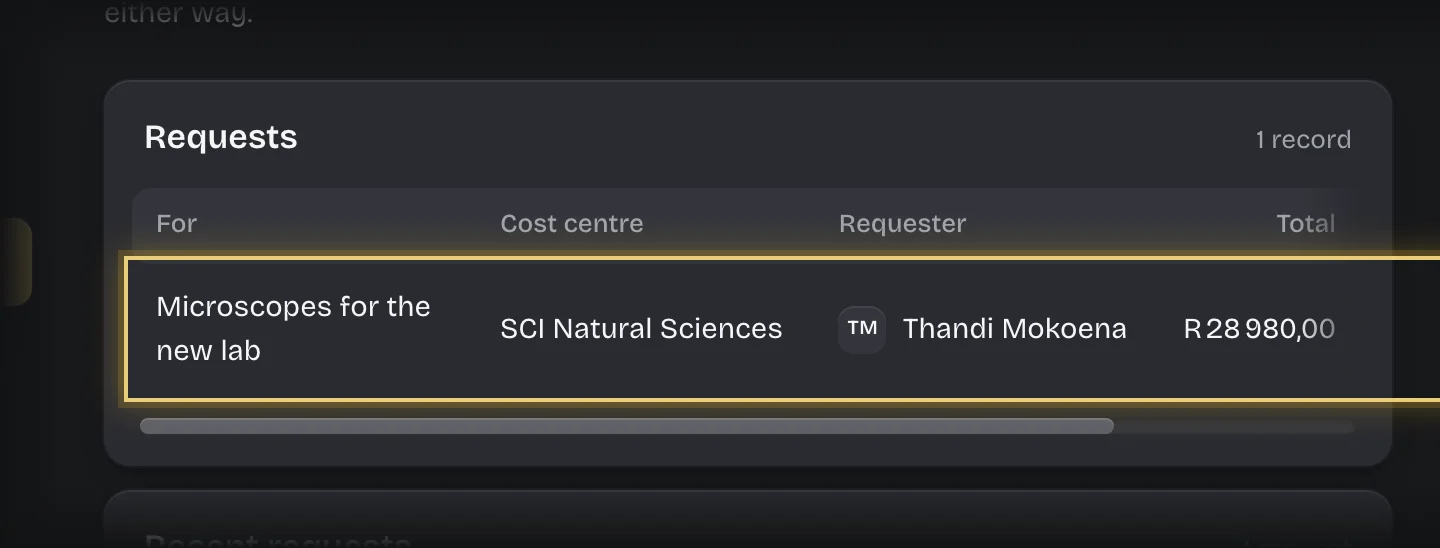
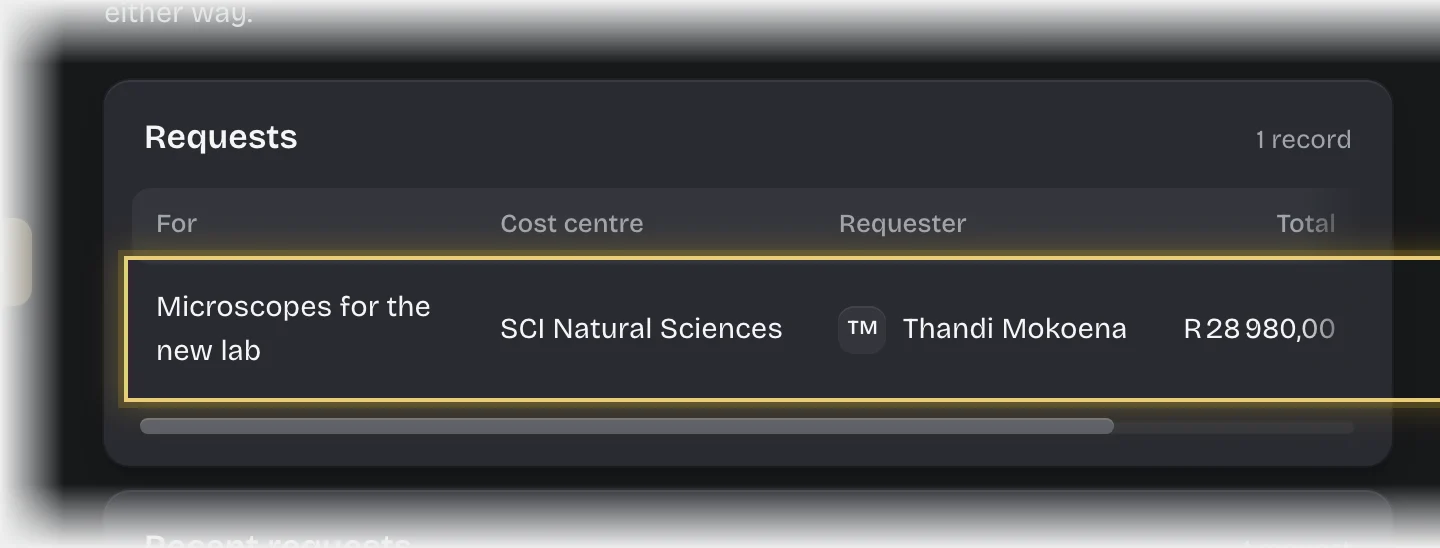
- Press your request in Requests. The request opens in a panel on the right.
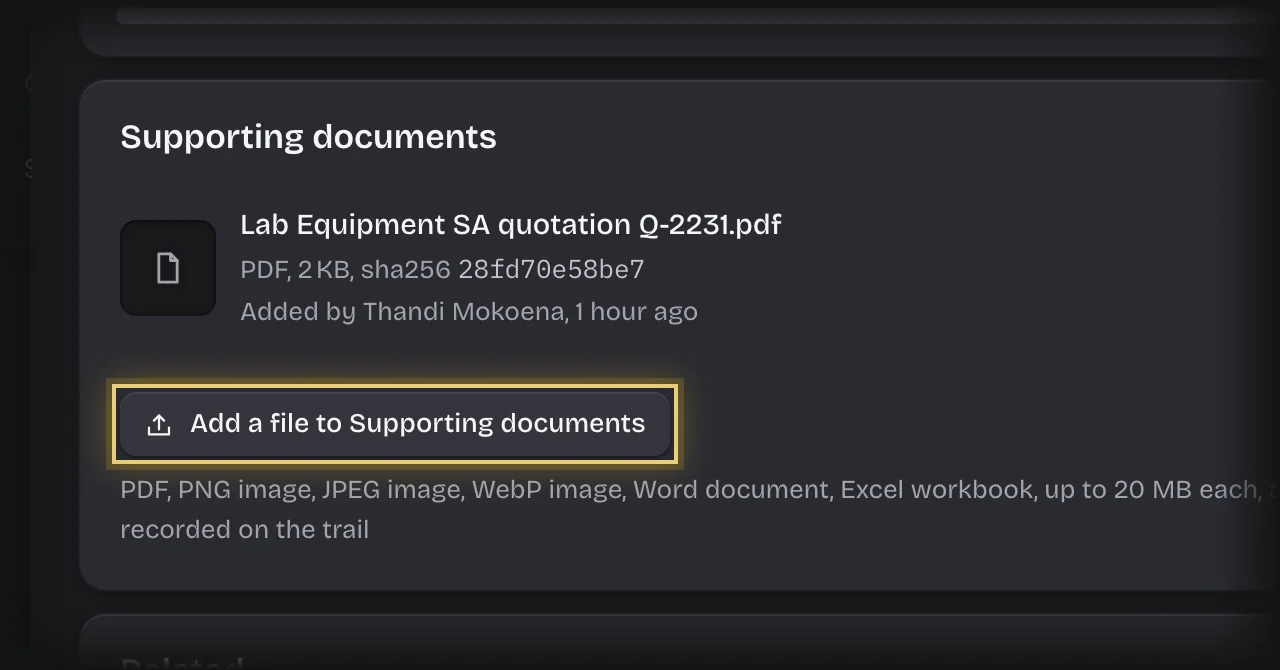
- Under Supporting documents, press Add a file to Supporting documents and pick the file.
What you will see
- The file at the end of Supporting documents, with your name and the time you added it.
- An entry on The trail at the foot of the request (press it to open it): who added which file, and the request’s status at the time, for example “while it was approved”.
- If someone has already approved or rejected the request, they get the message “File added after your decision:” with the request’s name. Their decision stays recorded against the documents the request held when they decided.
Common problems
- There is no Add a file button. Only the person who raised the request and your tenant admins can add documents. You cannot add documents to a request that is rejected, over budget or cancelled; raise a new request instead.
- “at most 10 files”. A request takes up to 10 documents. Combine them into one PDF.
- A document was added by mistake. It cannot be removed. Add a comment under Comments on the request saying which document to ignore.