Steps
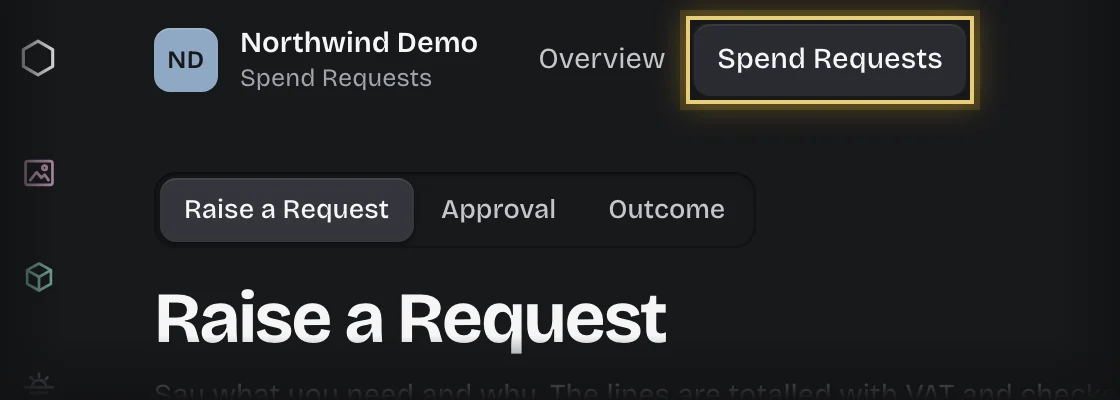
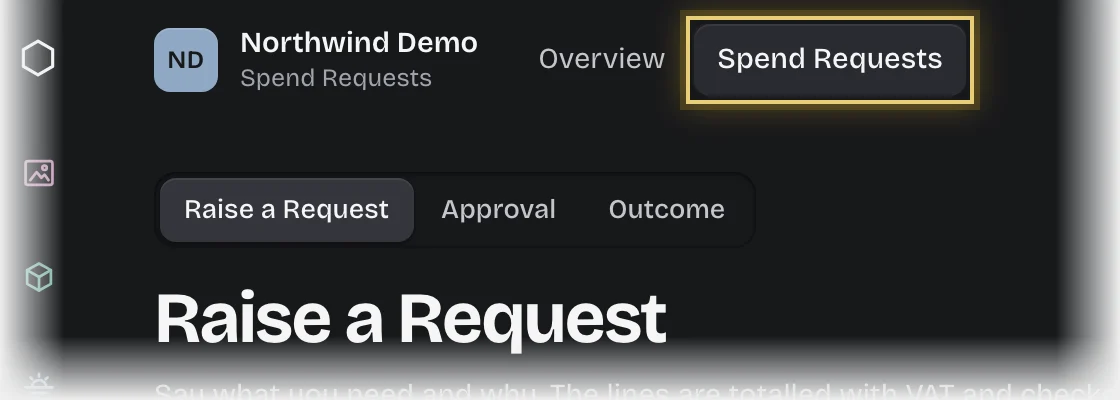
- Choose Spend Requests in the rail, then the Spend Requests tab. The Raise a Request stage opens. The stage switch at the top of the page shows Raise a Request, Approval and Outcome.
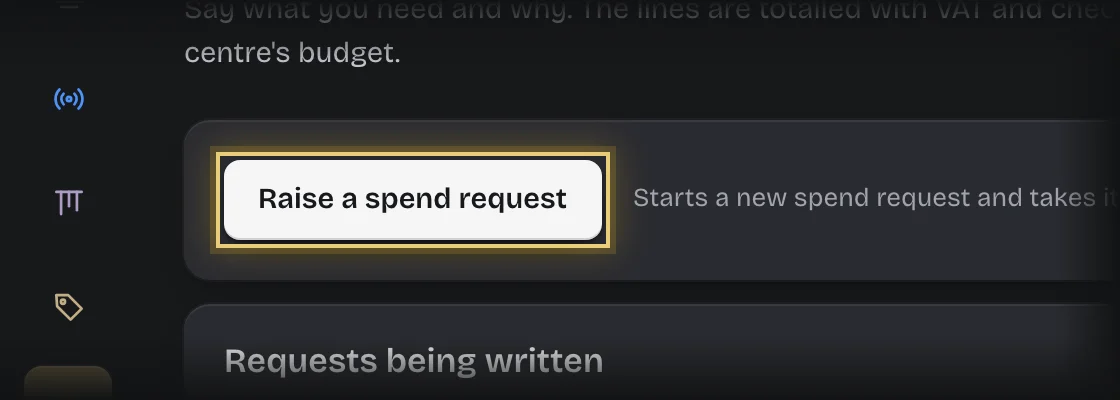
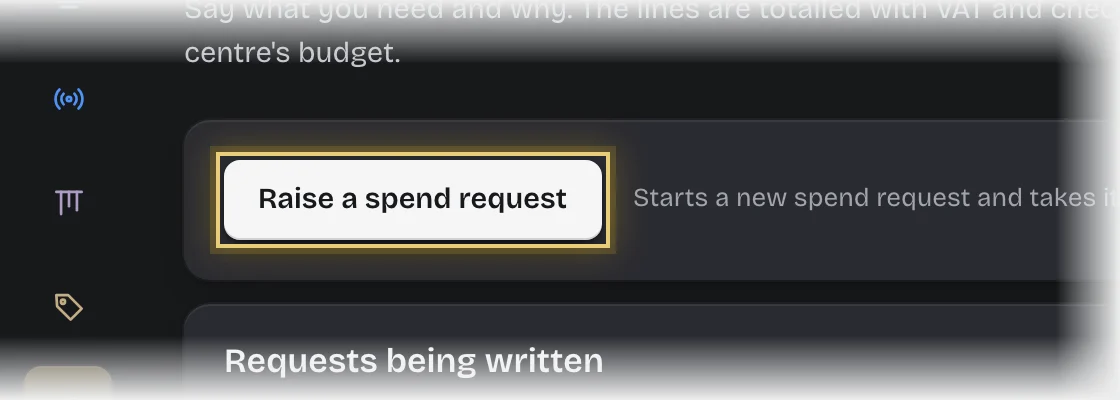
- Press Raise a spend request. You can also press Raise a request under Awaiting approval on the Overview.
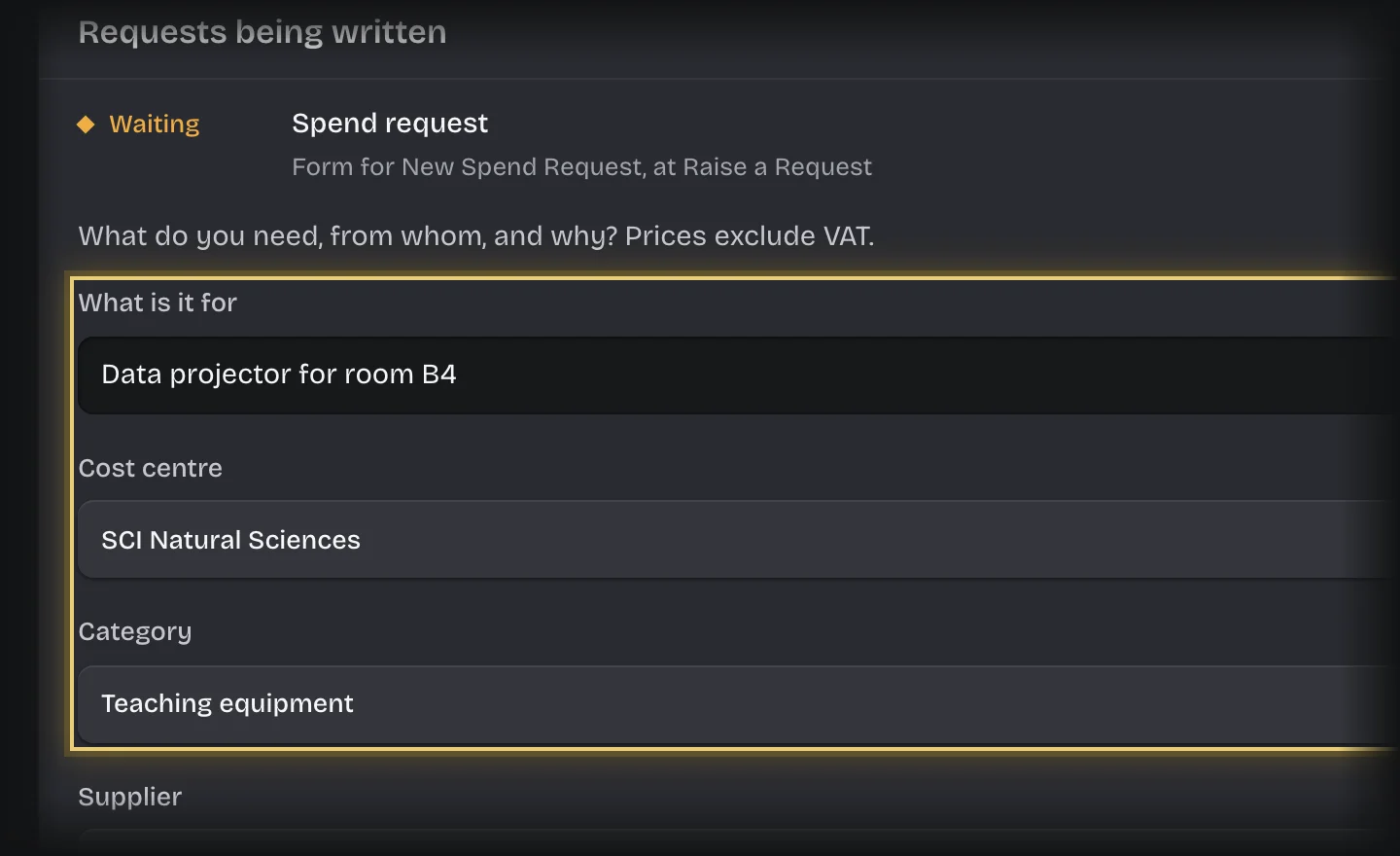
- The form Spend request opens under Requests being written. Fill in:
- What is it for
- Cost centre and Category: together they choose the budget line.
- Supplier: optional.
- Needed by: optional. The budget is checked for the financial period that covers this date, or today if it is blank.
- Why
- Lines: press Add a line for each item, and fill in Item, Qty, Unit price (excl. VAT) and VAT. Set Register as an asset to Yes on a line for equipment your organisation will keep track of.
- Supporting documents: optional. Press Choose files and pick the supplier’s quote, an invoice or a specification. PDF, images (PNG, JPEG, WebP), Word and Excel files are accepted, up to 20 MB each and 10 files in all. Each file is uploaded when you choose it and listed on the form; press Remove to take one off before you send the form.
- Press Send the form.
What you will see
- The subtotal, VAT and total worked out from your lines.
- If the budget has enough available, the request goes to its approver and shows Awaiting approval.
- Messages as it moves: “Approved” with the amount committed, “Not approved”, or “Over budget”.
- Lines marked Register as an asset appear in Assets after approval, if your organisation has Assets.
- Your approvers see the supporting documents on the request when they decide. Once you send the form, documents stay on the request: nobody can remove or replace them. To add one later, see Add a document to a request.
Common problems
-
Your request went to a tenant admin, not the approver you expected. You are the only approver for that amount, so it went to the tenant admins instead.
-
“Over budget”. The total is more than the budget line has available. Talk to the budget holder; the request is not sent for approval.
-
“Approved, but the budget is gone”. Another request was committed against the same money first. Nothing was committed for yours.
-
The request shows as failed in Recent requests. The note on it says why:
- “no BudgetLine matches”: there is no budget line for that cost centre, category and financial period.
- “no approval limit covers”: nobody is set to approve that amount for that cost centre.
- “only the person who raised this request could decide it, and they are the only administrator”: the only approver for that amount is you, and nobody else is a tenant admin. Nobody approves their own request.
Ask your tenant admin to fix it, then press Retry.
-
“that kind of file is not accepted” or “this field takes …”. Save the file as a PDF, or as an image, Word or Excel file. Word or Excel files with macros are not accepted.
-
“file storage is not configured”. Your workspace cannot take files yet. Send the form without them and ask your tenant admin.
-
To stop a request, see Cancel a request you started.