Each product lets you change some settings on its steps: who approves, who is told, how long an approval may wait before it is overdue, and how often to remind. The steps themselves, and the conditions between them, are the same for every organisation.
Steps
- Open Manage > Pipeline values.
- Find the panel for the service and pipeline, titled for example Spend Requests: Spend Request. Each step you can change is listed by name.
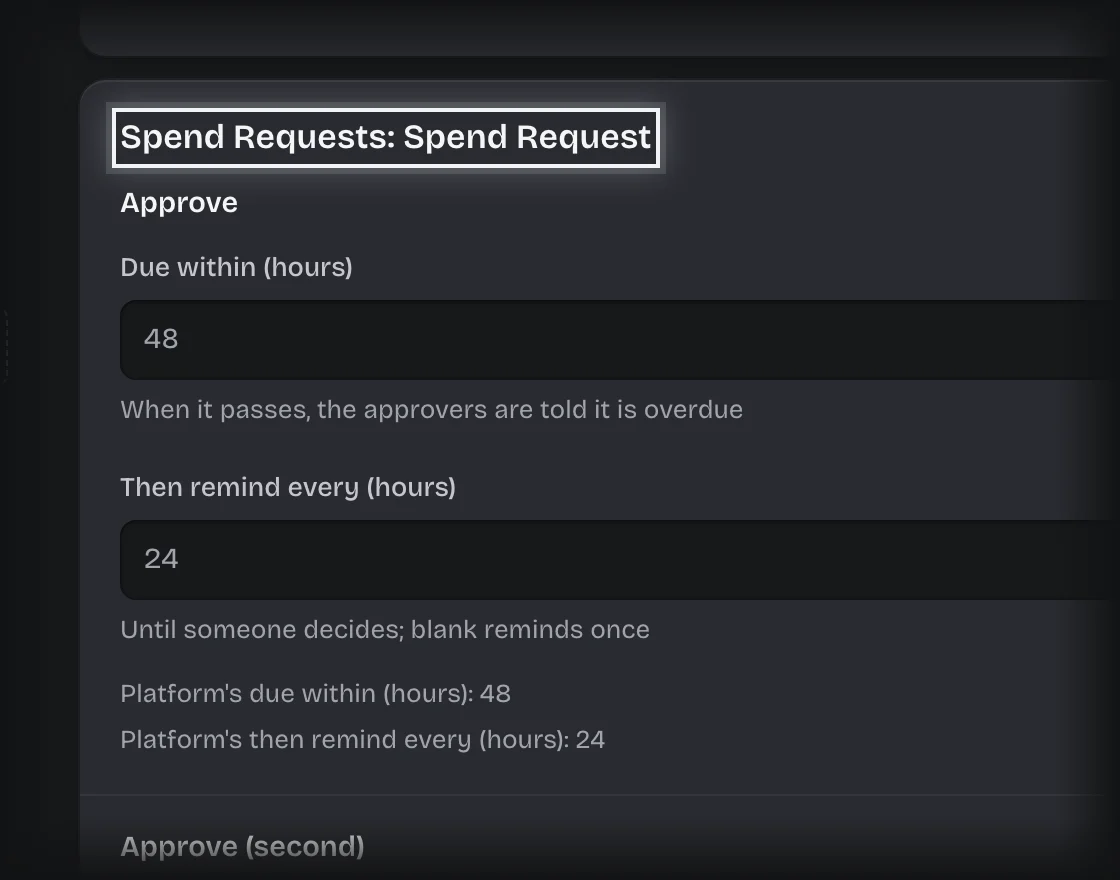
- Change the setting:
- To add people, use Add a role or Add a person. Remove one with the cross beside it.
- For time limits, type hours into Due within (hours) or Then remind every (hours).
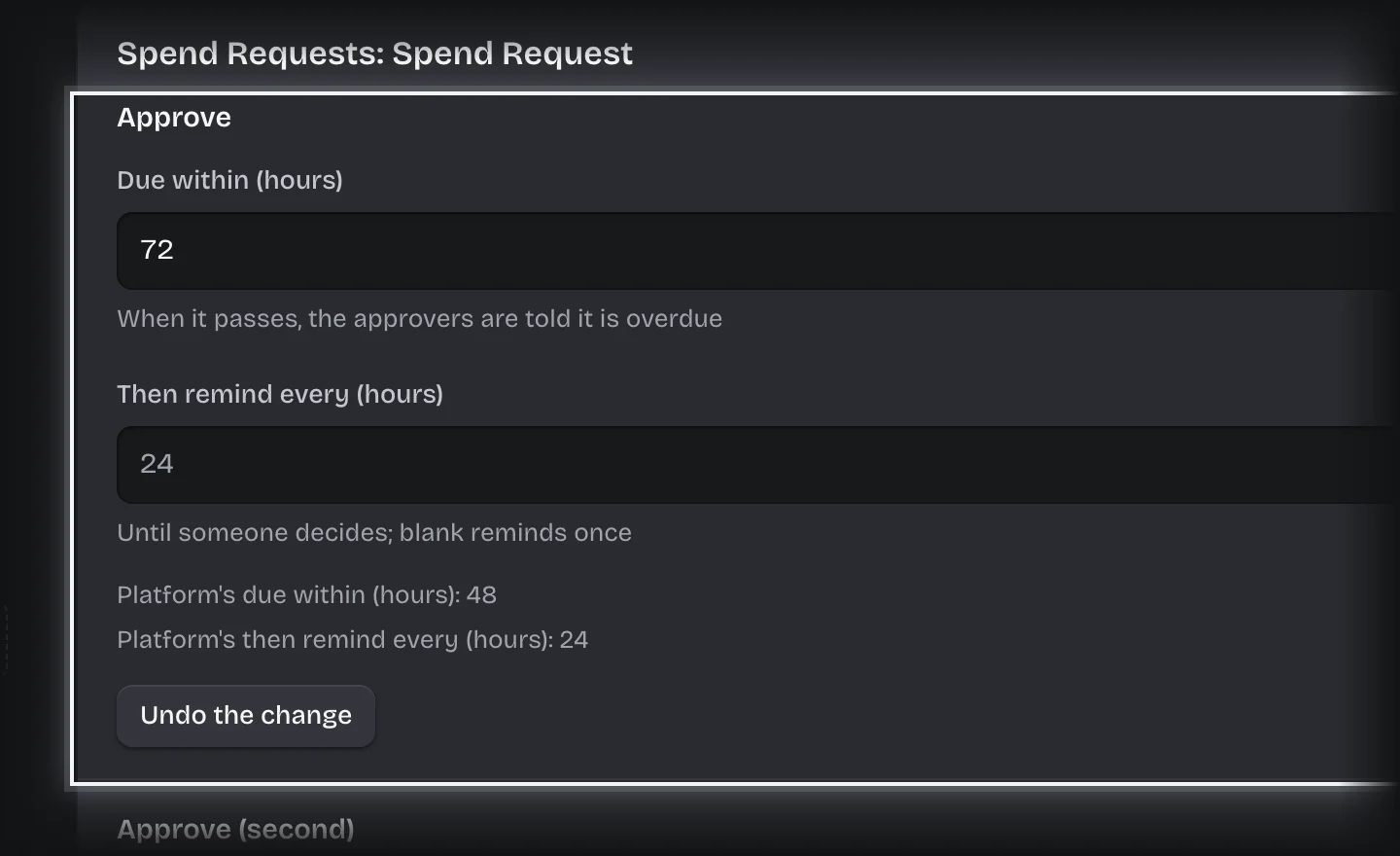
- The change saves by itself once you stop typing. The step shows Saving, then Saved.
Press Undo the change to put a change back before it saves, or Use the platform’s values to go back to the original settings.
What you will see
- A Yours tag on a step you have changed.
- Under each step, the original settings (“Platform’s …”) for comparison.
- Not saved beside a step whose change was refused, with the reason under it. Correct the value and it saves again.
Common problems
- A request already waiting still goes to the old people. A change applies to requests raised from now on. Anything already waiting keeps the people it was addressed to until you move it. See Move a waiting approval to new approvers.
- A large request went to the old approver. Where a service has more than one approval step, each is set separately.
- A setting you want is not listed. Only the settings a product opens to you are here.