Steps
- Choose Leave in the rail, then the Leave Requests tab.
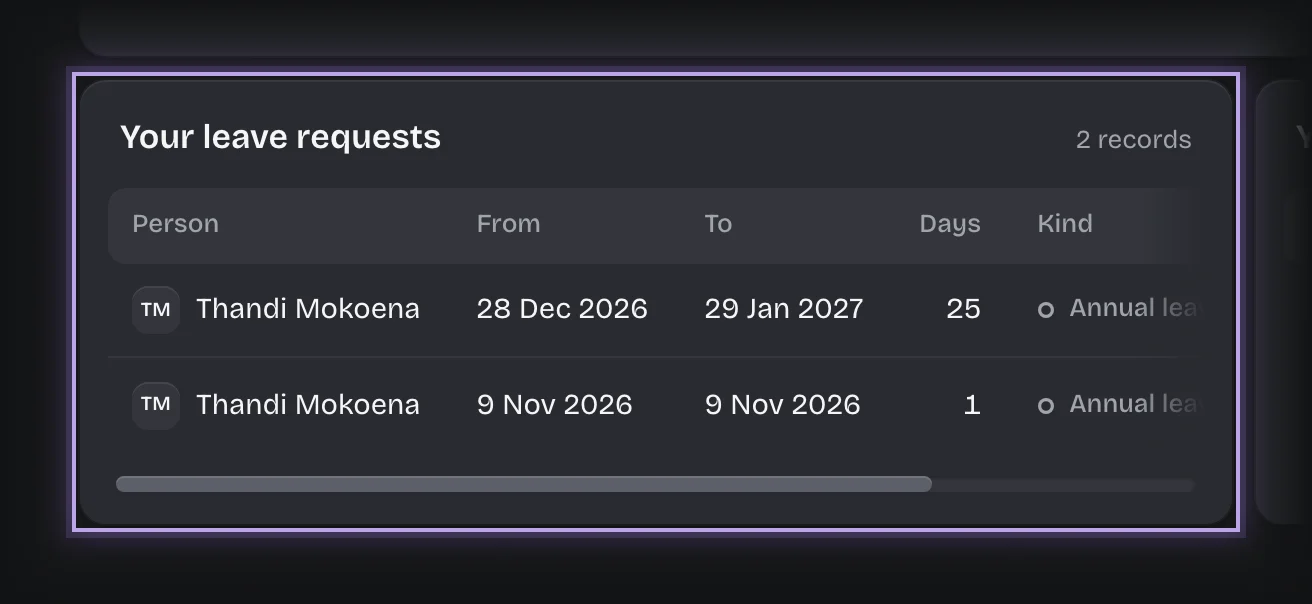
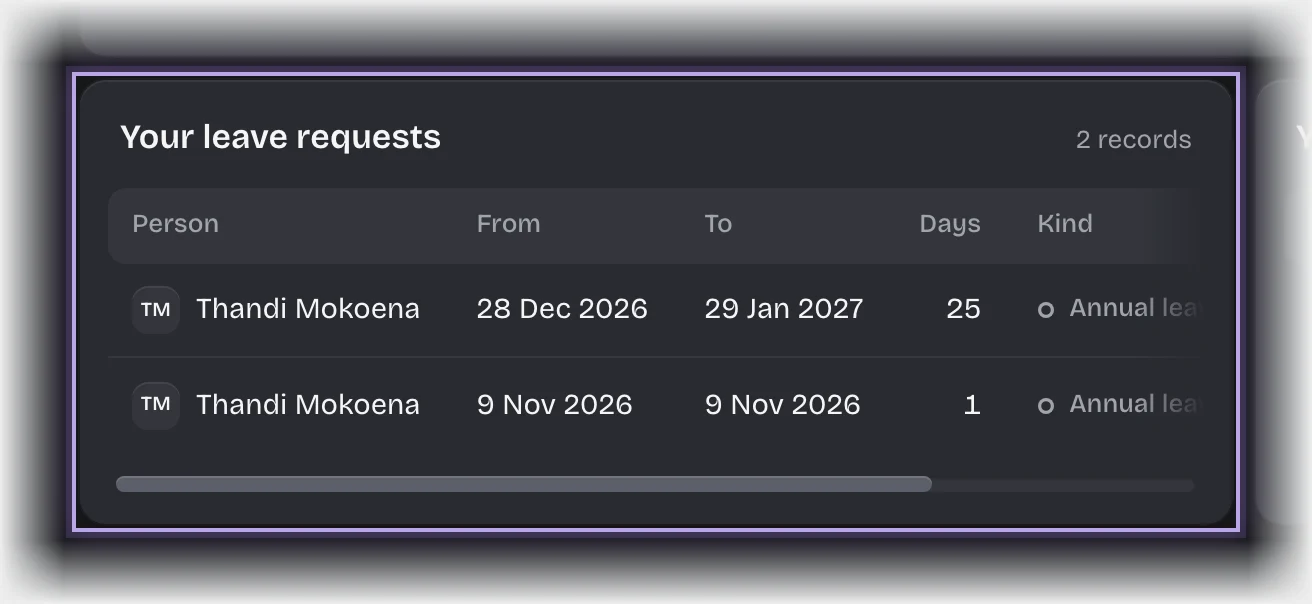
- On the Request Leave stage, read Your leave requests for each request, its dates, working days and status.
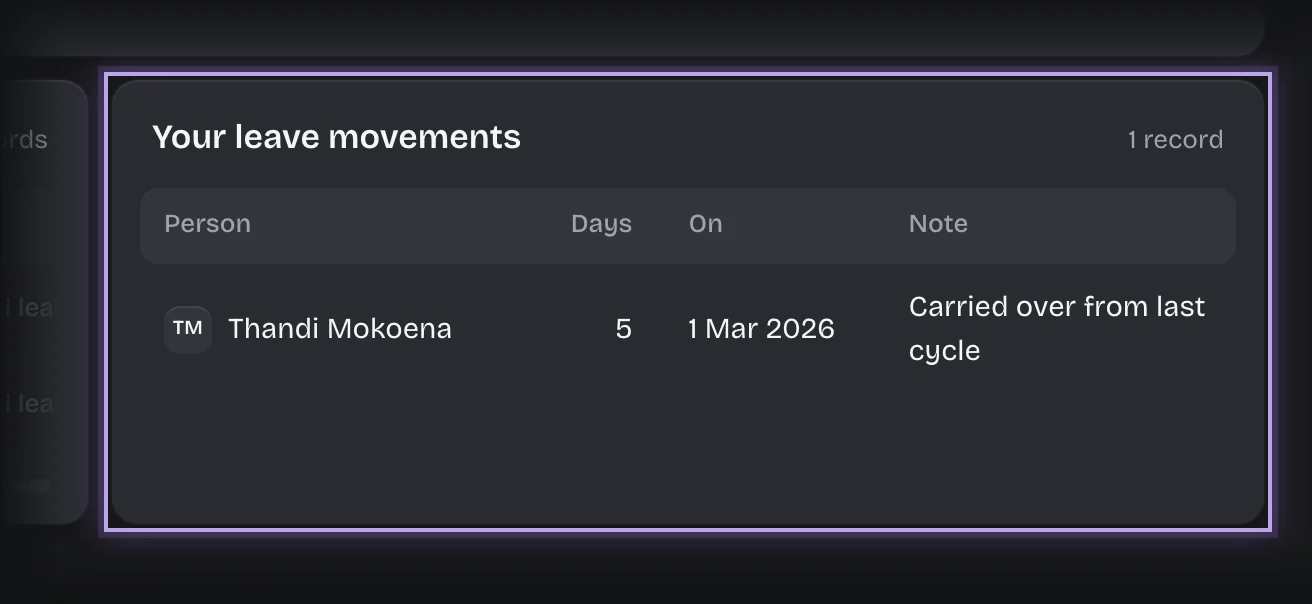
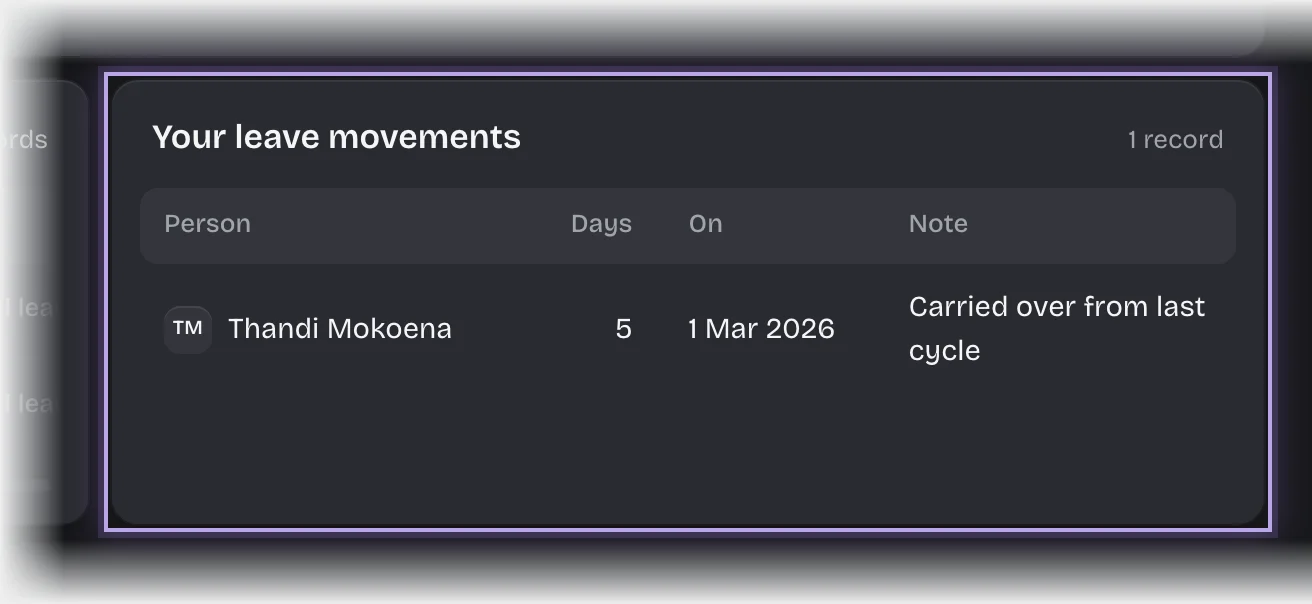
- Read Your leave movements for each grant and deduction: a positive number grants days, a negative one takes them.
- Work out your balance for a cycle: the days your organisation’s leave policy gives each cycle, plus the movements dated inside that cycle. A request is checked against the cycle its first day falls in. Where your organisation’s leave policy splits leave over the turn of a cycle, the days after the turn are checked against the next cycle, and come off it as a second movement dated on that cycle’s first day.
What you will see
- Statuses on your requests: Draft, Awaiting approval, Approved, Not approved, Withdrawn.
- One movement for each approved request with paid days, noted with its dates.
Common problems
- There is no single balance figure. The balance is worked out when you request leave, and the shortfall form tells you how many days it covers.
- Days from last cycle no longer count. Movements dated in a cycle that has ended stop counting. Carrying days over is a movement your tenant admin adds.