Steps
- Open Manage > People.
- In Add someone, type their Name and Email.
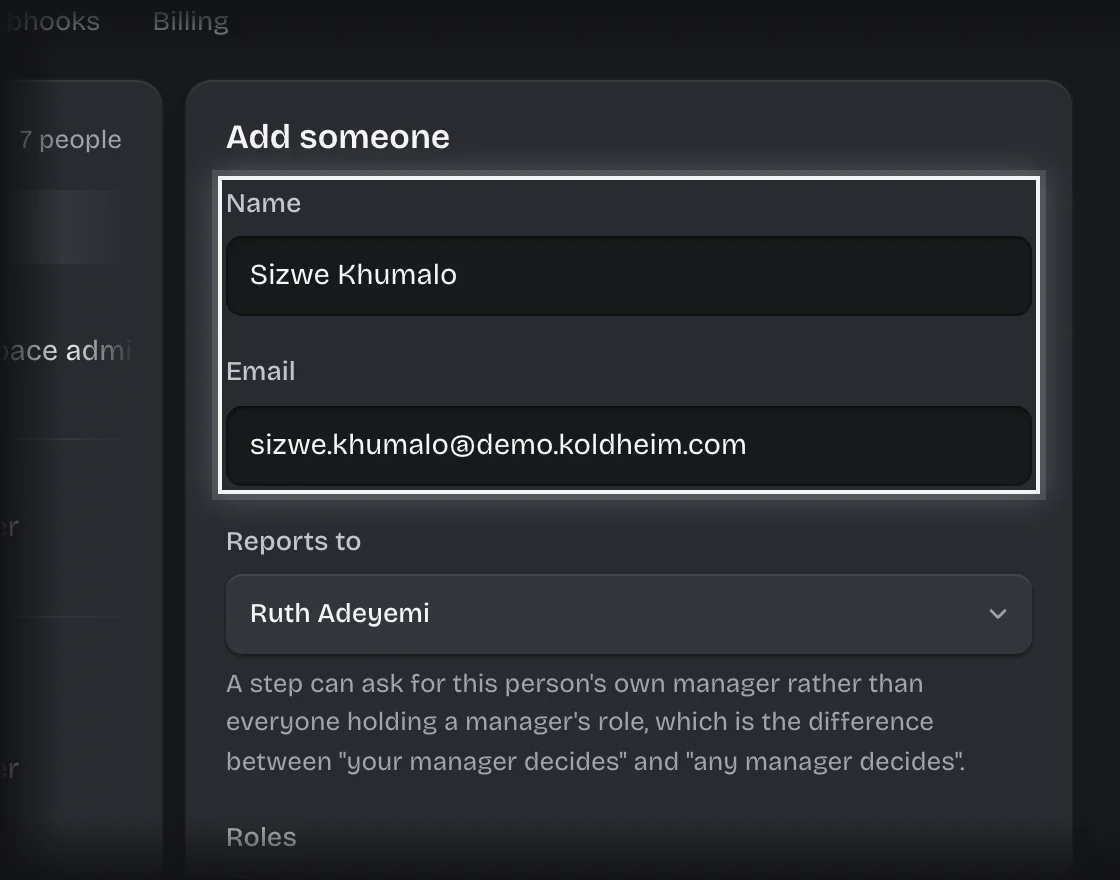
- Under Reports to, choose their manager. Leave uses this to send their leave to their own manager.
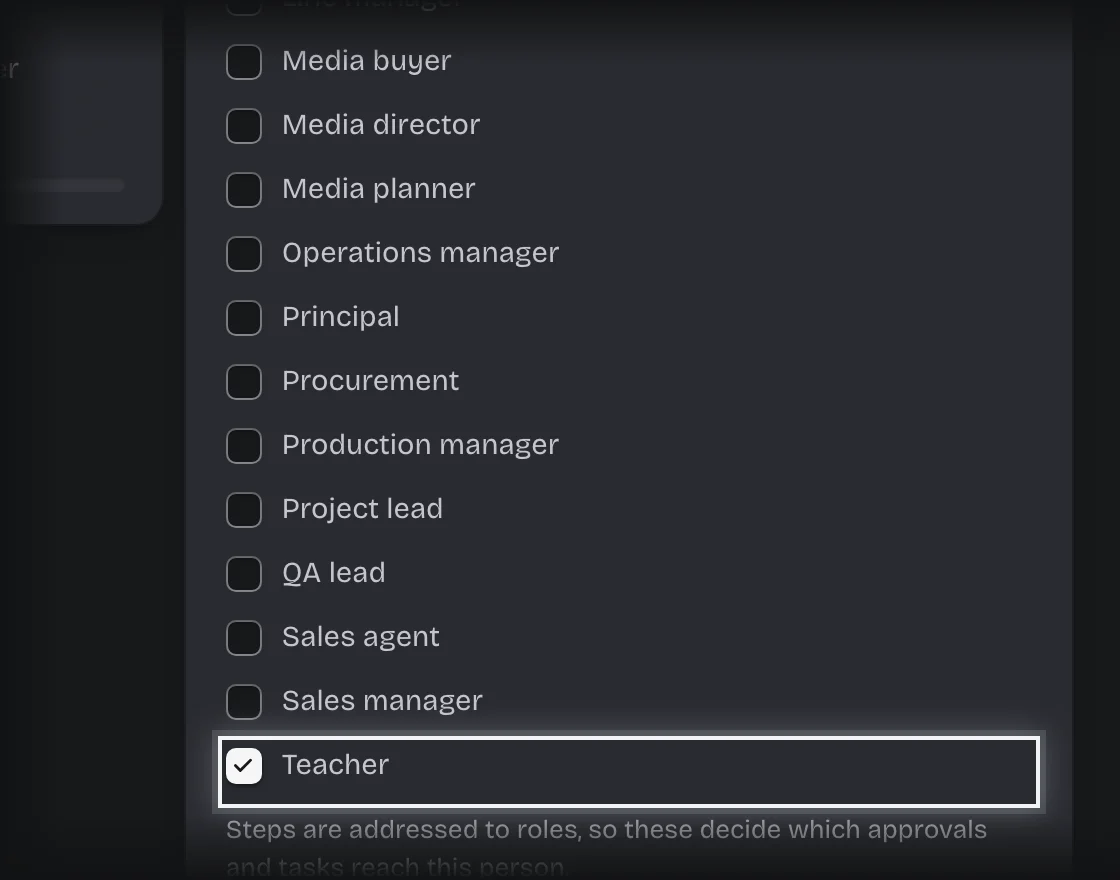
- Under Roles, tick each role they hold. Roles decide which approvals and forms reach them.
- Under Access, choose Member, or Workspace administrator if they will run the workspace with you.
- Leave Send them an invitation ticked, and press Add person.
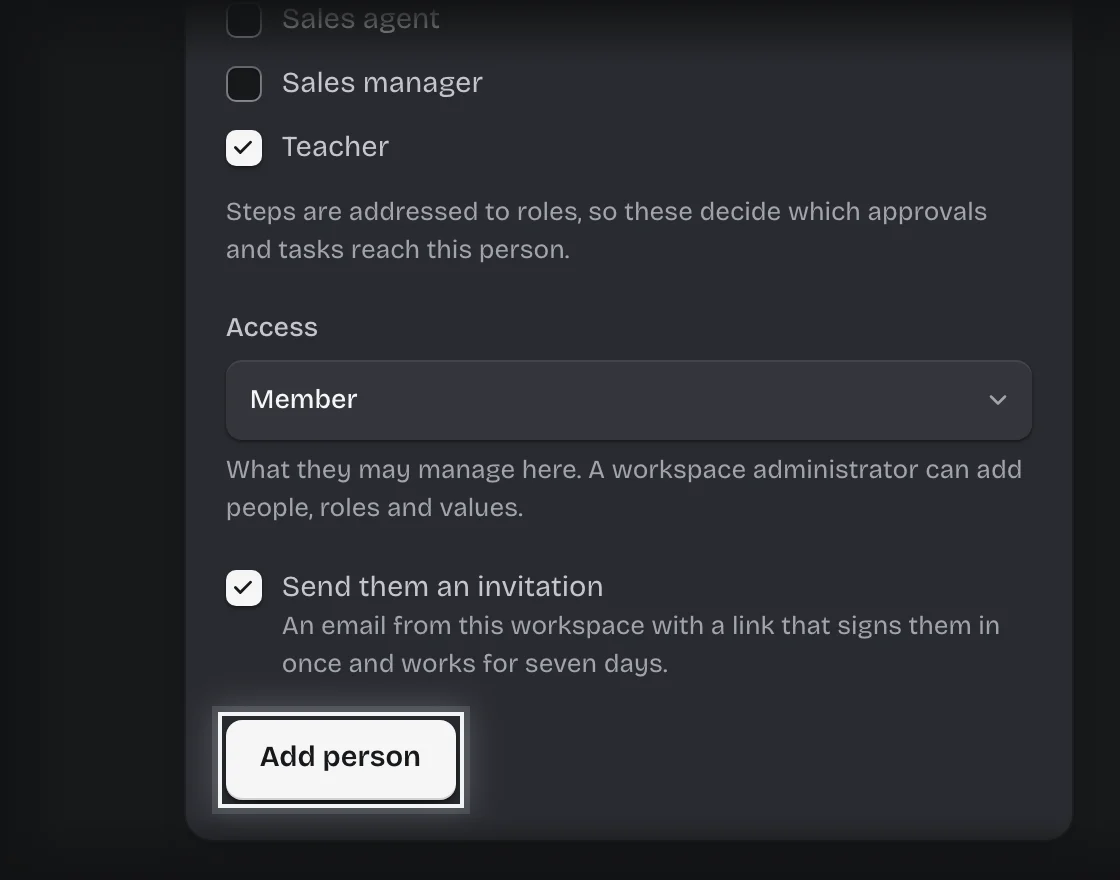
- They get an email from your workspace with a link that signs them in once and works for seven days. If you untick Send them an invitation, send them your workspace address yourself.
To change someone, press their row in the People list, make the change and press Save changes. Their email cannot be changed. The form also shows whether they were invited and when they last signed in. Press Invite again to send a fresh link, or Send an invitation if they were never sent one.
What you will see
The person in the People list with who they report to, their roles and their access.
Common problems
- A message about your plan, with “See the plans”. Your plan has no seat left for another person who can sign in. Open Manage > Billing.
- “No roles yet.” Define roles first under Manage > Roles, see Define a role and give it to people.
- “… cannot report to themselves.” Choose someone else under Reports to, or Nobody.
- Removing someone. Press their row, then Remove followed by their name. You can put them back from Manage > Deleted. You cannot remove yourself.