Koldheim has no passwords. You sign in with your organisation’s company login, or with a link sent to your email.
Steps
- Open your workspace address, for example
yourcompany.koldheim.com. - If your organisation uses its own company login, press Continue with followed by your provider’s name, and sign in there.
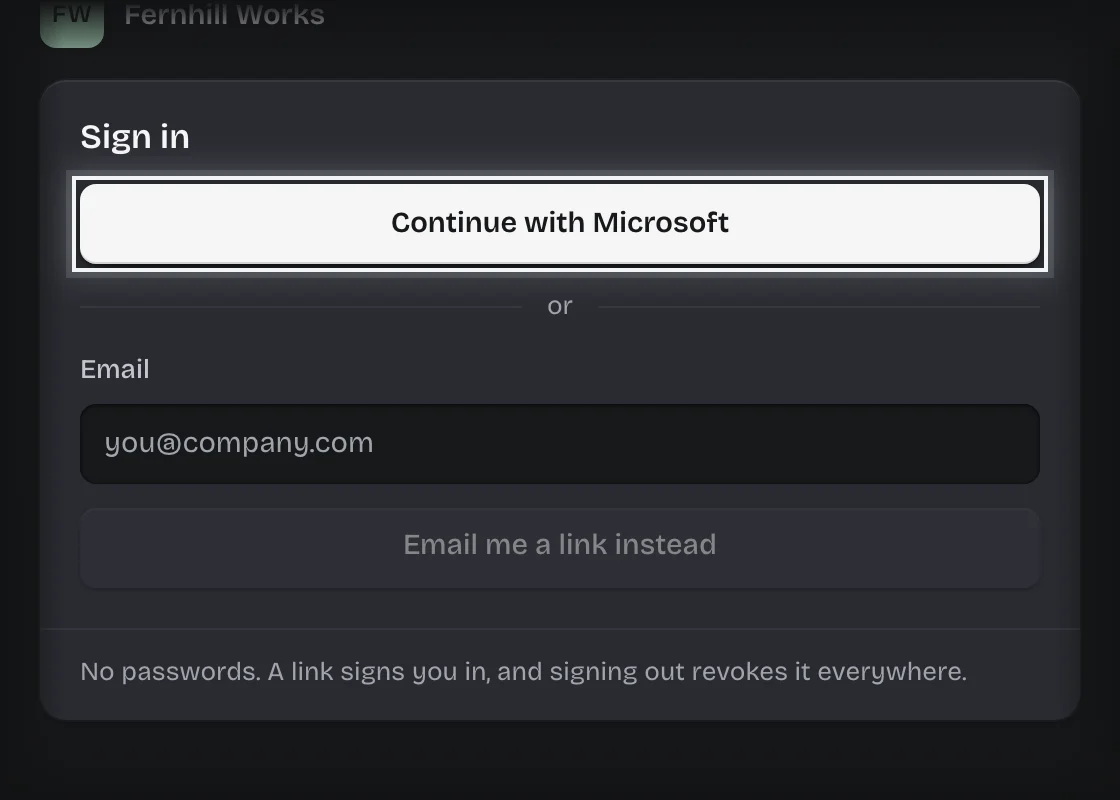
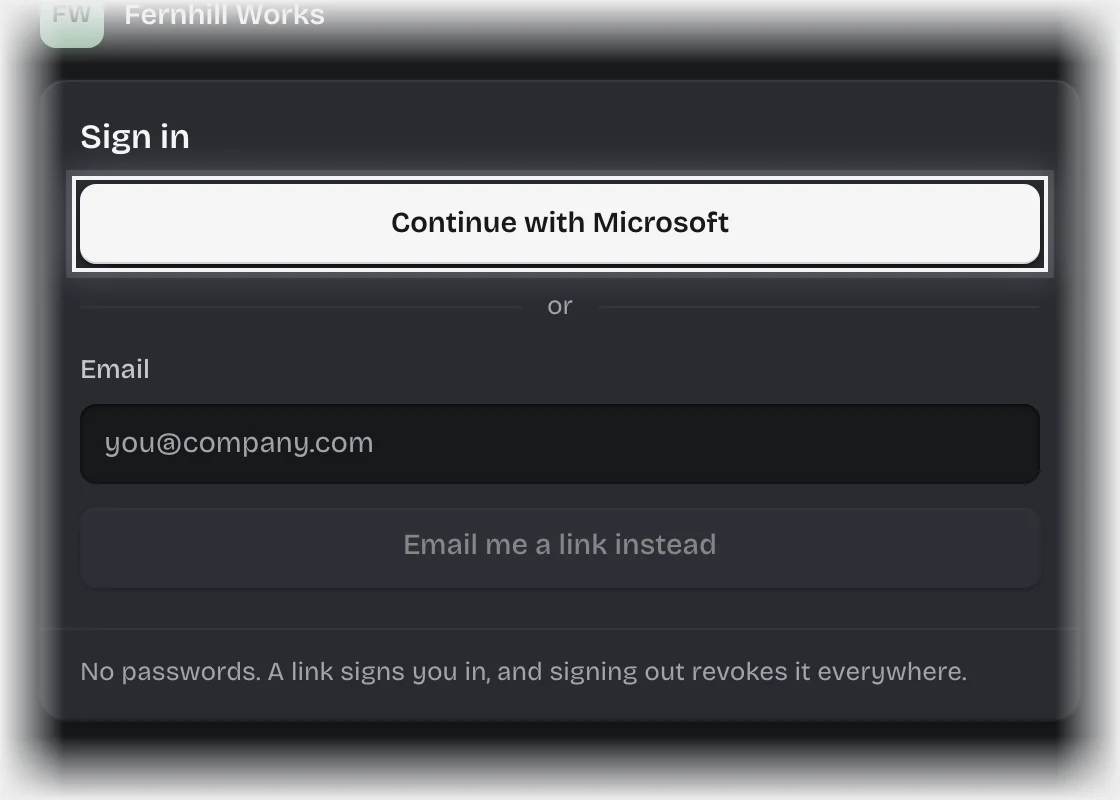
- Otherwise type your work email under Email and press Email me a link. Where your workspace also has a company login, the button reads Email me a link instead.
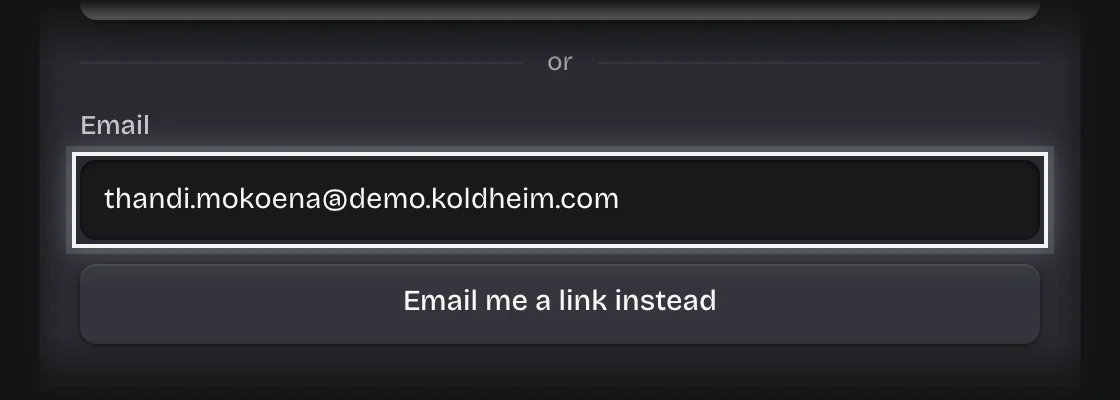
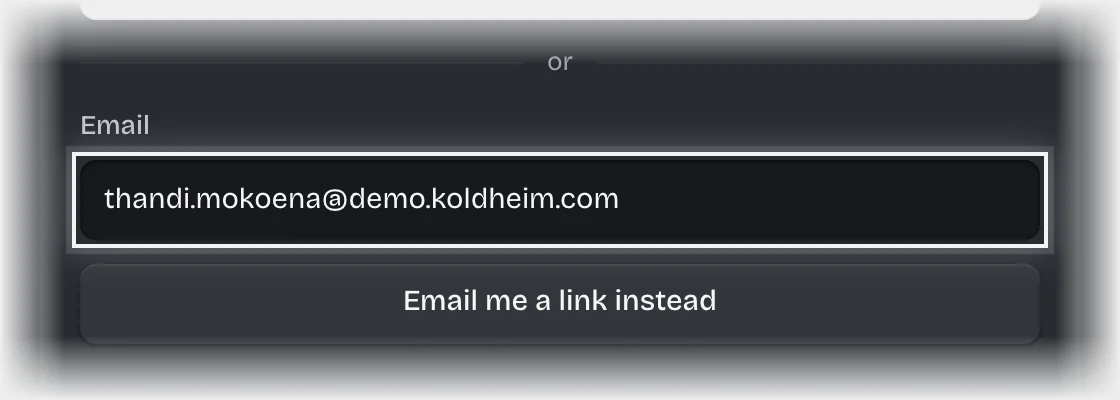
- Open the email and follow the link within ten minutes.
If you do not know your workspace address, go to auth.koldheim.com, type your work email and press Continue. If your organisation’s email domain is known, you go straight to its workspace. Otherwise a link is emailed to you; if your address belongs to more than one workspace, the email lists each one.
To sign out, press the sign-out button beside your name at the top right. This ends the session, not just the browser tab.
What you will see
- After pressing Email me a link: “If” followed by your address and “can sign in here, a link is on its way.” The page says this for every address, so it does not tell anyone who has access.
- After following the link: your workspace, with your name at the top right. A workspace with one service opens on it; one with more opens on its home page, listing each service.
Common problems
- No email arrives. The address may not have access to this workspace. Ask your tenant admin to check it under Manage > People. Several requests for one address in a short time are not all sent; wait and try once more.
- “That sign-in link had already been used, or it expired.” A link works once and lasts ten minutes. Ask for another.
- “Your organisation signed you in, but you have not been given access here yet.” Your company login worked, but nobody has added you to the workspace. Ask your tenant admin.
- “That sign-in was for a different workspace.” Start again from your own workspace address.
- “Too many sign-in attempts from here.” Wait a few minutes and try again.