Steps
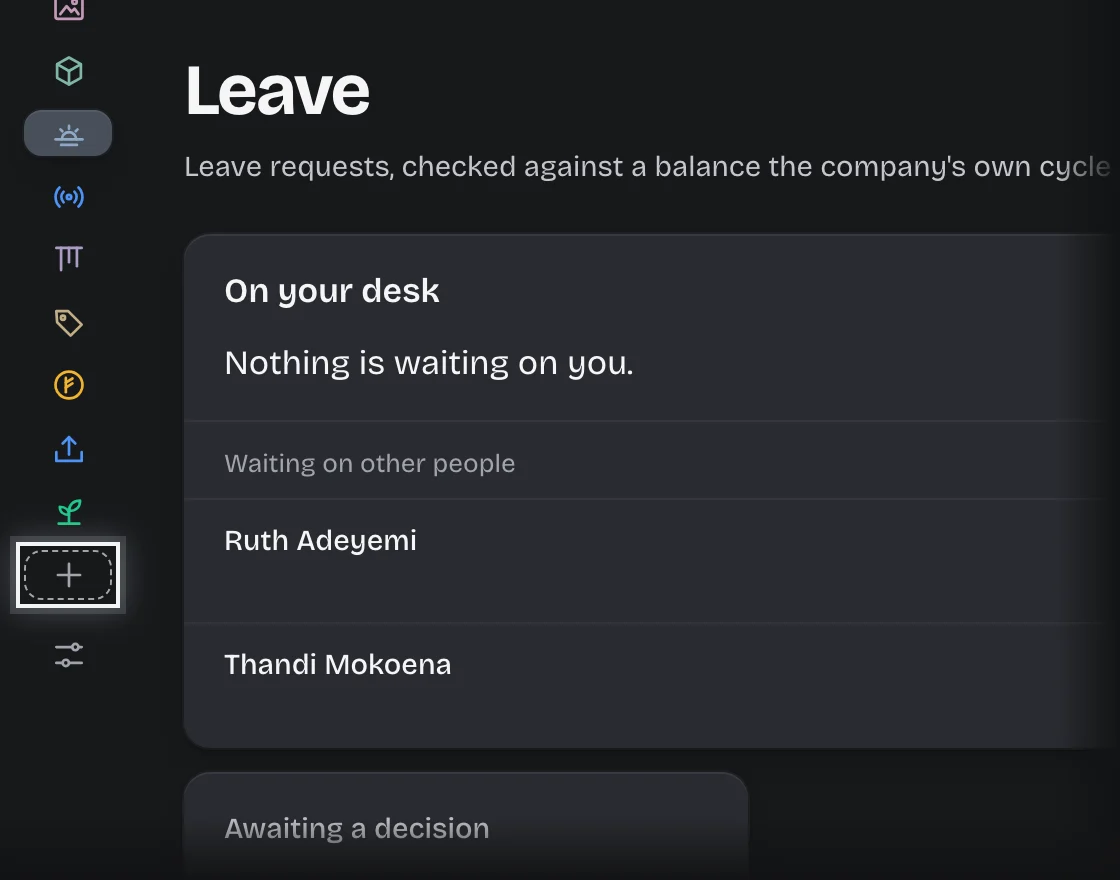
- Press + (Add a service) in the rail, after your last service. On your workspace’s home page you can also press the Add a service card.
- Read the cards. Each shows the service, what it does and, where it has one, its price.
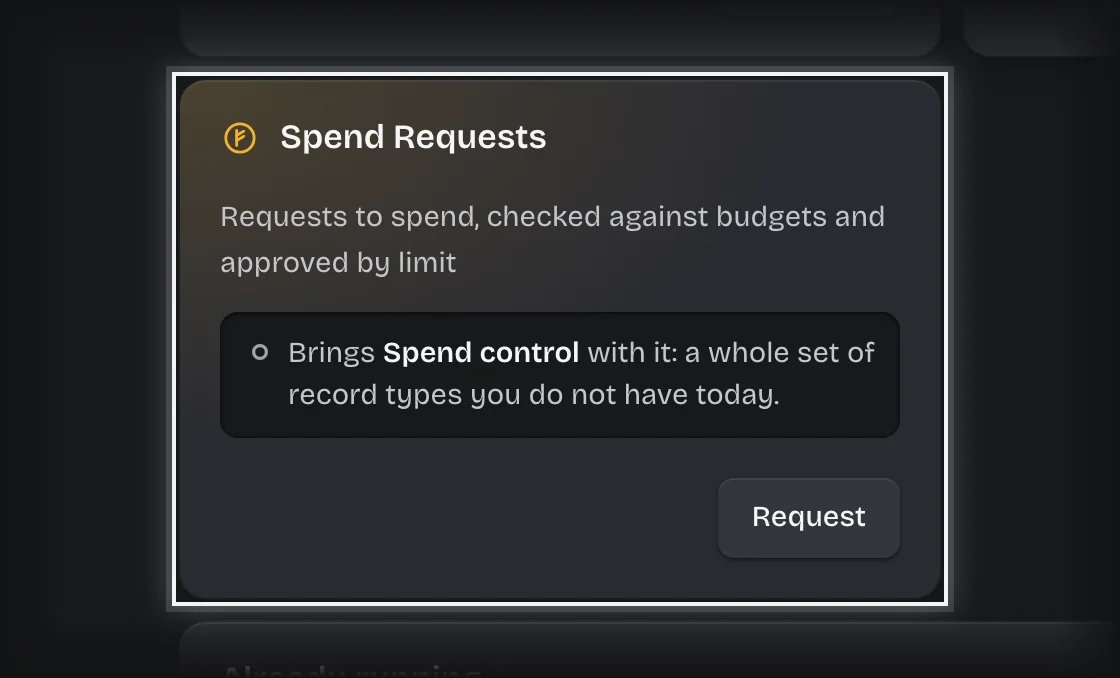
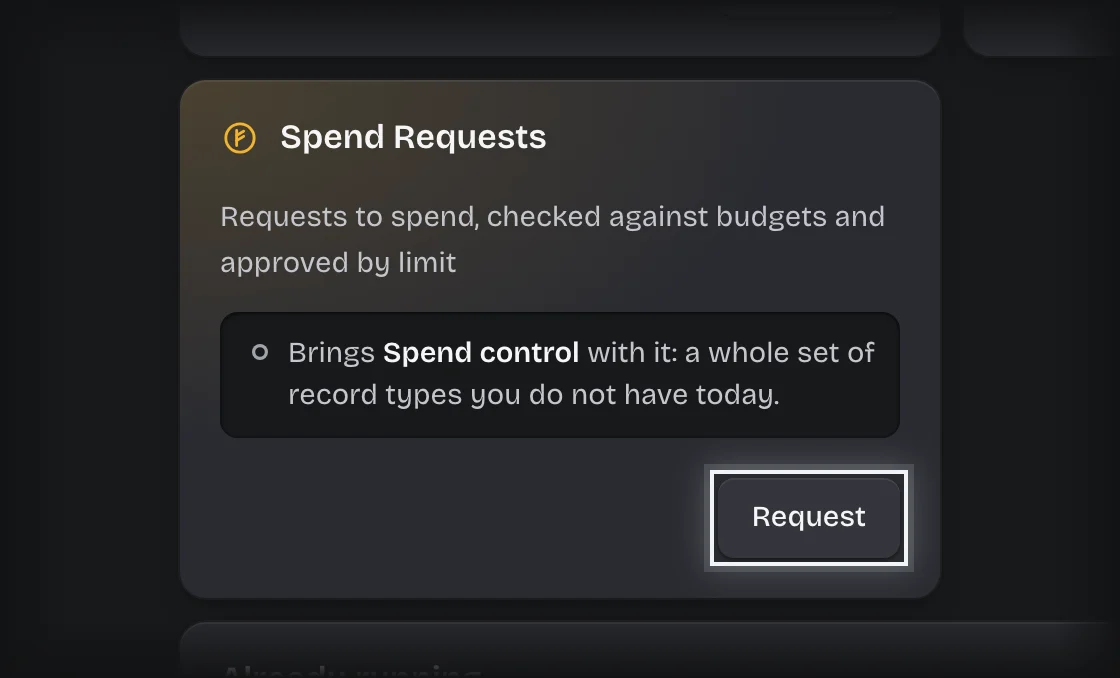
- Press Buy to pay by card, or Request if the service is not sold by card. A service you had before shows Resubscribe or Restore, and one you have asked for shows Continue.
- Pay through the checkout if one opens.
- Wait for the service to appear in the rail, then open Finish setting up your workspace.
What you will see
- A note on a card when the service brings a set of record types you do not have yet.
- A Requested tag on a service you have asked for and that is not yet switched on.
- Already running below the cards, listing the services you have.
Common problems
- “Payment received. The service will appear here as soon as Paddle confirms it.” Payment is confirmed separately; the service appears shortly after.
- Members see “An administrator can add this.” Only tenant admins can add services.