Some records are set up by your organisation rather than made by a request: cost centres, budgets, leave policies, clients, projects, assets, stock items. Tenant admins add and edit them directly.
Steps
- Open Manage > Records.
- Under Record types, choose the record type. The number beside each is how many records it has.
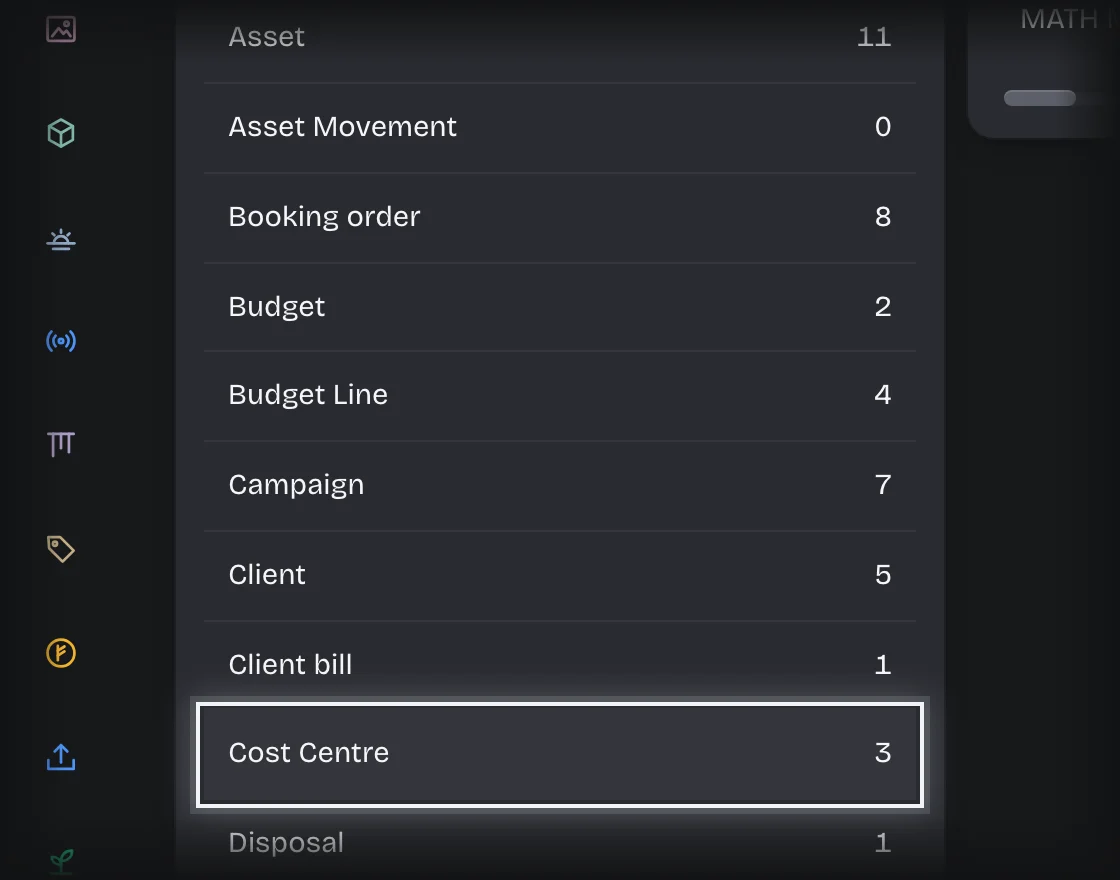
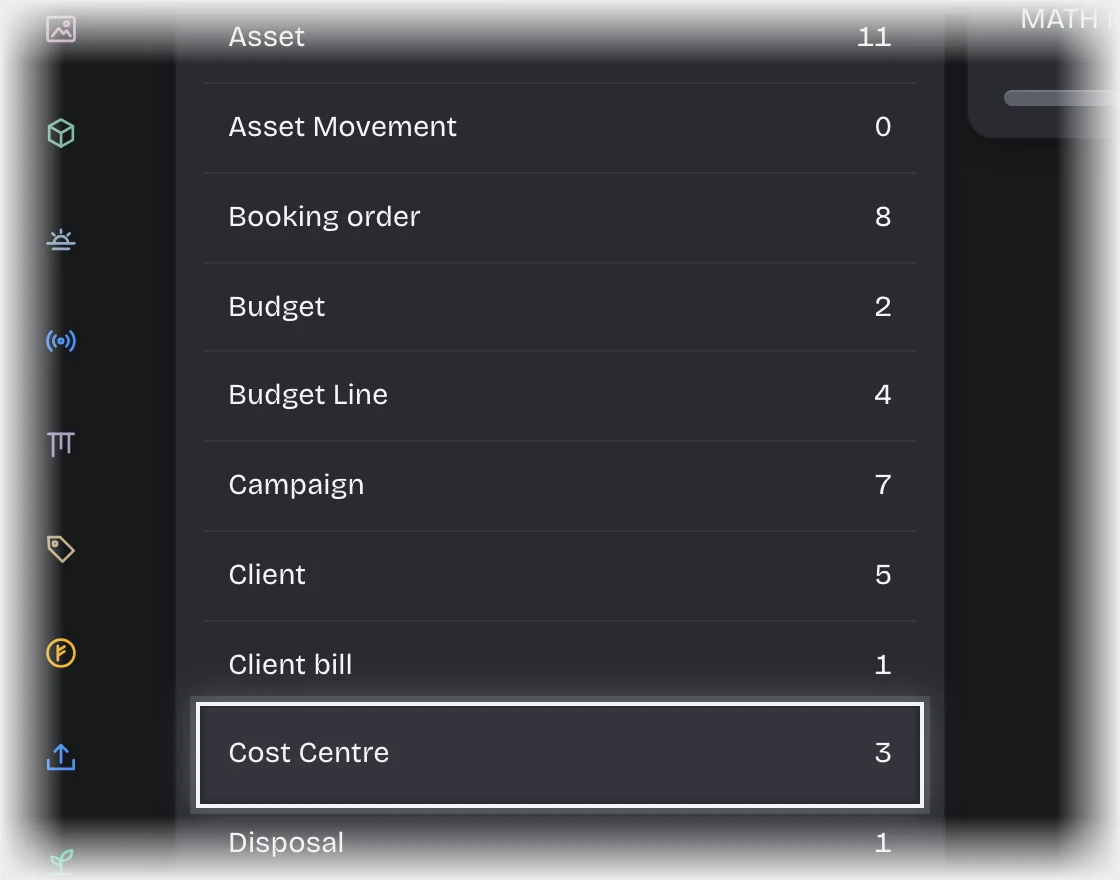
- Press Add followed by the record type, for example Add cost centre. Fill in the form and press the Add button under it.
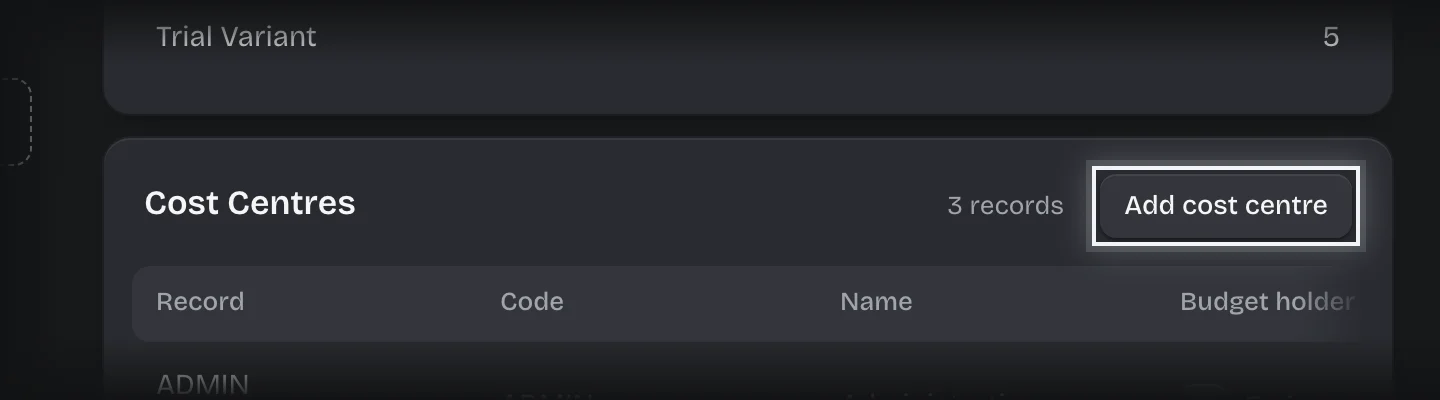
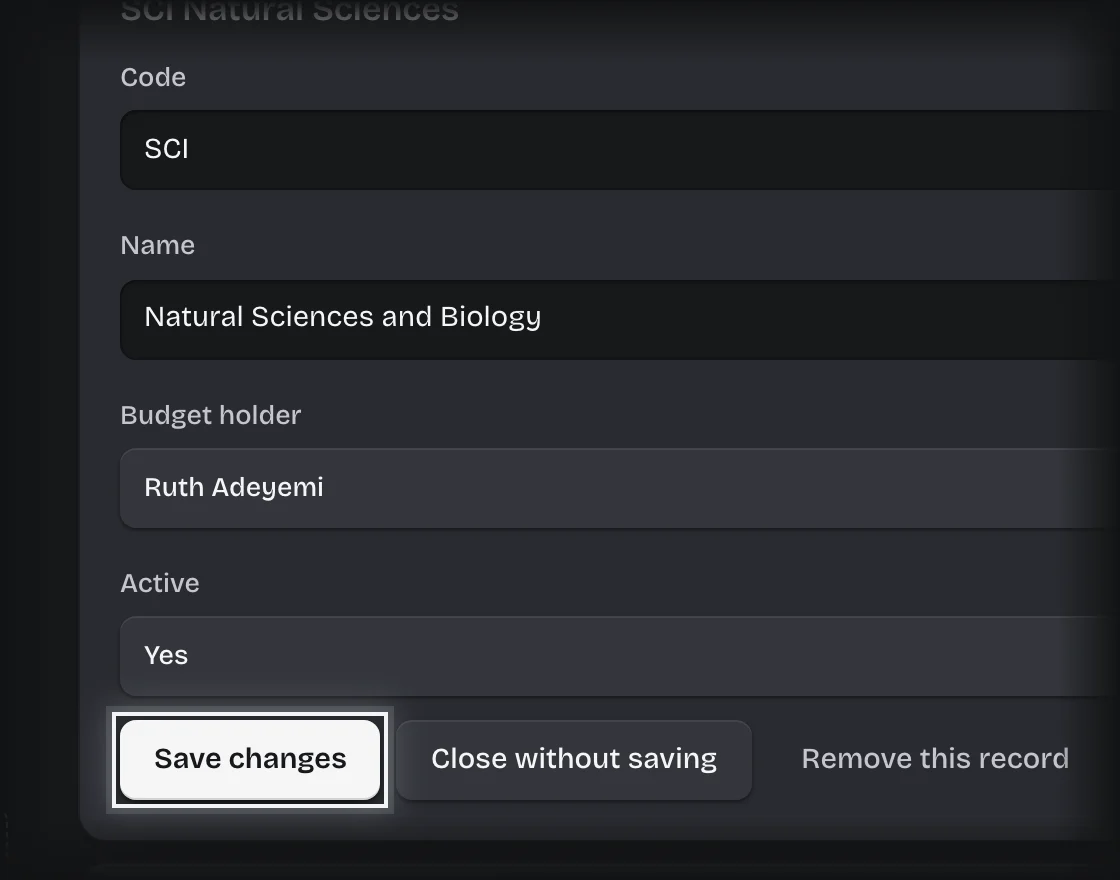
- To change a record, press its row, make the change, and press Save changes.
What you will see
The record in the list for its type. Every change is written to your audit trail with who made it.
Common problems
- Members cannot do this. Only tenant admins edit records directly. Everyone else changes records through a service’s forms.
- A value you typed is replaced. Some fields are kept by Koldheim, such as Committed on a budget line or Total on a quote. An edit to them is overwritten by the next request.
- Removing a record. Open it and press Remove this record, then Remove record. It leaves every list and count, and a tenant admin can put it back from Manage > Deleted.