Some choices hold for your whole workspace rather than for one step, such as whether a client signs off a supplier’s proof. Each product you have lists its own. Every pipeline of that product reads them when it reaches the step that needs them.
Steps
- Open Manage > Settings. There is a panel for each product that has settings.
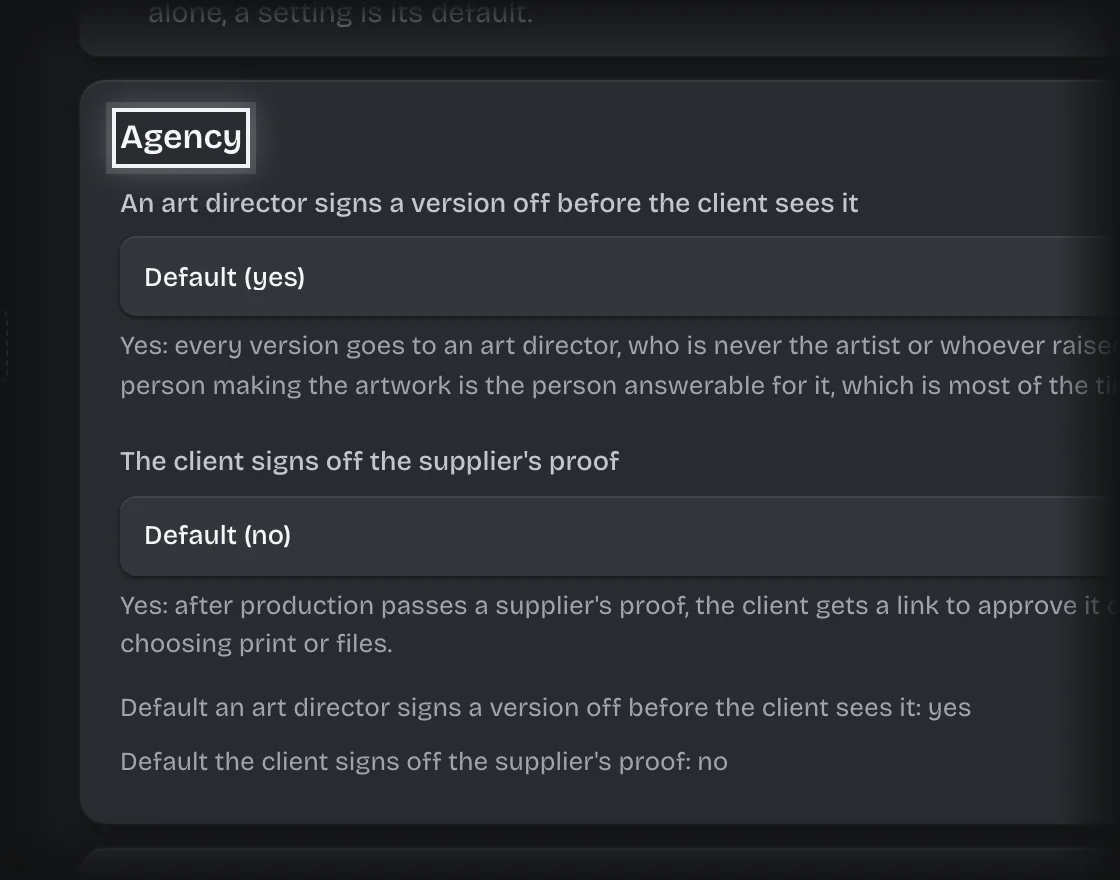
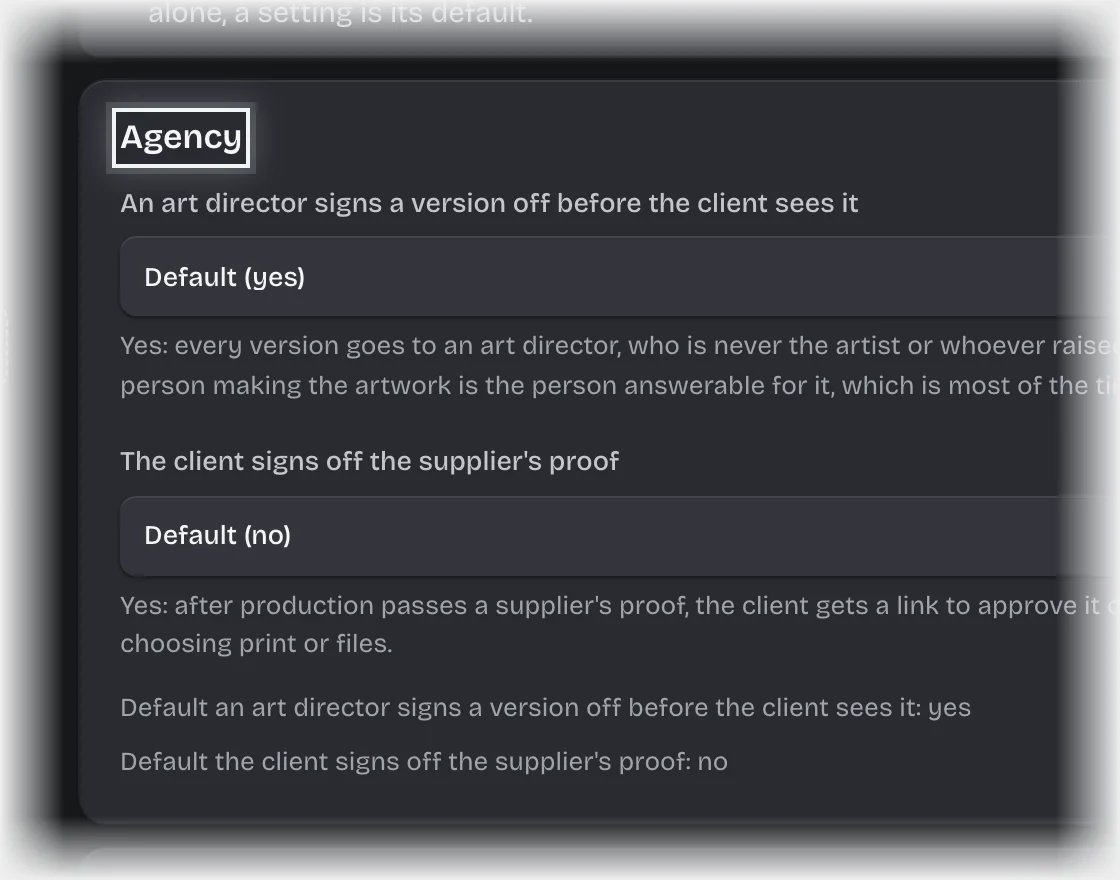
- Change a setting. A setting left alone shows Default and its value, and each default is written under the panel.
- The change saves by itself. The panel shows Saving, then Saved.
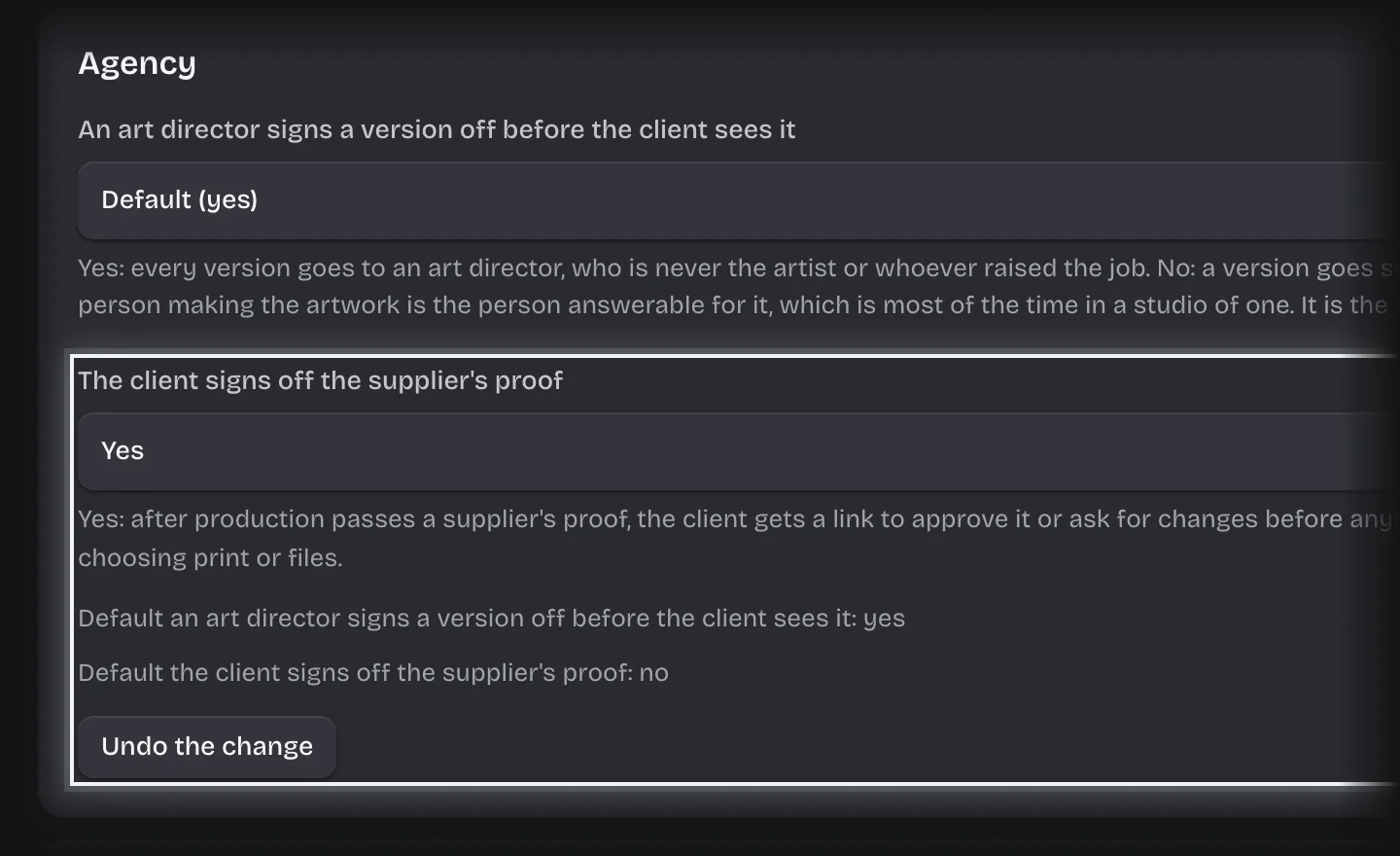
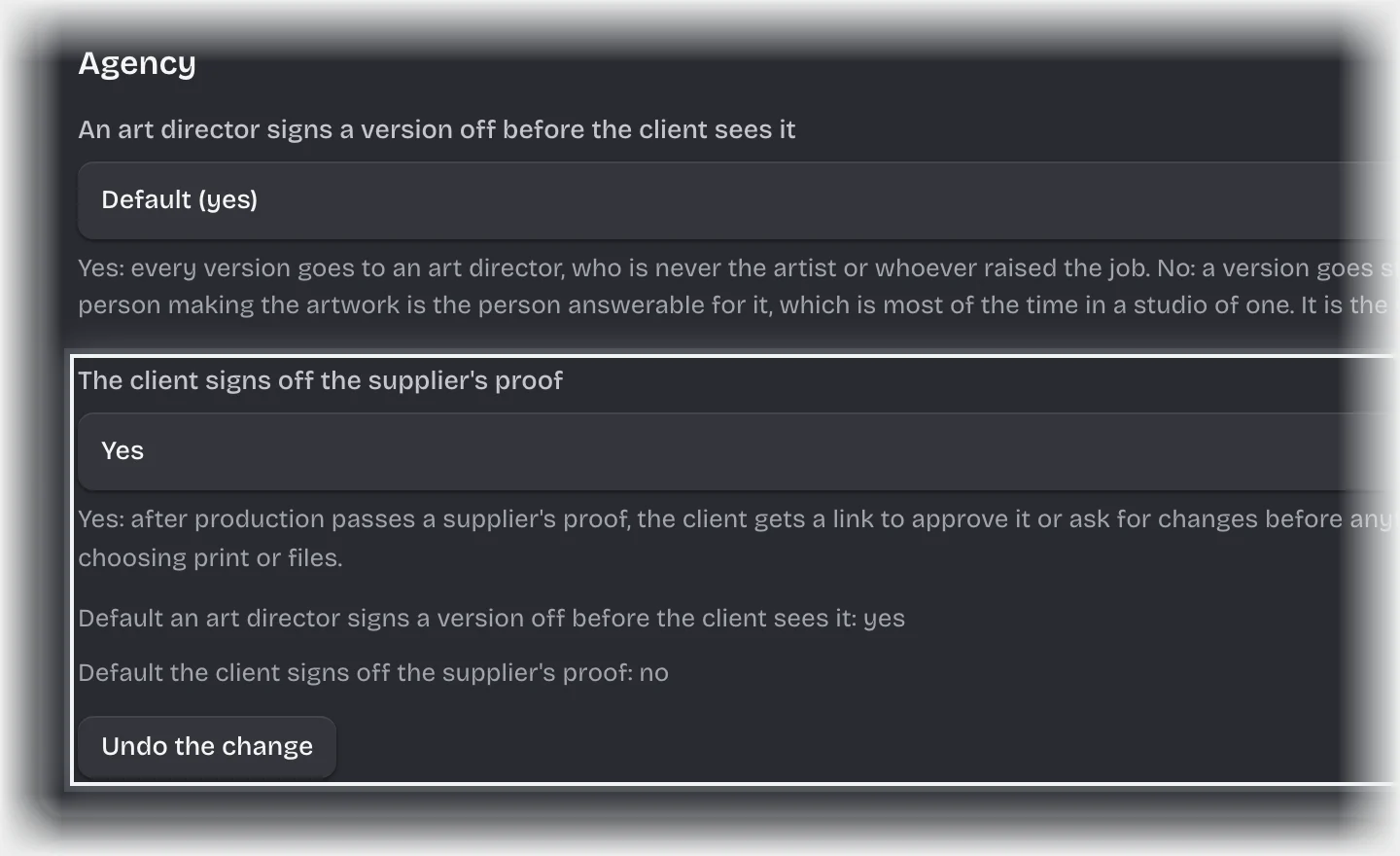
Press Undo the change to put a change back before it saves, or Use the default beside a setting to go back to the default.
Your workspace’s name and logo
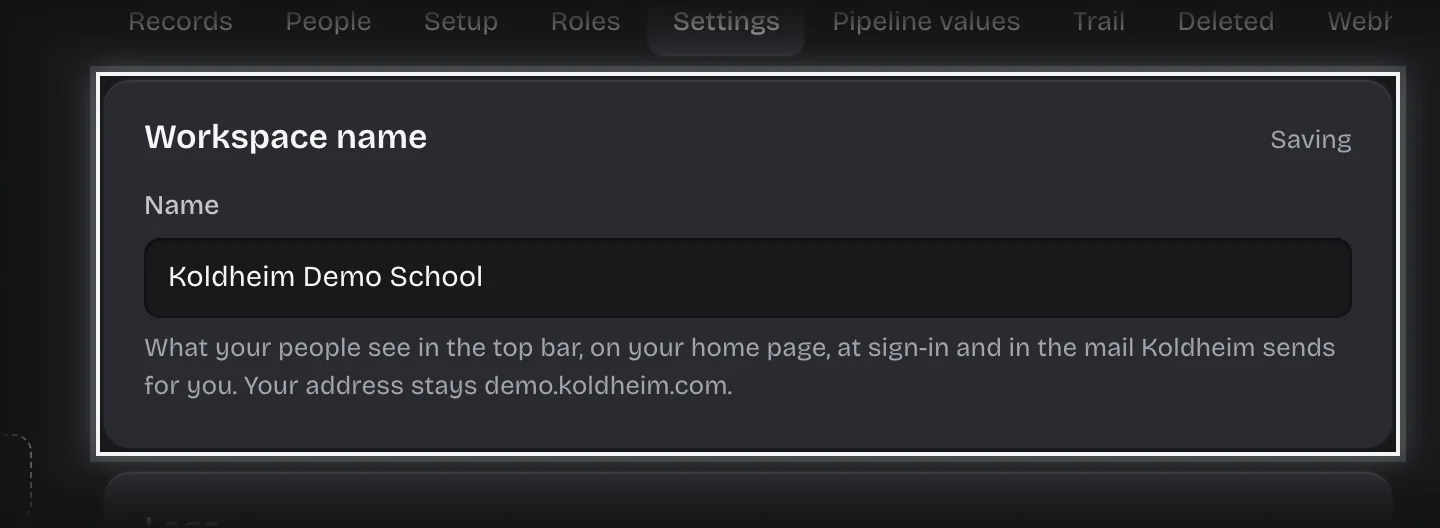
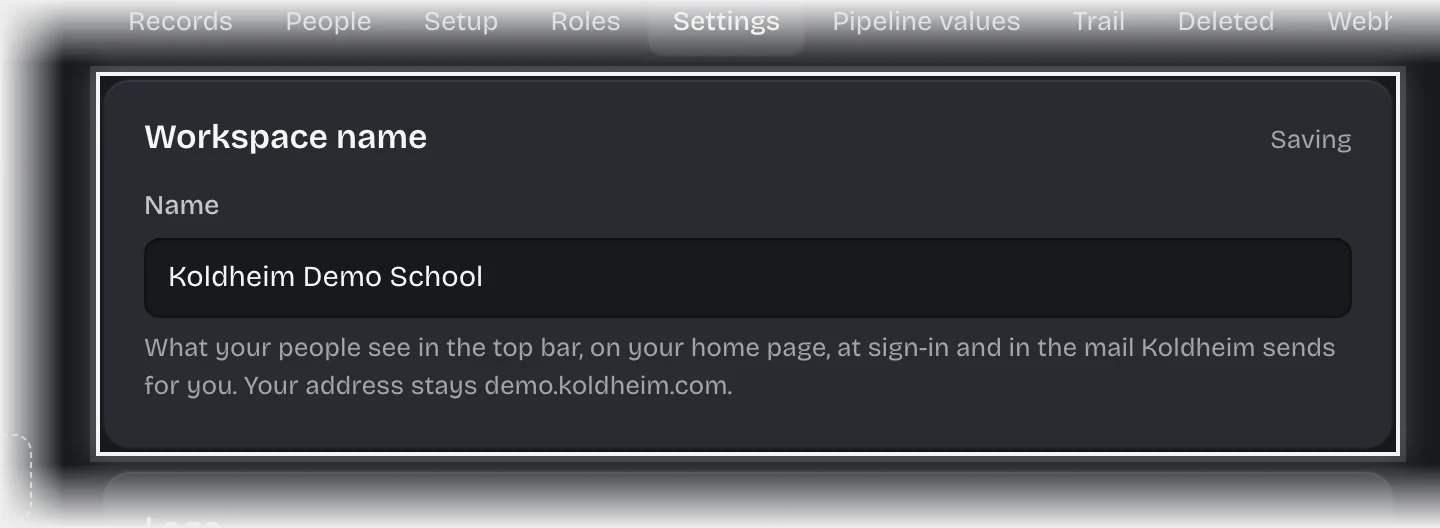
- At the top of Manage > Settings, type the name your people know you by under Workspace name. It saves by itself, like the settings, and shows in the top bar, on your home page, at sign-in and in the mail Koldheim sends for you. Your web address stays as it is.
- To show your logo in place of the initials, press Upload a logo under Logo and choose a PNG, JPEG or WebP image of up to 2 MB. A square one reads best. Use the initials again takes it off.
What you will see
- A Yours tag beside a setting you have changed, with who changed it and when.
- The change on your audit trail, with what it was before. A new name is recorded with the old one.
Common problems
- A request already under way did not change. A step reads the setting when it is reached. Steps a request has already passed keep what they read.
- A product you have is not listed. It has no workspace settings; see Change who is asked and how long they have for the settings on its steps.
- Not saved beside the panel. The change was refused, and the reason is under the panel. Correct it and it saves again.